
dude-137
-
Posts
21 -
Joined
dude-137's Achievements






-
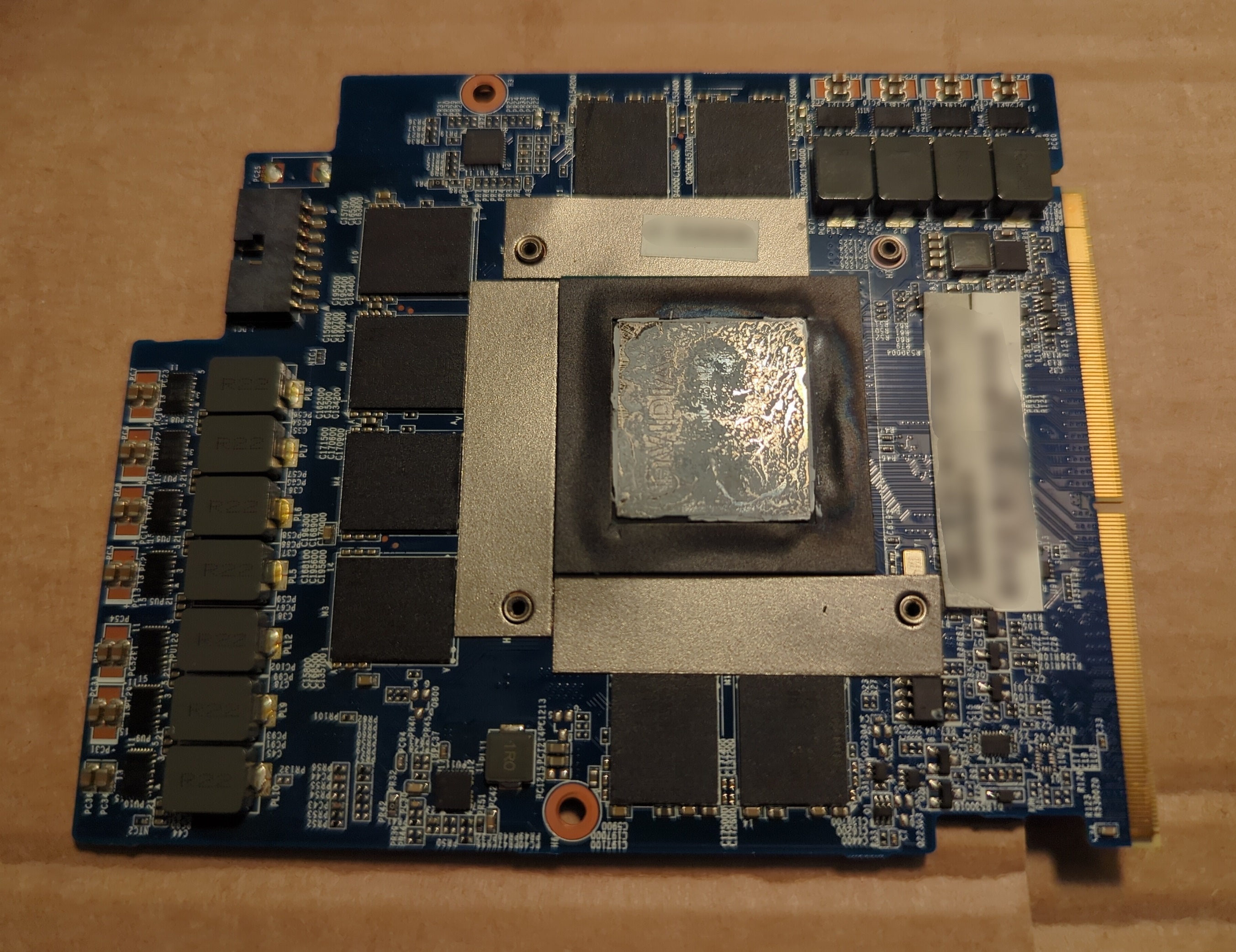
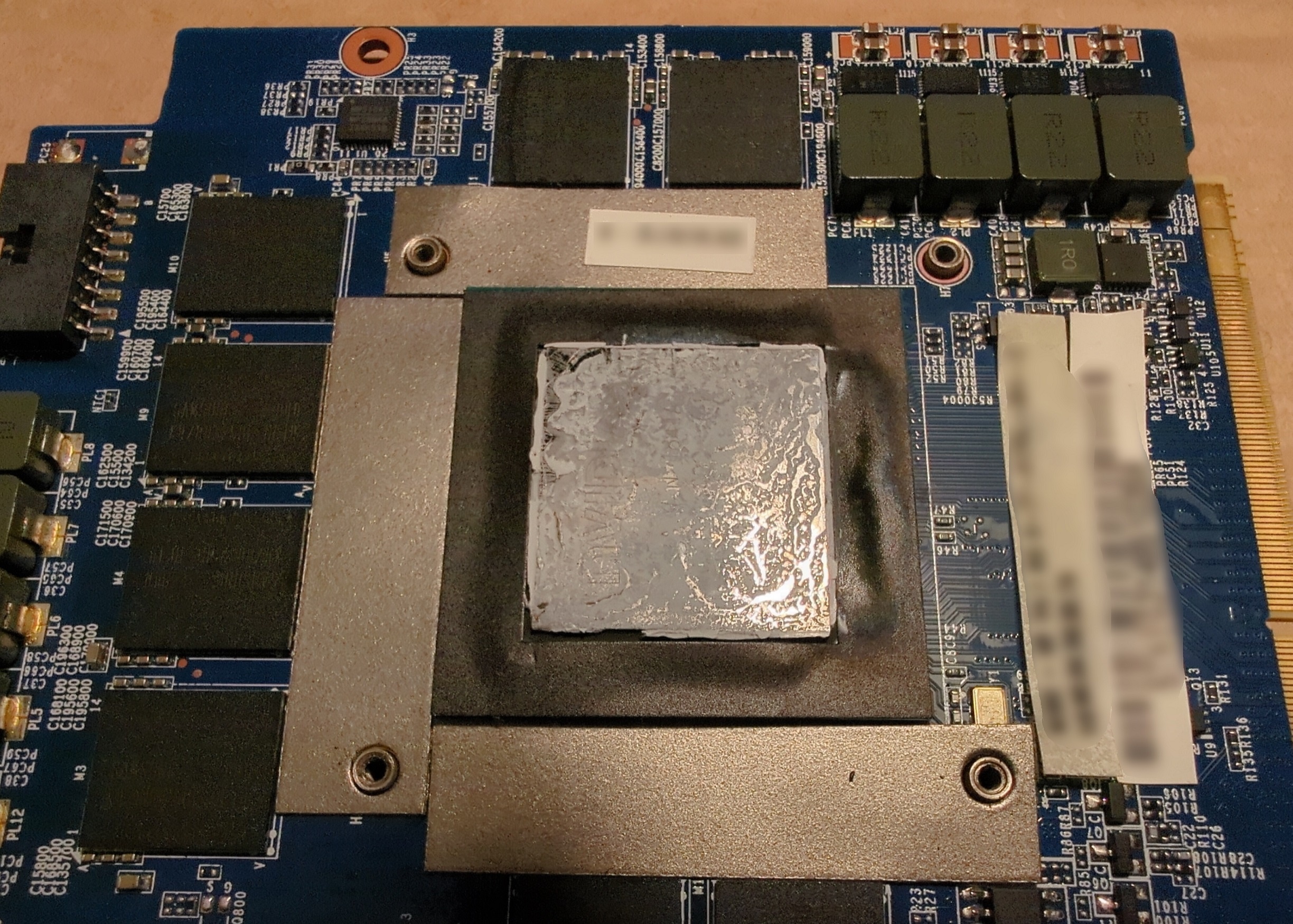
Thank you for sharing :-) Have a piece of the picture now Would it be possible to share the frequencies and undervolting your PC runs with?
-
Hi everyone! :-) I'm considering upgrading from my Clevo P751TM1-G (i9-9900K, RTX2080) to this model with i9-10900K/11900K and RTX3080. Wanna ask a few questions about this model before making final decision and starting the hunt. Does it have Fn+1 fans-blasting mode like in older desktop-notebooks? How loud it is, and how loud are the fans on average in normal mode? On Clevo P751TM1-G, i have no base and no turbo frequencies, the CPU is set to all-time frequencies at 4.2GHz on all 8 cores up to 5GHz on 1-2 cores and undervolted to -95mv. That's the highest-performance stable zero-BSOD below-90-degrees config I found. The fans and the heatsink look much more massive, assuming it is able to decently handle these top-tier CPUs at decent frequencies + RTX3080. Is the cooling system truly decent in this model? If you own this model with 10900K/11900K could you share your frequency configurations and temps? :-) Also, I've had an unpleasant situation with the PCH chip on Clevo P751TM1-G. And then, or better say now currently, it runs at 100-107 degrees (95 degrees with Fn+1). Which, ofc, keeps me nervous. Could you share your PCH chip temps? Just so that I can feel more confidence if/when I buy it. Would be very thankful for the infos! :-)
-
My setup has been as follows (during 7 years since I got the PC): ObsidianPC Unlocked BIOS, no turbo and no base, constant freqs only, 4.2GHz for all cores to 5GHz for 1-2 cores, all power limits are set to max, Undervolting -95 as stable (never causing any BSODs) CPU temps are at <=90 degrees with this config. This is the config I received from ObsidianPC and haven't had a need to change (until get a better/heavier heatsink and rise the freqs, if I manage to find one)
-
I've made a hardware mod with applying a square copper plate on the chip and thermally connecting it to the metallic frame right above it. Changes: - First 15-20mins after boot, looks better, 95 degrees instead of 103-106 without Fn+1, 82-84 instead of 95 with Fn+1. - (no Fn+1) As the time goes by, temps gradually go up and up, and at some point I reached a new maximum: 110. Holy hell. - (with Fn+1) Temps go down slower than before, but still they go down to 82-85 degrees with Fn+1. - What the hell: I think, the metallic frame above PCH / under KB is just really bad at temperature dissipation. I understood this by removing KB and touching different areas on it while having the PC running. At some point, the area under PCH reaches its heat limit that can no longer be effectively transported with this bad temperature dissipation, and so temps just go up and up. Now my HW-level idea and plan is to lead the heat out of that area directly to the fans, the most realistic and light-weight idea is to do it using naked copper wires @ 0.5-1mm thickness, routing them from the PCH / square copper plate and the frame area above - to the left to the CPU fan, and to the right to the GPU fan - having them attached to the frame and thus also sharing some heat with it and its distant areas that are currently "unreachable" for the heat. Attaching the wires to the inner side of the frame first of all, and maybe also adding on the upper side. Good idea, or mehh? xD If anyone has any ideas, tips, advises, I would be grateful. :-)
-
Yeah that's the thing I think too, this looks too bad I've never overvolted anything, I only undervolted the 9900K to the stable -95,and that's it. Btw, maybe there's smth I could check also in the BIOS? I have Obsidian Unlocked BIOS, where/what should I look for if anything?
-
@Scruffy, It has already been replaced in a repair shop. Fortunately, the nightmare is over. But for how long - remains the question. I don't want a repetition of this shit. And this is why the above challenge is now a matter of a very high priority for me.
-
I haven't found any reliable information on this, despite multiple attempts. My PC is Clevo P751TM1-G with 9900K and RTX-2080. What is its 15.6"-size successor? The (hypothetical?) Clevo model I'm hunting has: - either 10-11th-gen Intel CPU (10900K, 11900K), or basically any 10+ gen with its iGPU completely disabled and out of the pipeline - RTX 3070 or 3080 (no 40-series or newer, the 30-series has to be my toppest top because Windows 7 drivers are up to 30-series and are unavailable for 40+, correct me if I'm wrong) - The Clevo spirit: the more components are replaceable / not soldered - the better - at least 2 M.2 disk slots (P751TM1-G has 2x M.2 and 2x SATA, but I'm not using the SATA ports and could sacrifice them) This ideally matches X170KM-G, but it's a 17.3" giant, not a 15.6"-size successor of P751TM1-G
-
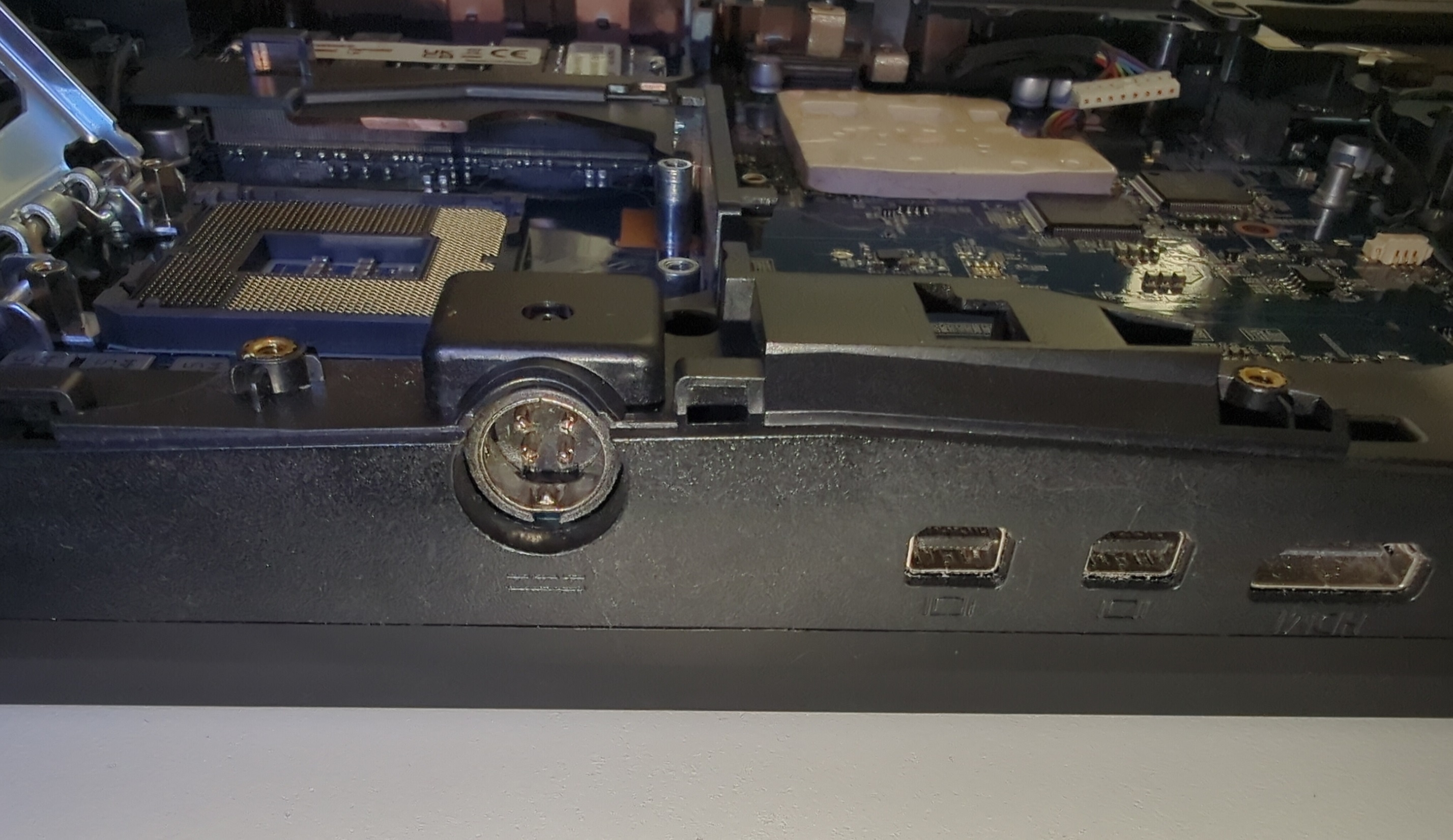
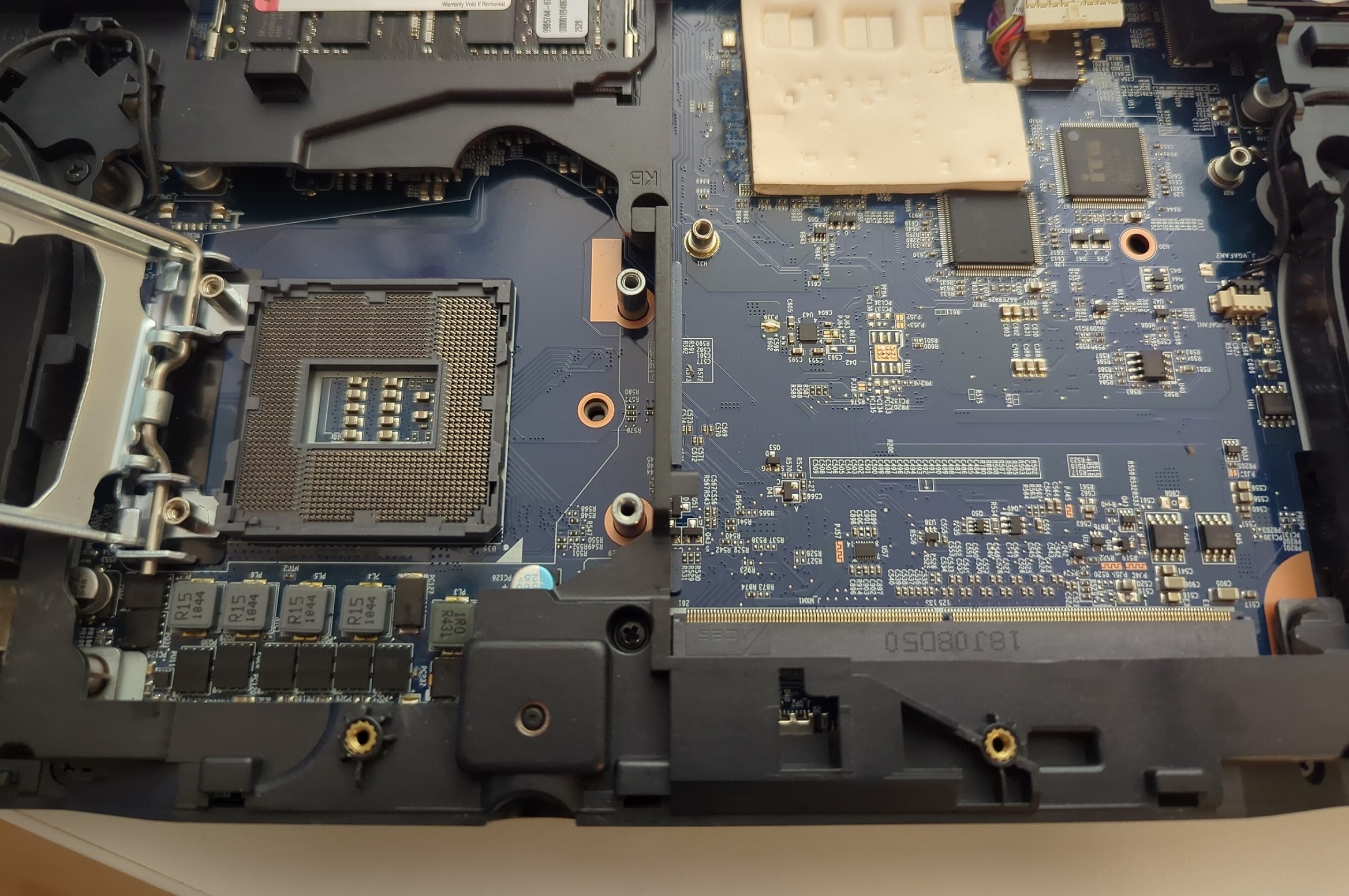
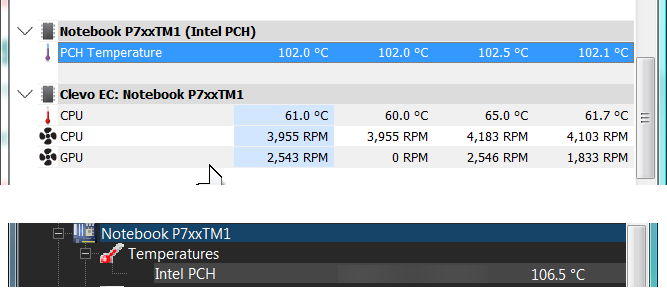
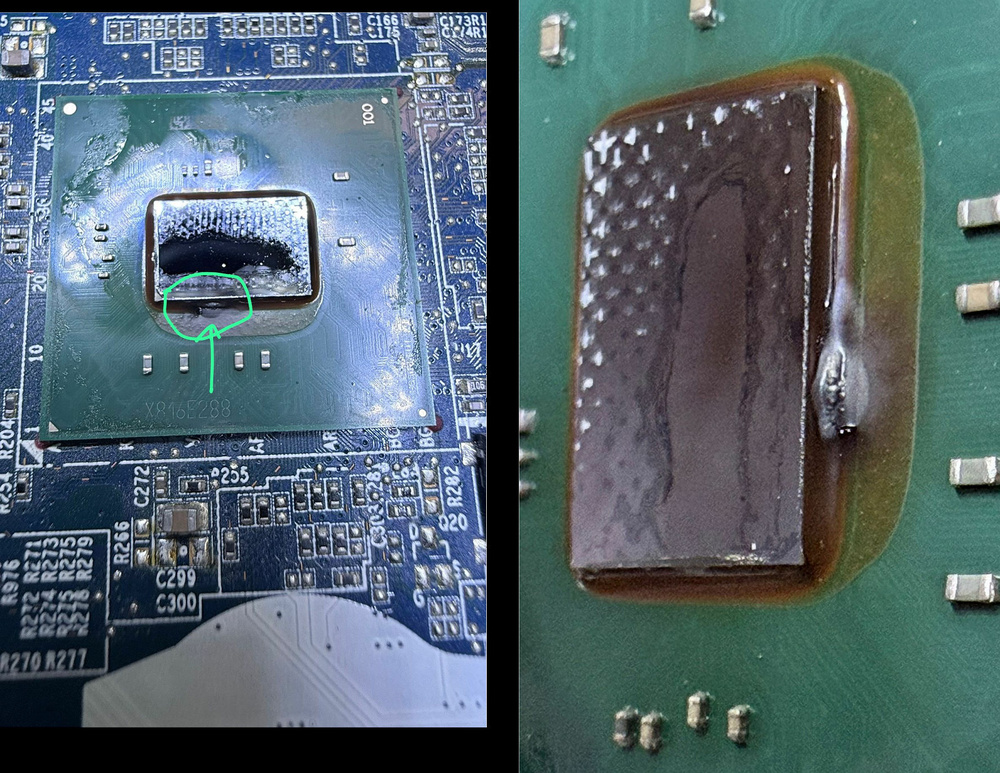
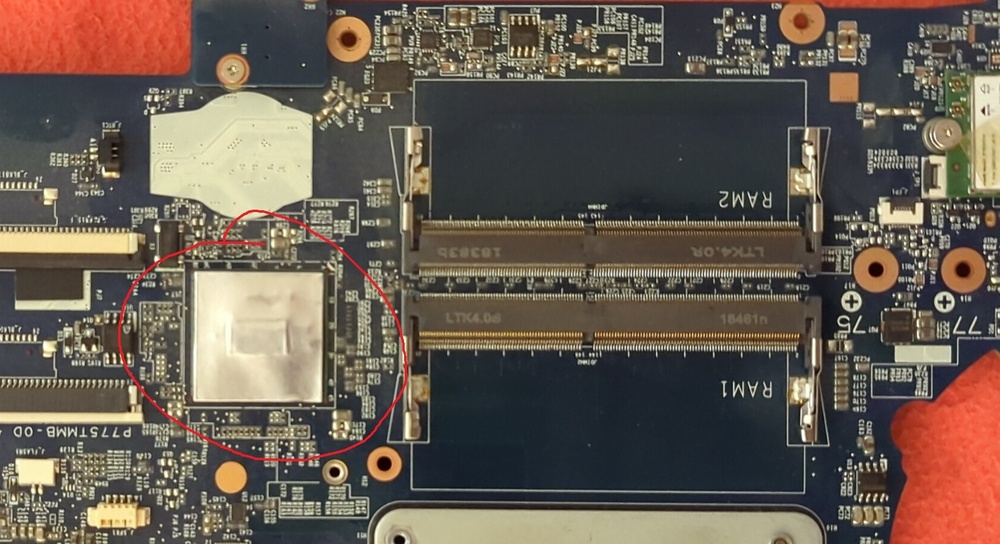
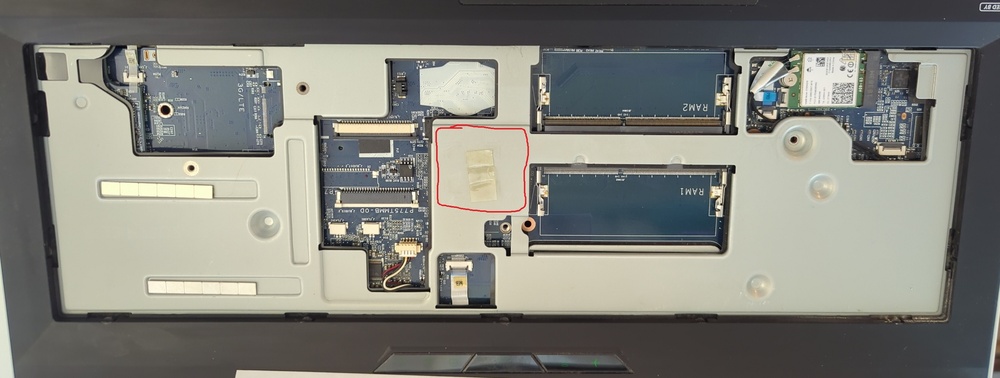
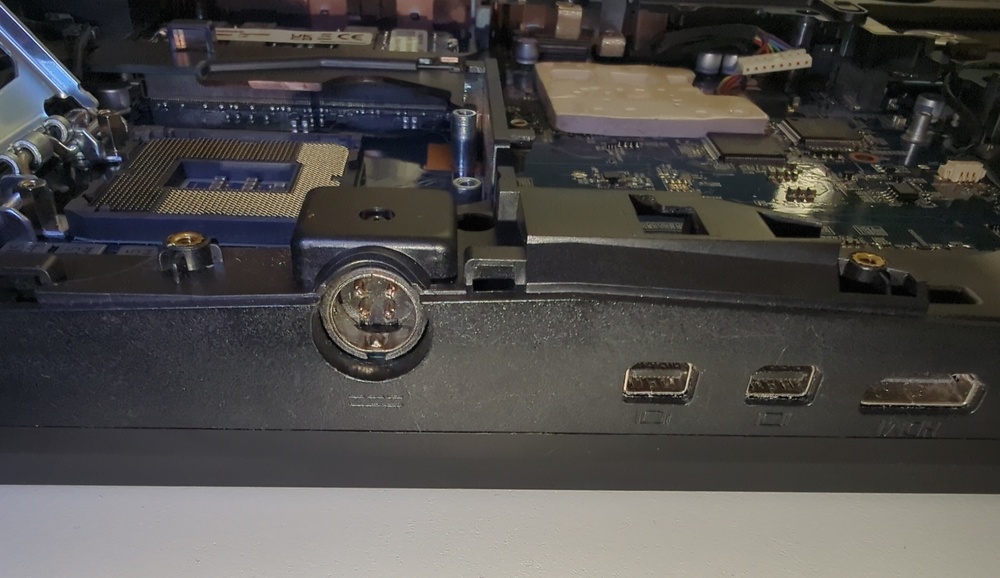
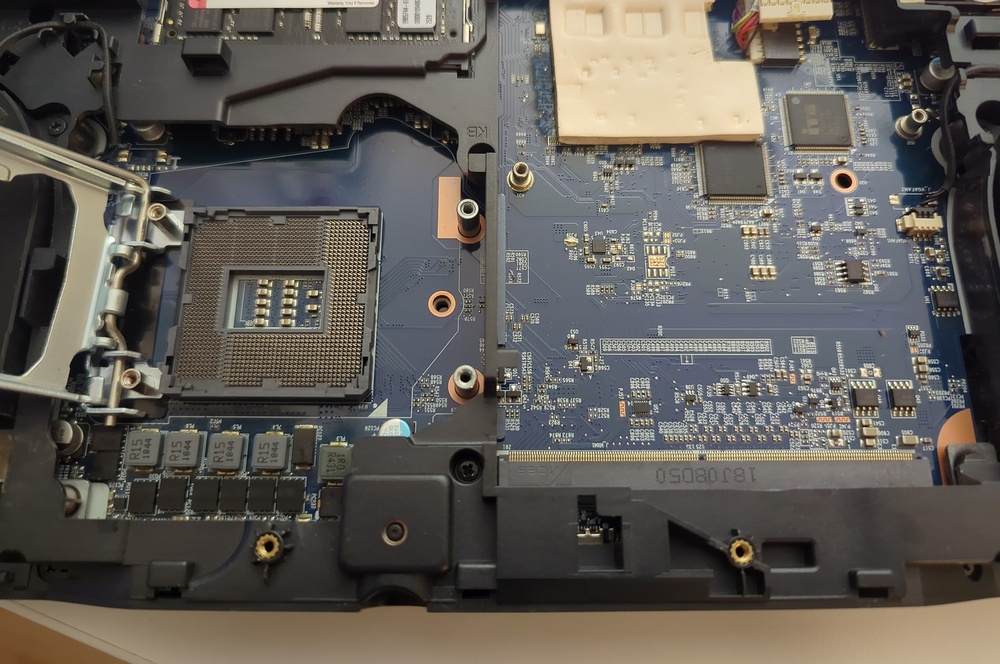
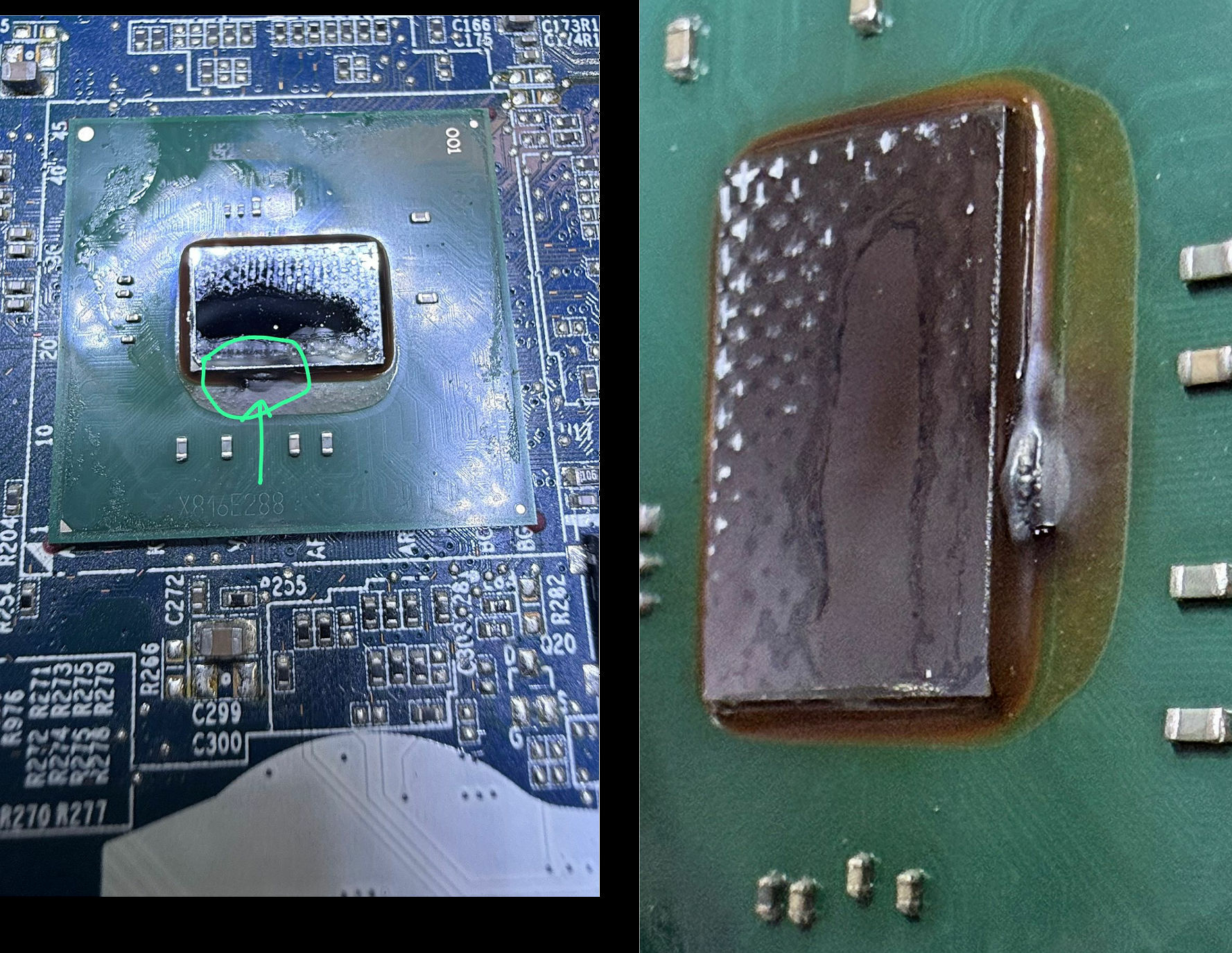
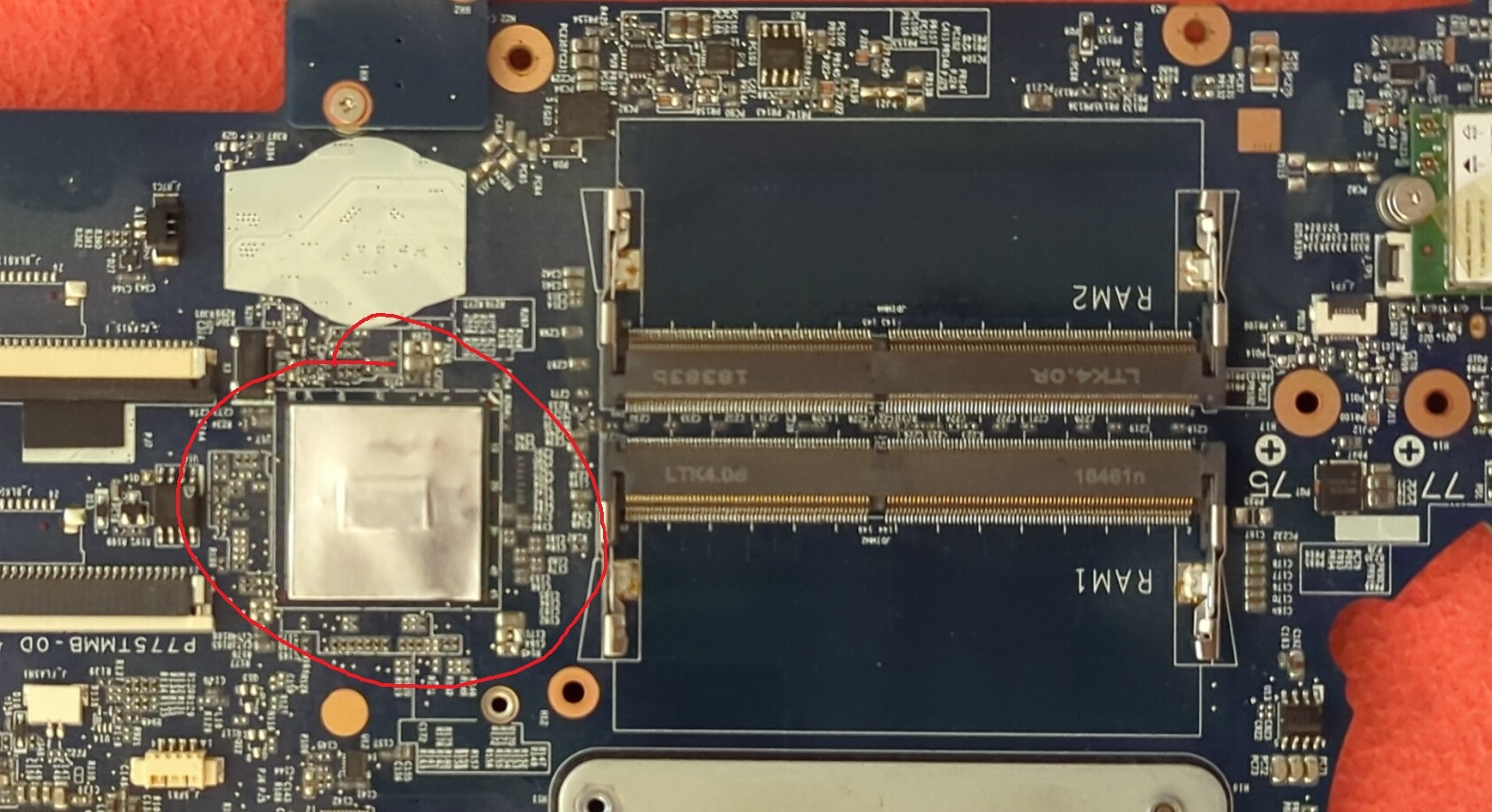
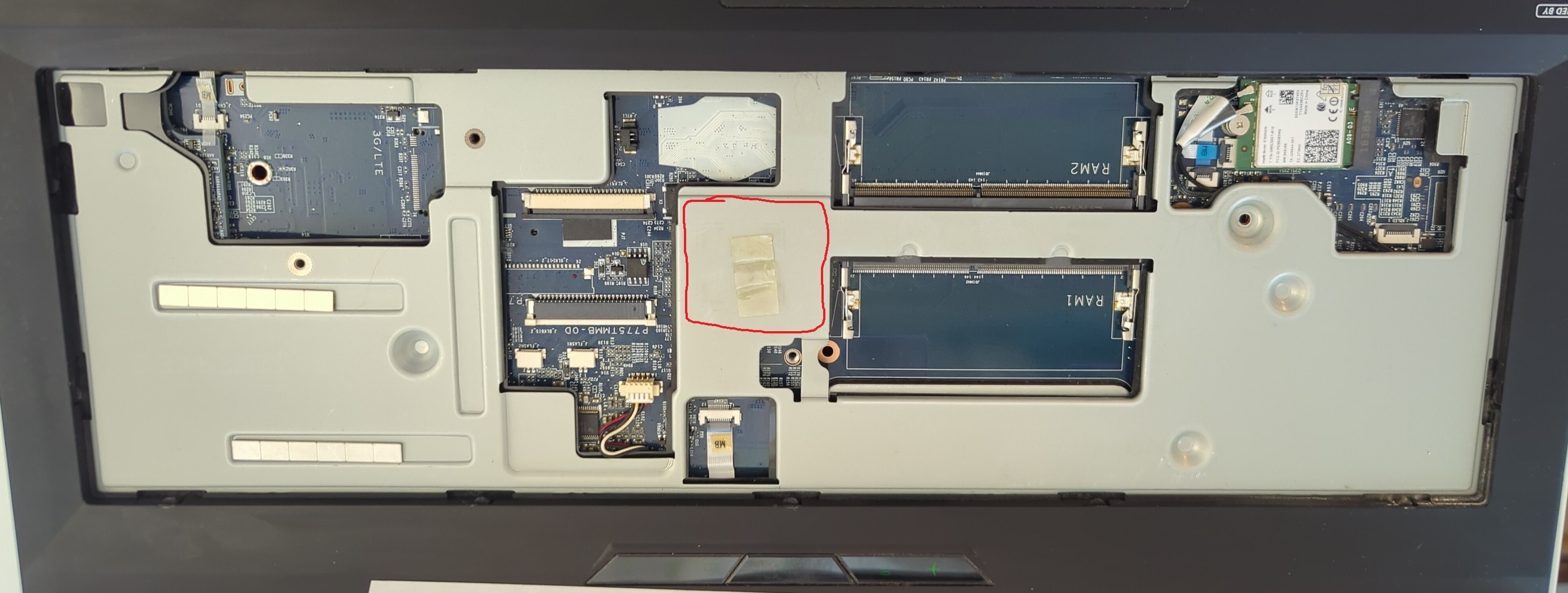
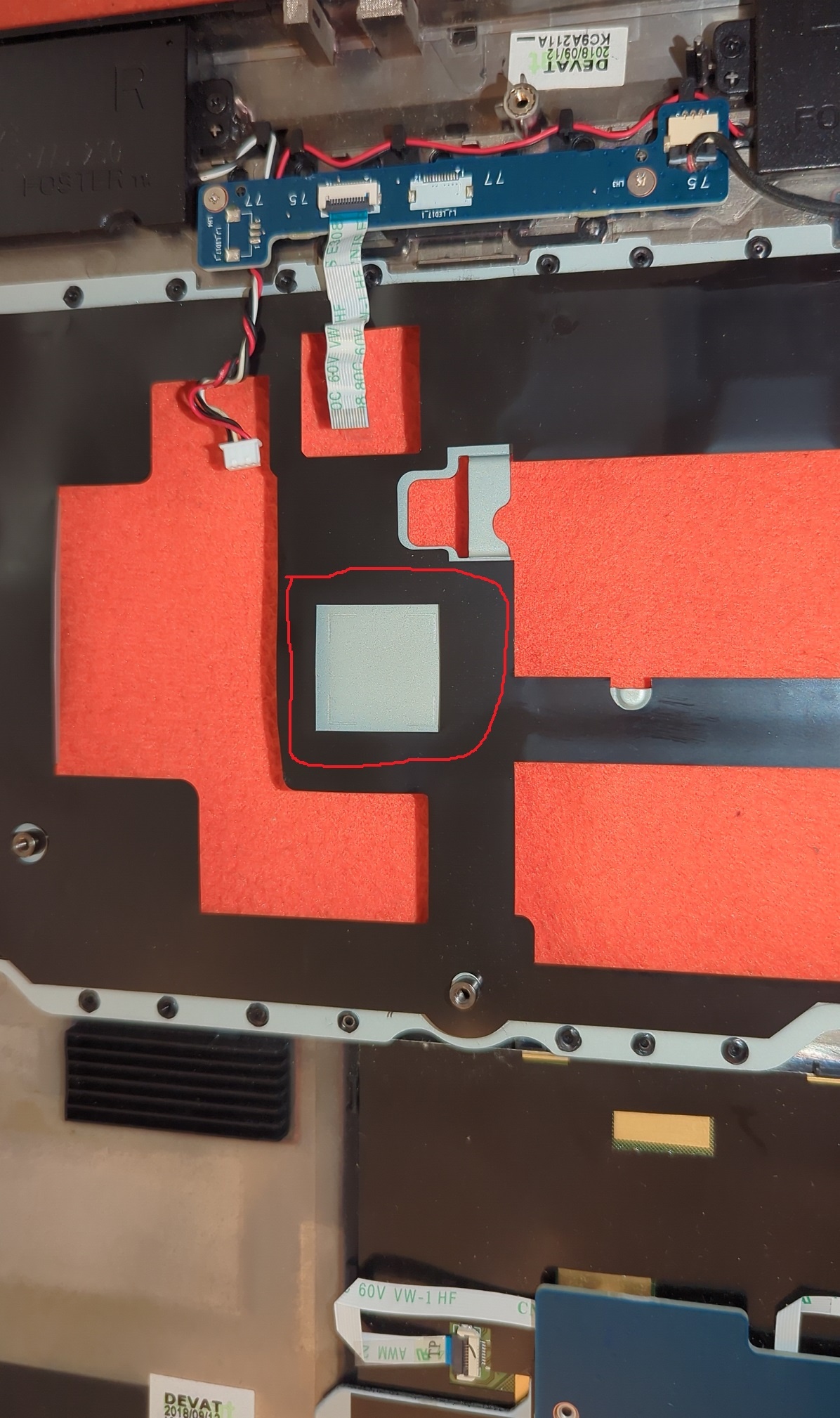
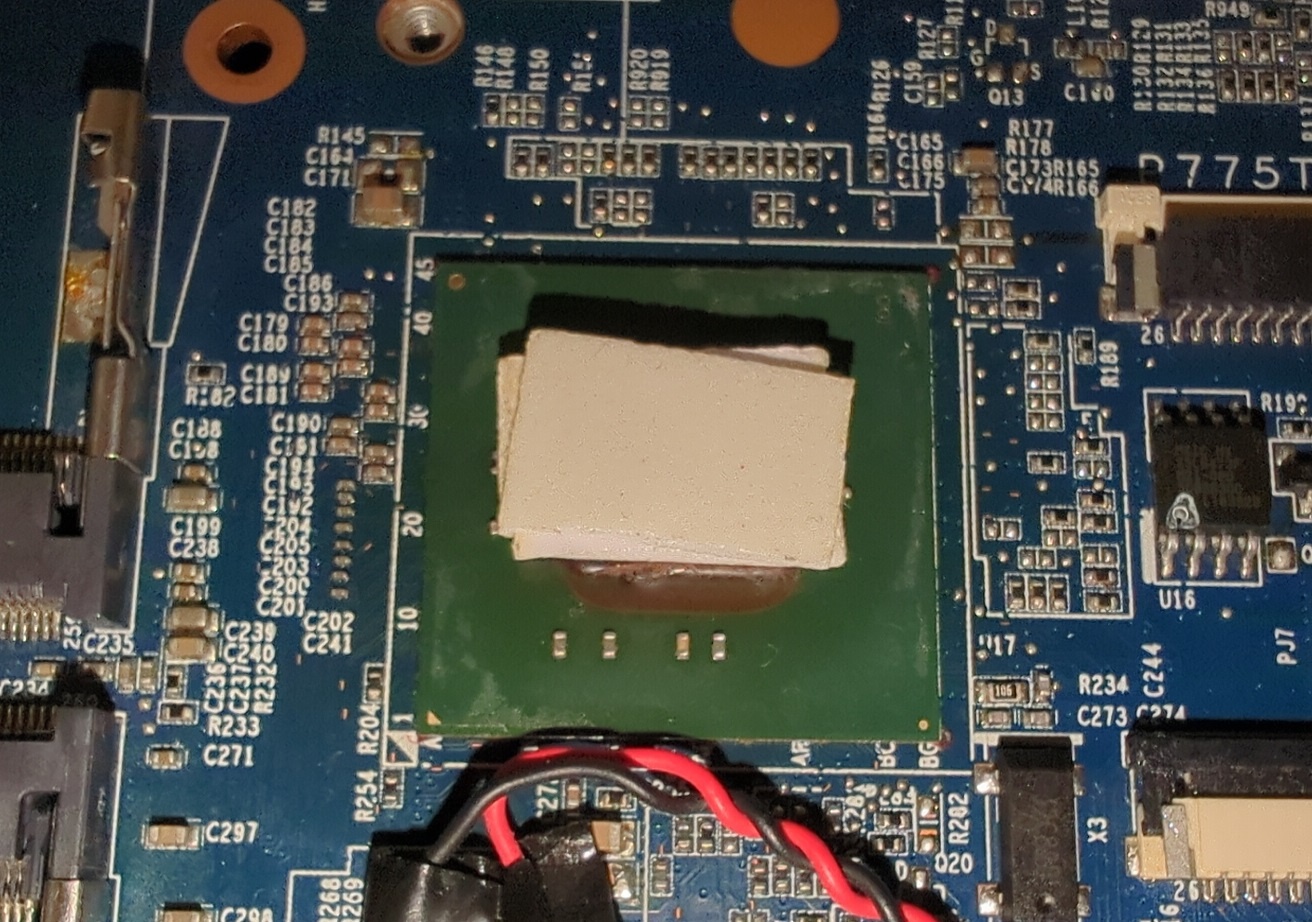
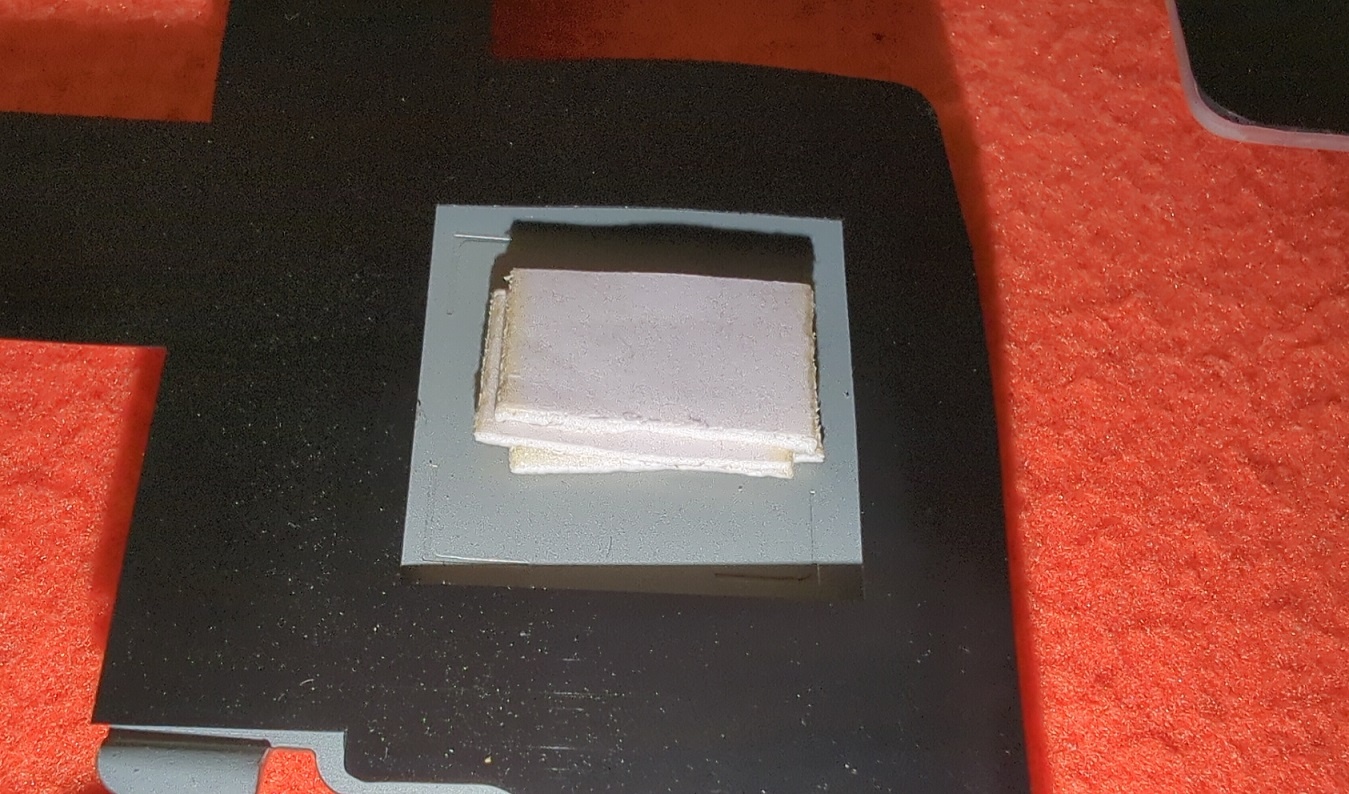
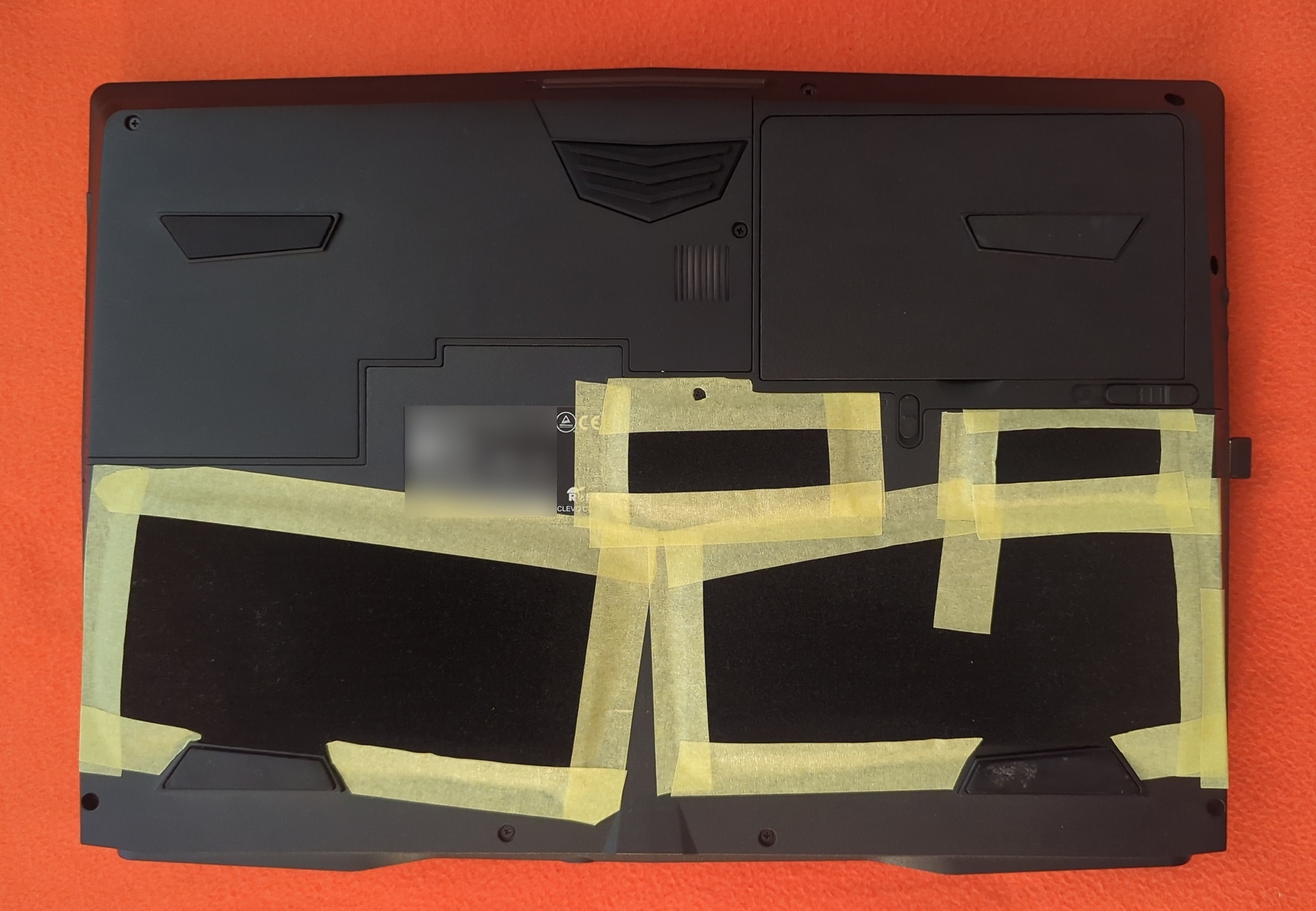
A while has passed, more research and observation was made. Out of the blue, I noticed something I've never been paying attention before. The PCH temperature field in my HW monitoring program. And I made a bad conclusion: the PCH continuously runs at 102-103°, sometimes reaching 106+°! All the time! (see image 1). This effectively renders it as the hottest-running component on the entire MB! I also noticed that doing Fn+1 gradually lowers PCH temps to 90-95° and then they sit in this range. But then what, need to be in Fn+1 mode all the time? For the temps that are not extreme but are still very high? Combined with the fact that the component that bricked my PC was PCH (see image 2 where two images are combined), I made the following assumptions: No proper thermal handling of PCH in all laptops, which might be one of the main reasons why laptops' MBs die. - In all laptops, no proper cooling of PCH is bad but is taken by laptop manufacturers as normal-by-design. Sadly, Clevo is among the bad guys that haven't done anything in this direction. - For proper thermal handling, the placement of PCH should have been on the other side of MB where airflow actually exists, not under the keyboard (see images 2, 3, 4). - Or even better, it could have been moved to under-the-heatsink location, so that the heatsink was actively cooling it, and the owner could apply thermal paste not only to CPU and GPU but also to PCH. - My PC got bricked because of 7 years of continuous use with this design flaw and with PCH always running as hot as 100-107°, which caused the chip to fail permanently one day. Custom PCH thermal handling solution/mod is really needed, especially in powerhouses like P751/P775/P870, in order to make them live much longer. Look at how the situation is out of the box, on images 2, 3, 4. Unfortunately I have no idea about how to measure the distance between the PCH's metallic cover layer and the barebone's metallic frame below the keyboard. And this is important to know to proceed. Generally, I have several ideas that come into mind are: 1. Putting a good silicon thermal pad of the right thickness right on the PCH's metallic cover layer, so that it aso touches the barebone's metallic frame, thus thermally connecting PCH to it and helping to keep it cooler by using the barebone as one big heatsink. 2. Finding some thin copper heat-dissipator-style heatsink that can be applied on PCH in CPU-style (with thermal paste like MX4) and would fit between the PCH and the barebone's frame, and bending its copper "arm"/heatpipe in a way that it touches the metallic frame, thus again "leaking" the heat to the barebone's frame. Honestly, I don't think such thin solo CPU-style heatsinks exist. UPD: no, this is a stupid and unfeasible idea. 3. <..?..> Are my assumptions correct? Are there any other ideas for thermally connecting PCH to the metallic frame under the keyboard? PS: To roughly estimate the distance from PCH to the frame, i stuck 3 1mm pieces of double-sided tape together, put them on the PCH, and put the top laptop cover with KB-bay back, to finally get this stacked tape block stuck to the metallic frame, which means that the distance (and the needed thermal pad thickness for the idea №1 above) is 2.5mm < x <= 3mm. See images 5, 6. As I know, such a thick thermal pad of 3mm thickness won't make it any better, so the idea №1 above needs to be modified or discarded (am i right?).
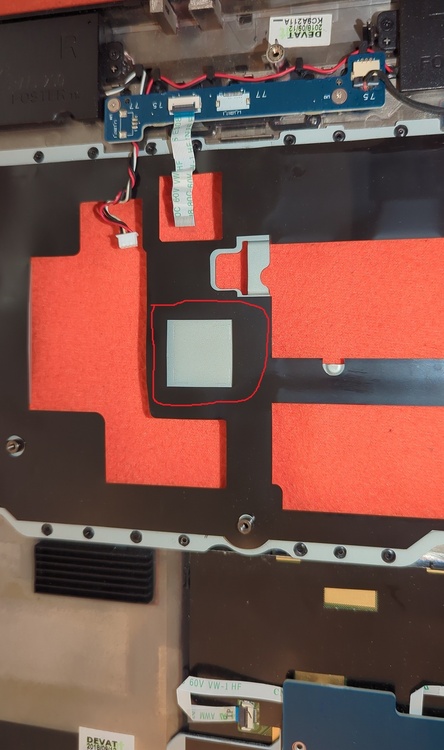
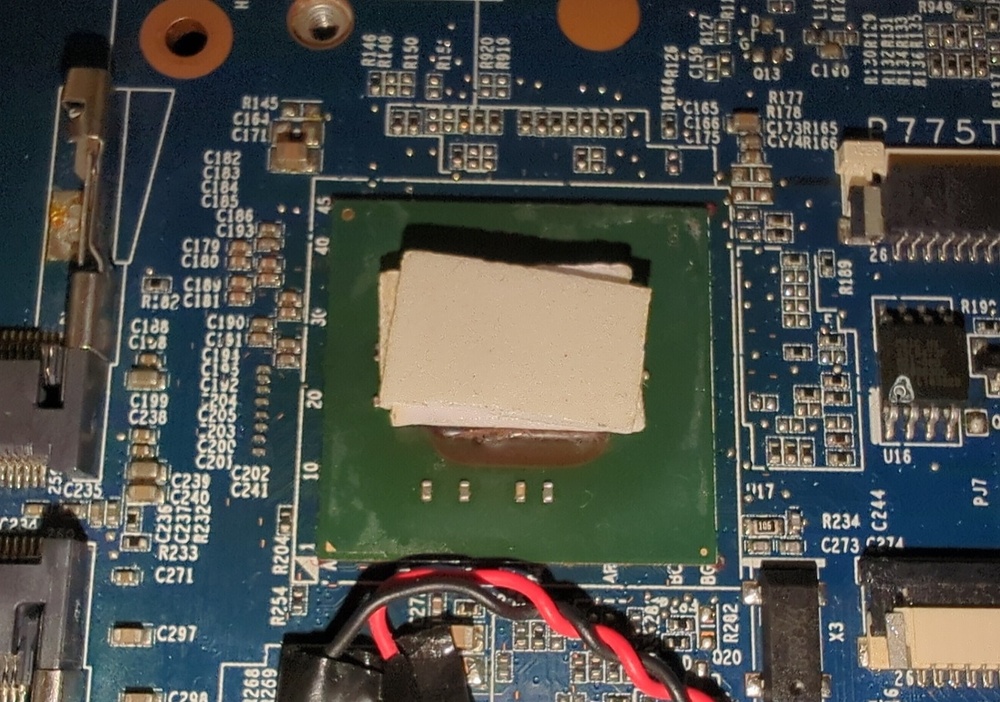
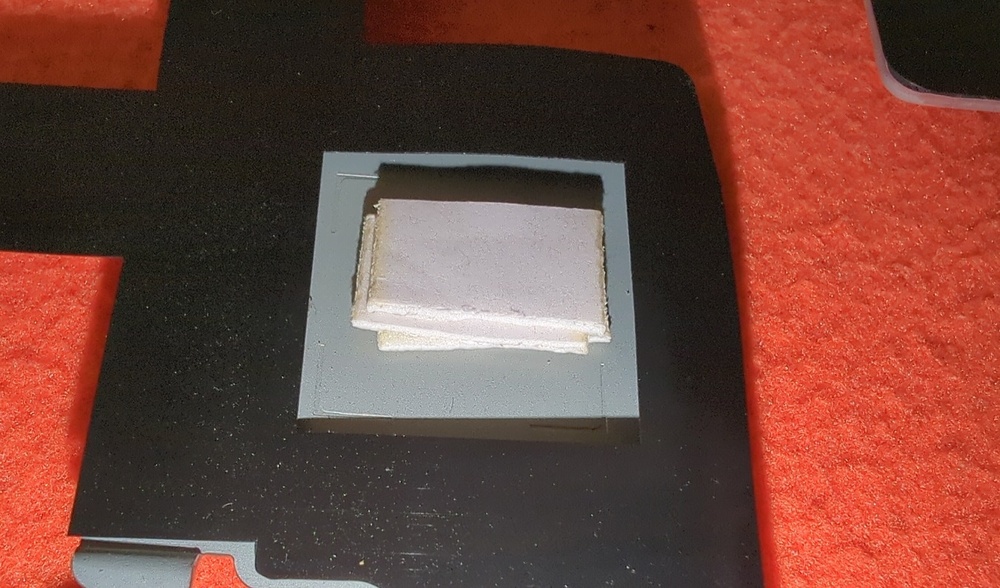
-
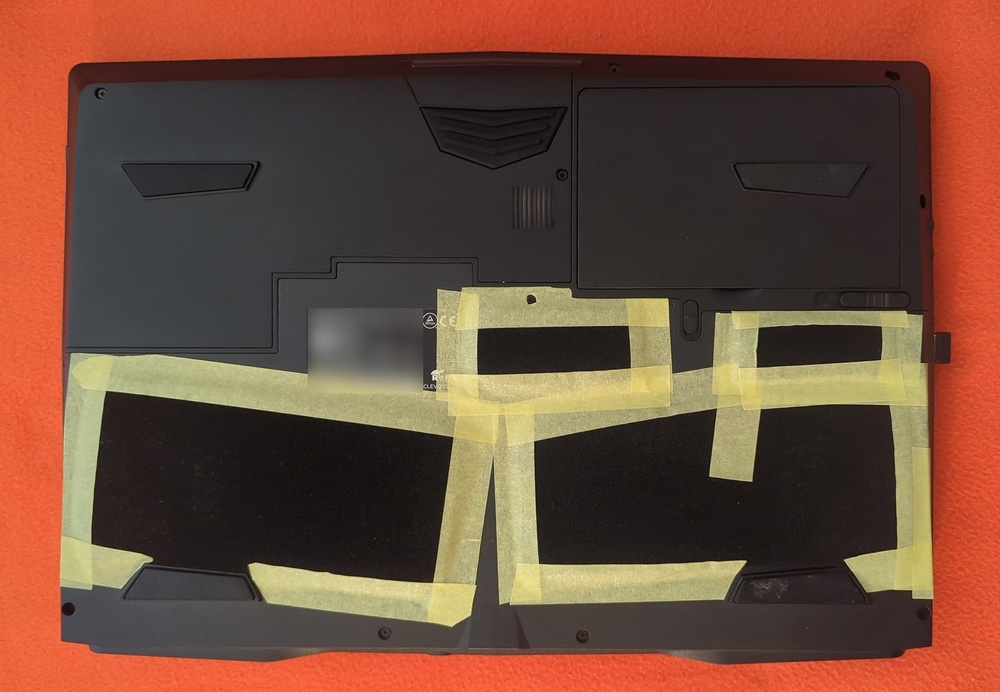
What do you think about this, are there any potential negative sides? So far I see only the positive ones: - Significant simplification of dust cleaning - Significant reduction or almost complete removal of dust reaching and sticking to the fans (only some amount of the smallest particles make it through) - No need for any physical interaction with the fans and their surroundings - The fans keep being "young" for much longer - Thus, the default cooling efficiency stays the same much longer and doesn't degrade over the time
-
Has anyone done this?
-
Done! According to the repair shop diagnostics, the faulty component that needs to be replaced is the Platform Controller Hub (PCH) chip. Any idea what this chip is? What is it responsible for, how could it permanently fail? Yeah, should consider getting one in the future. 😊
-
@zex4, @JadeRover I've removed absolutely all components except the motherboard and tested, no reaction on the plugged charger. I have then completely disassembled the laptop, to investigate the MB in more detail. I noticed a couple of differently coloured spots. Dunno, either it's normal, or it's unnormal, or it's simply caused by the white marshmallow-like cooling pads being stuck to those areas. I've attached the pictures (1: the spot near the power plug, 2: what's on the other side, 3: the other spot, 4, what's on the other side [some unknown chip]). The charger is out of the question, I have both 330W and 230W, and also my friend has an older-gen Clevo. Chargers are alright. I don't have a spare GPU, there's been no need, but anyway, as I removed all components leaving the MB alone, and it still doesn't react to power in any way, GPU is kinda out of the question i guess I don't have a multimeter unfortunately, and nearly zero practical experience in diagnosing micro-electronics
-thespot.thumb.jpg.0c885bbd557ecb419e86ffa32dc988c2.jpg)
-whatsontheotherside.thumb.jpg.72f512792aa673d4806a5637fb9047c8.jpg)
-thespot.thumb.jpg.c3bd2cf64558a1cf8fec0ff3b9cbf90e.jpg)
-whatsontheotherside.thumb.jpg.22ae4123f75108b60705d6bd7d9eaa34.jpg)
-
Just happened out of the blue. Ironically enough, I just created the "Improving Cooling / Fans Upgrade In Clevo" thread, and 10 hours later my Clevo P751TM1-G suddenly dies. What happened: So I was watching YouTube, then the laptop suddenly turned off. This was accompanied my some very quiet sound of, well I don't know how to describe it plus everything happened too quickly, maybe a click, maybe something else, I don't know, but there was some quiet short strange sound I'm quite sure. Then I tried to turn it on, I think the power LED blinked orange, maybe 1 time, maybe 2, I don't know. And then, the entire system stopped reacting to anything in any way. Pressing power button - nothing happens. Power adapter is plugged - no LED light, no anything. It pretty much seems just dead. I've currently removed the heatsink, CPU and GPU. I think, there was a burnt smell a bit to the left from the center, where the power port and CPU are, but the smell was weak, could feel it only when holding my nose a few cm away. Or maybe this is the standard smell of heated electronics? And, the only strange visual thing I've noticed is the strange gradient of that black thing surrounding the main GPU chip. You can see it on the attached images. Does this look bad, or is it normal? In any case, I tried to plug the charger with these parts removed and see if the orange power LED is back, and it's not. I guess in order to reach the power block i need to continue the disassembly, but for now I'll just wait for some replies. I'm ready to disassemble further and take images of various parts upon request. What could this be? Can it be repaired or replaced? What/where should I check? I would be thankful for any tips or help. I really hope the solution can be found. If it's the end, it will be a huge loss, and a fullstop of doing all tasks, processes, duties, work, and pretty much everything, until a new barebone+motherboard is found-ordered-received.
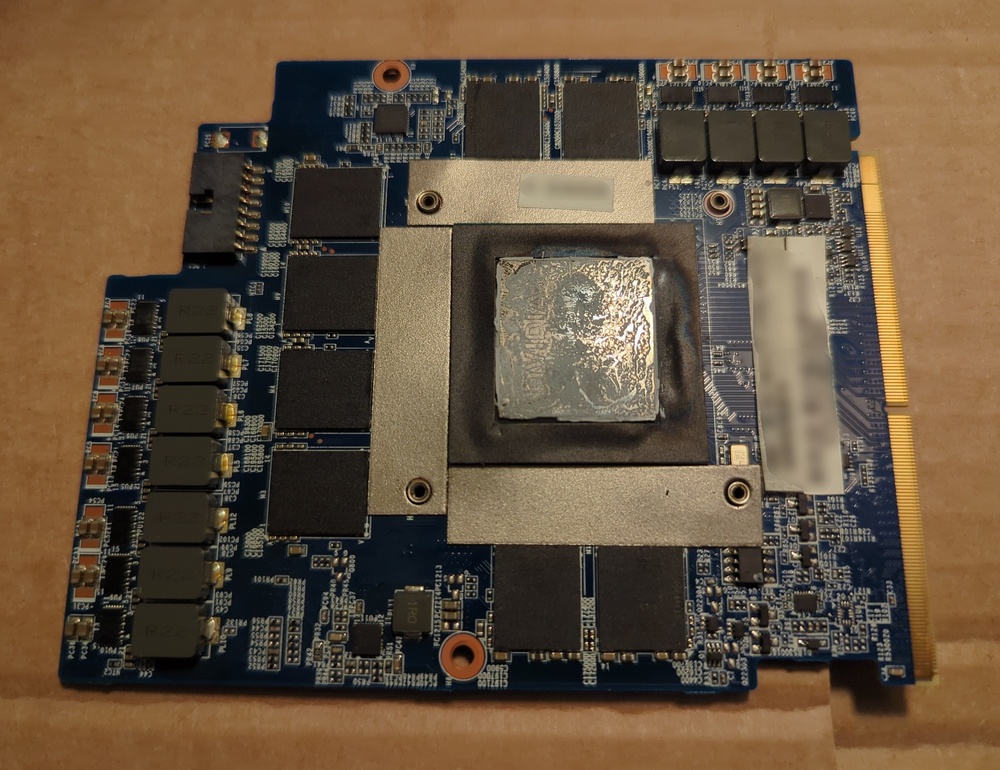
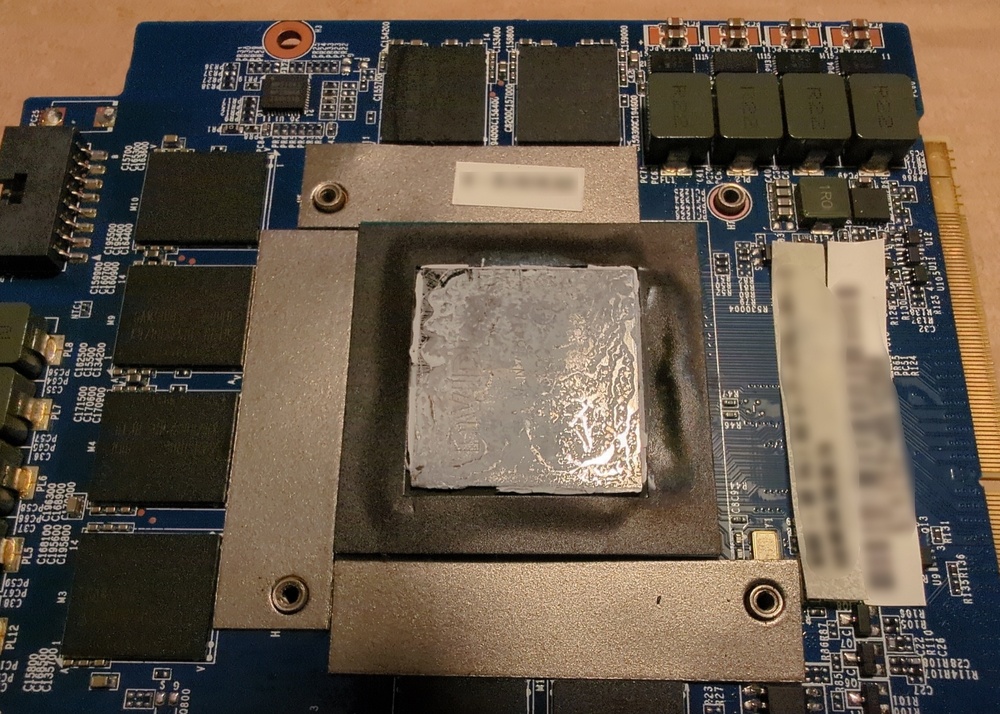
-
I'm looking for the ways to improve cooling on my Clevo P751TM1-G having i9-9900K + RTX 2080. But the thread is useful for P75xTMx(-G)/P75xDMx(-G)/P775TMx(-G)/P870DM(-G)/X170KM-G/etc too, as the fans are physically the same in all of them. The CPU in my Clevo is undervolted and configured to have the all-core frequency of 4.2GHz (sometimes having to set it to 4.1GHz). Higher than that makes it run too hot. Given that the CPU's default all-core frequency is 4.7GHz and can be overclocked all the way up to 5GHz, there's certainly a huge theoretical performance improvement potential. Would be grateful for any recommendations / tips! :-) In particular, I'm curious about the potential fans upgrade. The default fans both on the CPU-side (Left) & GPU-side (Right) in P751TM1-G are: ADDA, 6-31-P7753-100, 180925, 00DM3, DC 12V, 0.5A, 17 leaves I'm quite sure there should be various different models of fans that are swap-in-compatible with the Clevo's default fans. Has anyone upgraded their fans to more powerful ones? If yes, could you share the model names? Here's how I would prioritize power vs. noise: 1. Ideal case - a model that is both more powerful/better-cooling and quieter :-) 2. A more powerful and better-cooling model, without caring about its noise. 3. A model that is the same as the Clevo's default fans in performance, but quieter. PS: Fans is the most obvious upgrade idea that comes in mind, but are there any other possible cooling-hardware update options or other ideas?

-thespot.jpg.6e08c1e1e9402e7f37ea07d25f37de29.jpg)
-whatsontheotherside.jpg.2baaac8faef783c157dff0a59e4a9fc9.jpg)
-thespot.jpg.afbc21483ff28a079d4c885adcc65cd3.jpg)
-whatsontheotherside.jpg.c7dc95b29e987f9de945a2f6256f4c24.jpg)