
amirhesamsadeghpour
-
Posts
41 -
Joined
-
Last visited
Content Type
Profiles
Forums
Events
Everything posted by amirhesamsadeghpour
-
 By default the frequency is 2400. My RAM is 2666 MHz and it is stable up to 2933, which is why I didn’t push it higher. Send me a screenshot from the Memory tab in CPU-Z so I can check your RAM situation and guide you.
 -
What exactly is your issue with the 5080? Maybe we can make some changes using RU.
-
1.7.3 nice 👌
-
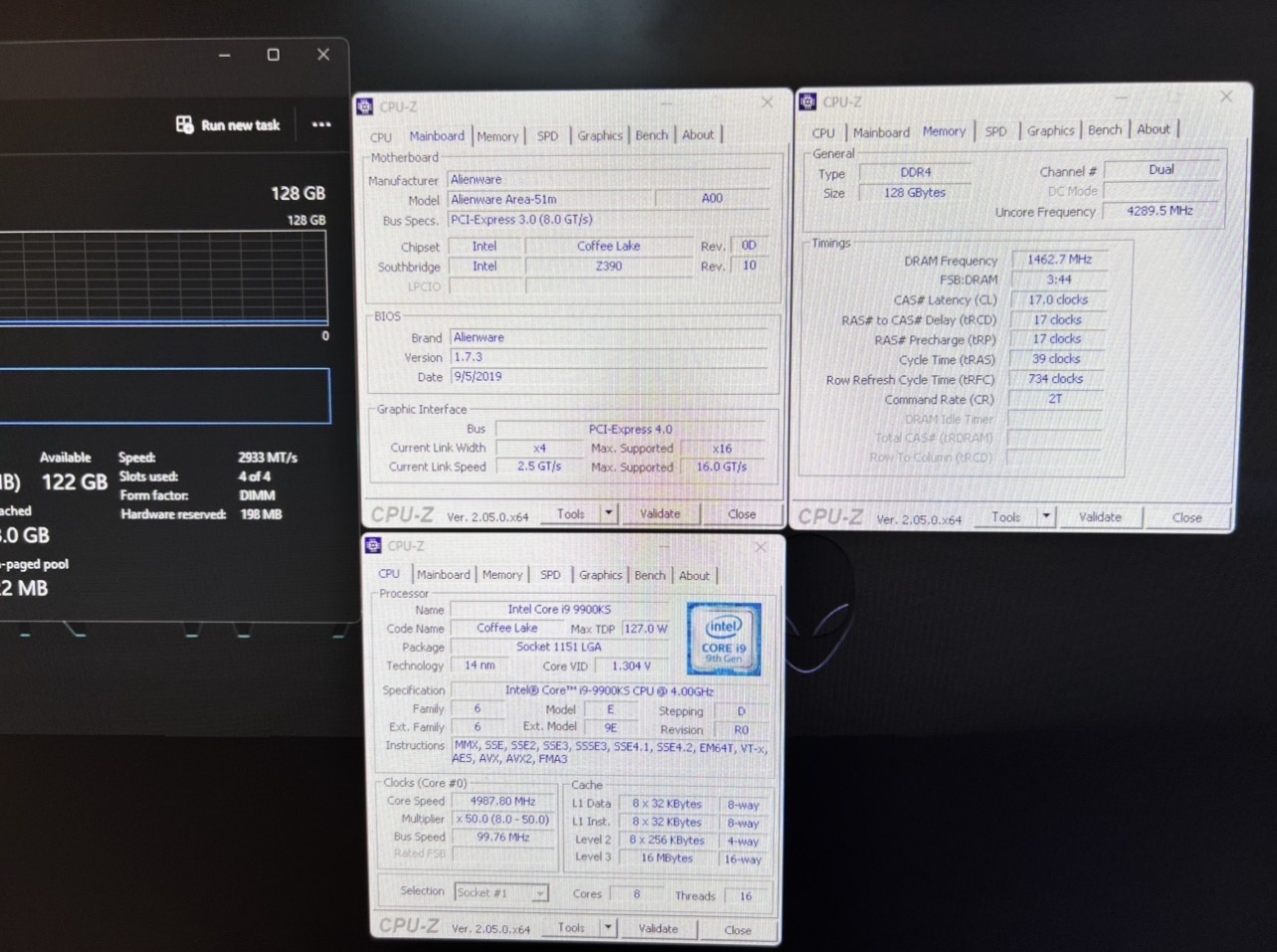
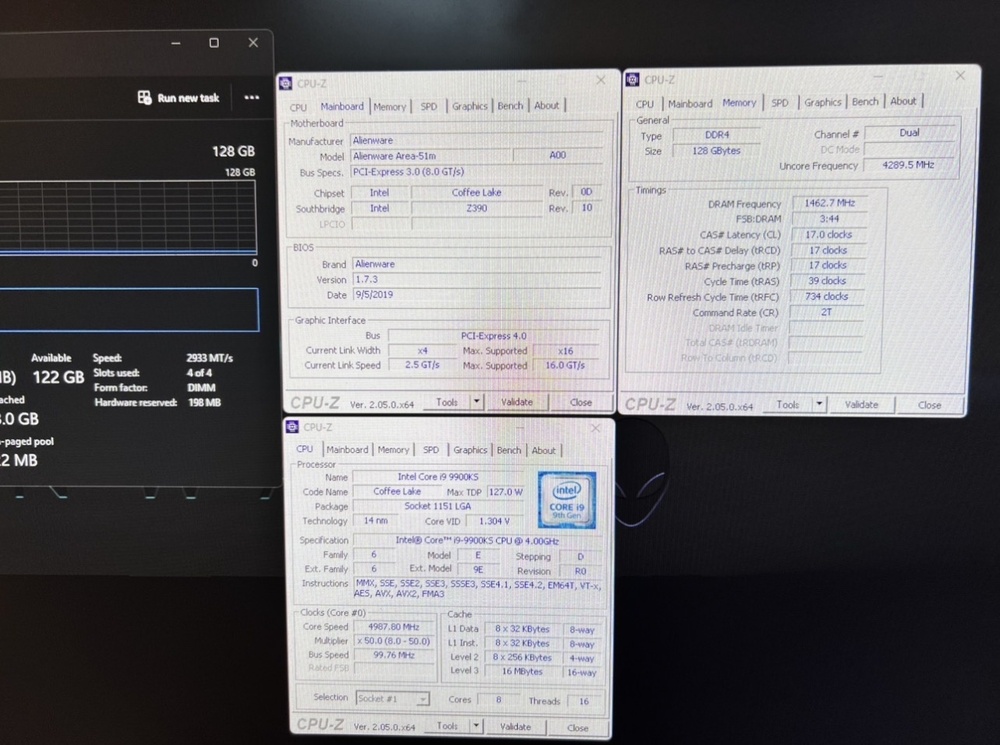
Out of all the BIOS versions I tested, BIOS 1.7.3 delivered the best memory frequency and timing results. Using very ordinary Samsung DDR4-2666 memory modules, I was able to overclock them to 2933 MHz with timings of CL17
-
Alienware Graphics Amplifier with 40 Series GPU's
amirhesamsadeghpour replied to Maxware79's topic in Alienware
Go into XTU and set the Core Voltage Offset to -0.130V, then set the CPU multiplier to all-core 47x and run Time Spy again. Your CPU score should increase from around 7000 to over 10000, and the overall Time Spy score should reach around 22,000 to 23,000. -
Area-51m 4K Panel in R1
amirhesamsadeghpour replied to ssj92's topic in Alienware 13 / 15 / 17 / 51m (2015-2020)
This 4K, 60Hz panel has a connector similar to your panel — 40-pin, 25 mm. Ask the seller to send a photo of the eDP connector -
Using liquid metal does not help much in reducing temperatures. The main cause of high temperatures is the heatsink itself. No matter what you do, the i9-9900K will still reach 100°C. The best thing you can do is undervolt the CPU. Just go into Intel XTU and set the core voltage offset to around -0.120 to -0.130, then set the all-core multiplier to 47x or 48x. After that, run a benchmark and check the results. You should see lower temperatures and noticeably different CPU performance. If the system is stable, you can also try going up to -0.140 offset. My previous 9900K, using the same settings, achieved a score of 10,466 in the Time Spy benchmark.
-
Using liquid metal does not help much in reducing temperatures. The main cause of high temperatures is the heatsink itself. No matter what you do, the i9-9900K will still reach 100°C. The best thing you can do is undervolt the CPU. Just go into Intel XTU and set the core voltage offset to around -0.120 to -0.130, then set the all-core multiplier to 47x or 48x. After that, run a benchmark and check the results. You should see lower temperatures and noticeably different CPU performance.
-
By sharing your system specifications, we can work together to find the best possible configuration. I can also suggest stable tuning settings so you can get the maximum performance out of your system.
-
I’m waiting for you to improve your CPU score in Time Spy and send me a really good record so I can enjoy seeing the result. If I had an RTX 5080 right now, I would definitely set an incredible benchmark record with this laptop. Unfortunately, my card is only a 3080 Ti. Come on, let’s make an impressive record with the 5080.
-
Send me a screenshot of your current RAM frequency and timings so I can check them. I’ll help you tune the best possible settings for maximum performance and stability.
-
The BIOS versions that allow you to set memory frequencies higher than 2666 MHz are as follows: BIOS 1.1, 1.3.2, 1.5, and 1.7.3. Newer BIOS versions have more restrictions and allow fewer modifications through RU. If you want, I can also send you the best settings for 2933 MHz, with the lowest timings that are both fully stable and deliver excellent performance. In fact, 2933 MHz with CL17 timings performs better than 3200 MHz with CL20 or CL22 timings.
-
This isn’t a problem — a 9900K naturally runs around 100°C, and that’s not an issue. However, if you’re seeing severe thermal throttling, the problem is usually poor contact between the IHS and the heatsink, which you can fix using a thin copper shim. The best solution is upgrading to a 9900KS. You can check my post — with the 9900KS, temperatures under worst-case conditions reach only around 75 to 80°C. It might sound surprising, but due to power limiting, you can actually get higher performance with lower wattage and significantly lower temperatures.
-
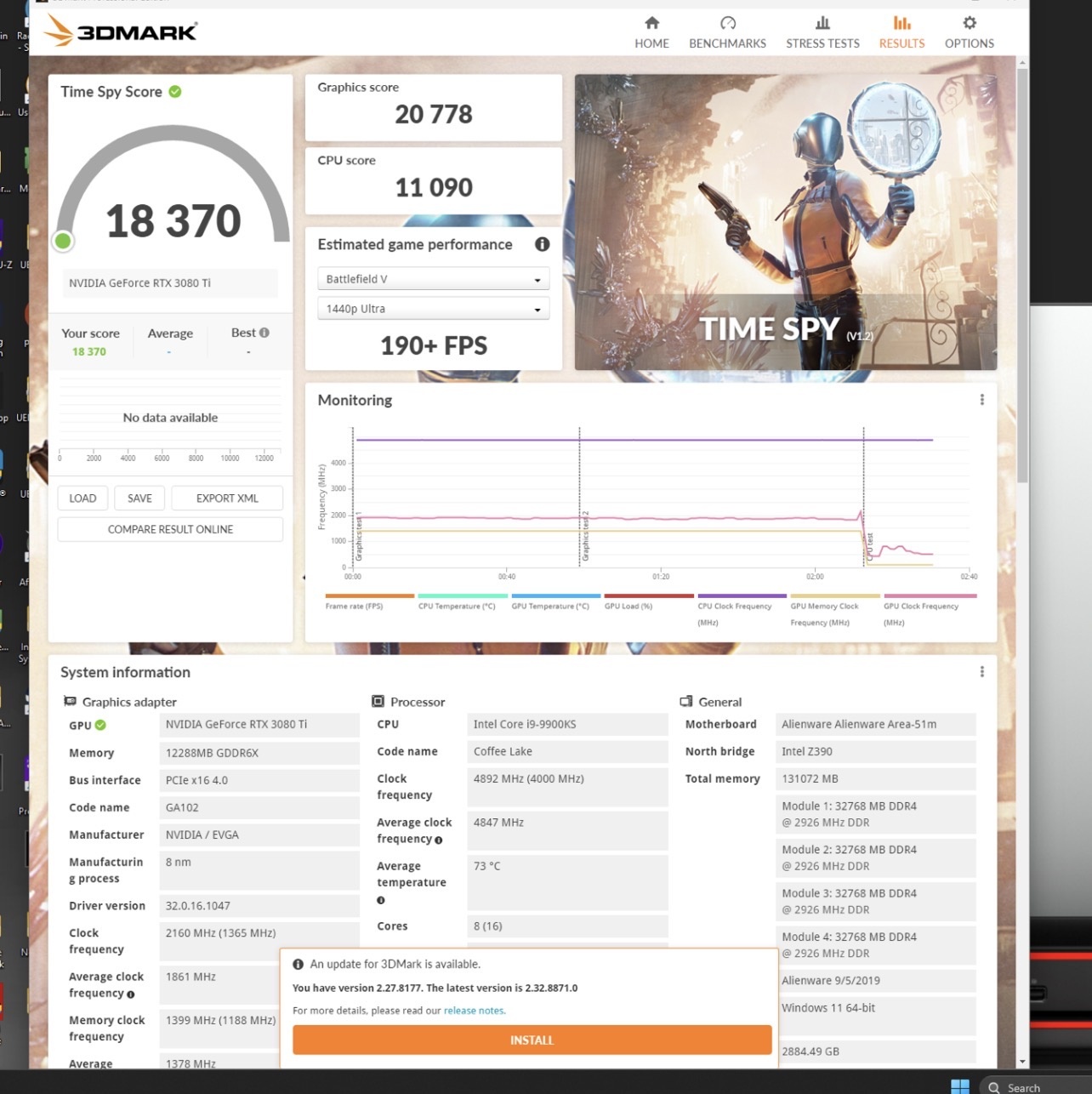
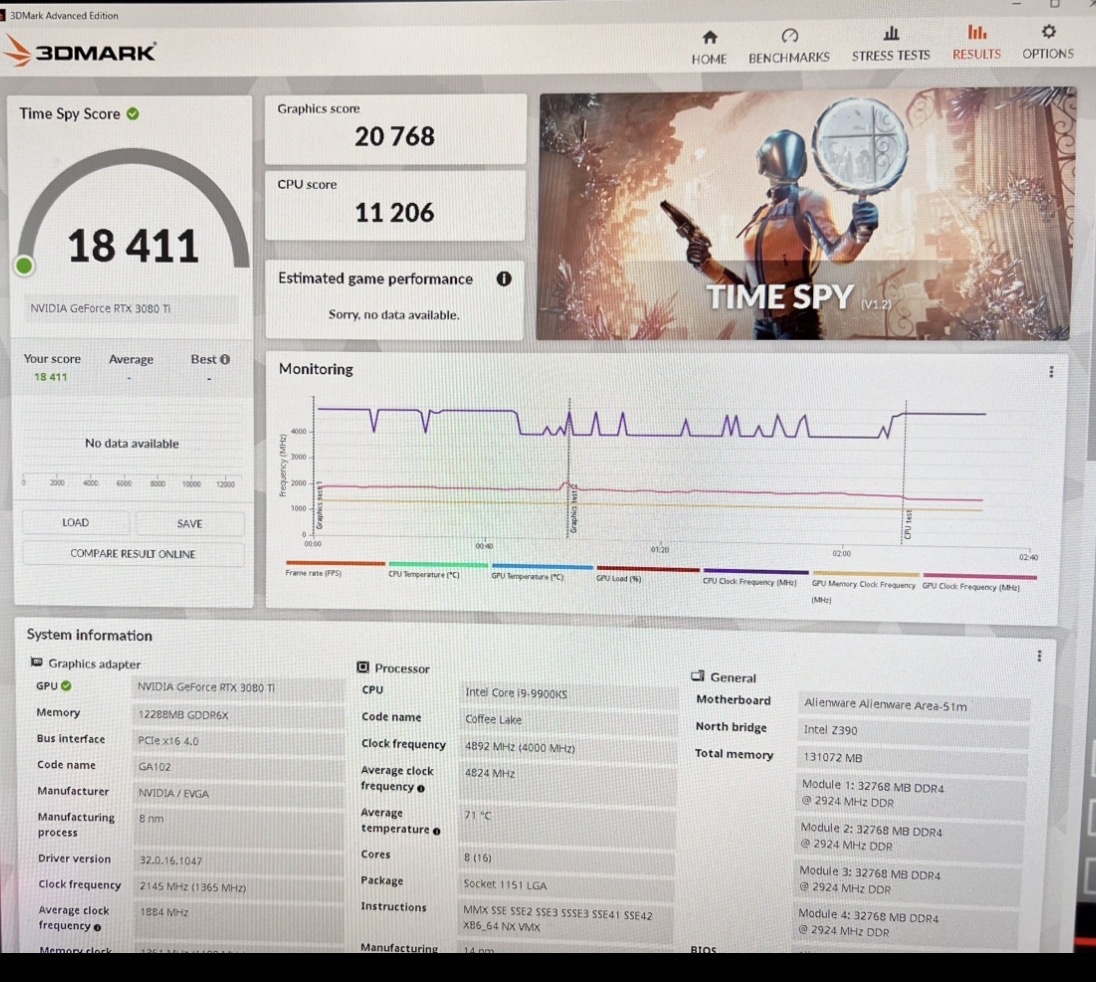
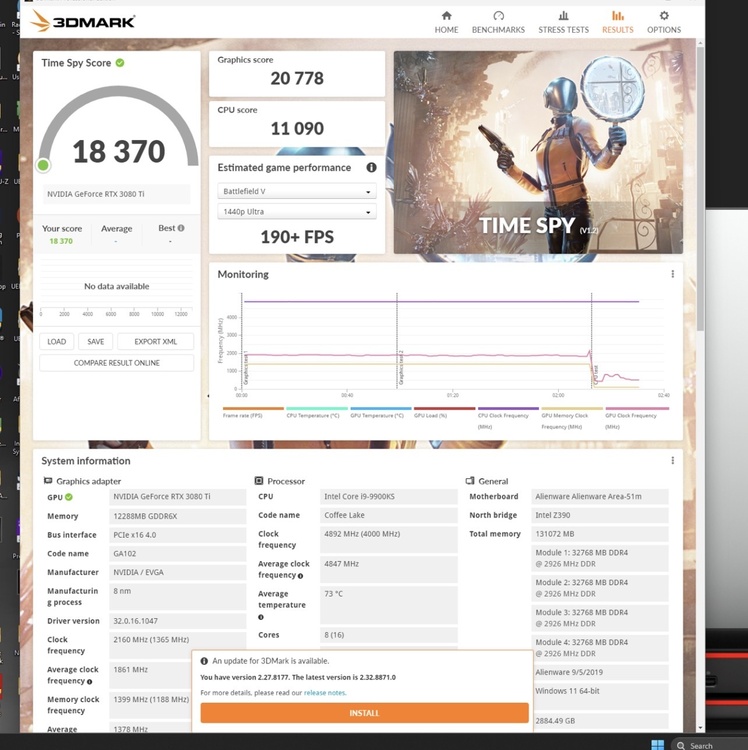
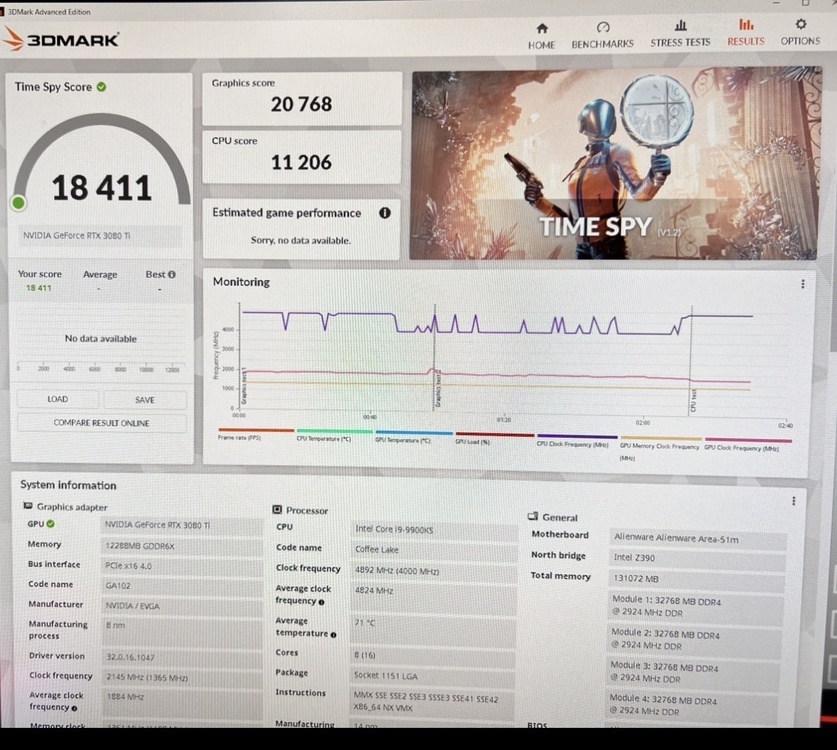
Time spy test score Old Cpu 9900K: https://www.3dmark.com/spy/56481843 ~~~~~~~~~~~~~~~~~~ New Cpu 9900KS : https://www.3dmark.com/spy/64018720 After upgrading my Alienware Area-51m R1 to the Intel Core i9-9900KS, I noticed that almost every user who performed this upgrade experienced significant CPU performance degradation. Most reported Time Spy CPU scores were only between 8000 and 9000 points due to power limits, EDP throttling, BIOS limitations, and the lack of a proper 9900KS profile in the BIOS. I decided to fully optimize and tune the system manually. After testing multiple BIOS versions, tweaking hidden settings, optimizing memory timings, tuning power behavior, and creating a custom optimized profile for the 9900KS, I finally achieved a stable and fully optimized result. Previously, with the standard i9-9900K, the best temperature I recorded during Time Spy was 96°C. However, after upgrading to the i9-9900KS, the system delivered noticeably higher and more stable performance while running significantly cooler, with a maximum Time Spy temperature of only 71°C. My final Time Spy score reached 18,411 overall, with a CPU score of 11,206 — paired with an EVGA RTX 3080 Ti XC3 that scored 20,767 in graphics performance, which is currently the highest known CPU score achieved with an i9-9900KS on an Alienware Area-51m R1. What makes this result even more impressive is that the CPU maintains excellent temperatures and efficiency while delivering desktop-class performance inside a laptop platform. I compared the performance of my laptop using two processors, the 9900K and the 9900KS. You can see the temperature difference between both CPUs in the Time Spy benchmark. There is more than a 25°C temperature gap between these two processors on the Area-51M. The reason is the power limitation of the 9900KS. By undervolting with XTU, you can achieve higher performance at lower power consumption and significantly lower temperatures. The 9900KS on the Area-51M is power-limited by the BIOS. Since voltage profiles for the 9900KS are not defined in the BIOS, it only allows the CPU to use up to 130W. I am trying to remove this BIOS-imposed limitation. However, even with this 130W limit, you can still achieve significantly lower temperatures compared to the 9900K or any other processor, along with higher performance. If I can remove this limitation, I can increase the CPU score in the Time Spy cpu score benchmark up to 13,000. System highlights: Alienware Area-51m R1 Intel Core i9-9900KS Custom optimized BIOS/RU tuning DDR4-2666 overclock to 2933 CL17memory tuning Fully optimized thermal and power behavior Stable high-performance operation
-
Do you have Telegram so you can send me a video of the issue you’re experiencing?
-
I upgraded the CPU to an Intel Core i9-9900KS. I originally had BIOS version 1.28 installed. In order to remove some limitations, I tested every BIOS version from 1.7.3 up to 1.28. My motherboard is the 2019 revision 2 model, and I had no issues downgrading the BIOS.
-
My friend says the 5070 Ti has better performance and supports 4x frame generation. Both cards are good, but my recommendation to you is the 5070 Ti.
-
Area-51m 4K Panel in R1
amirhesamsadeghpour replied to ssj92's topic in Alienware 13 / 15 / 17 / 51m (2015-2020)
If you are using a 144Hz FHD panel, your EDP port is 40 pins, 2.5cm long and 0.5mm thick. The cable is in the corner. It is the same as before the R2 models. The 4k models in the R2 are usually the middle socket. If you are planning to change the display, let me know and I will guide you. -
“The 5070 Ti is an excellent choice. Definitely get it and enjoy it.”
-
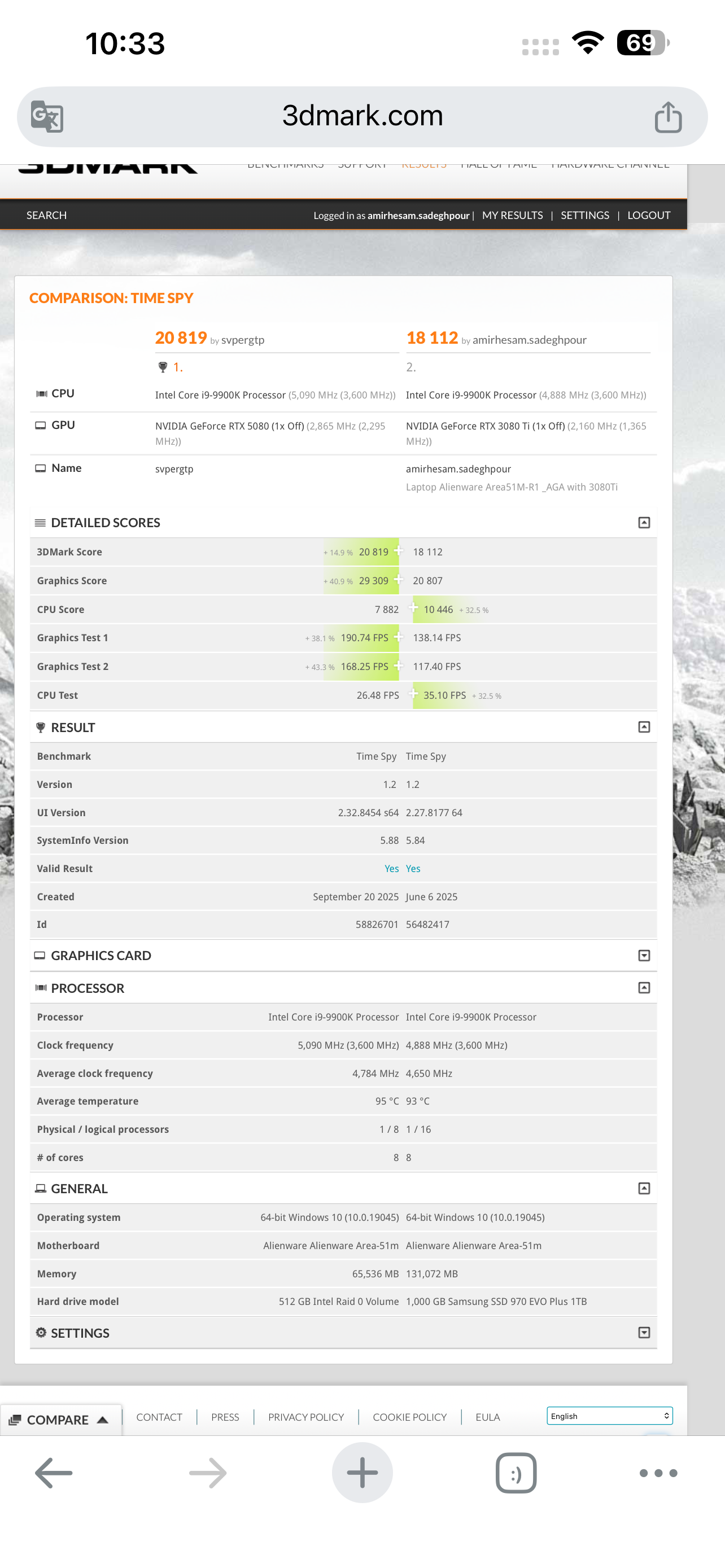
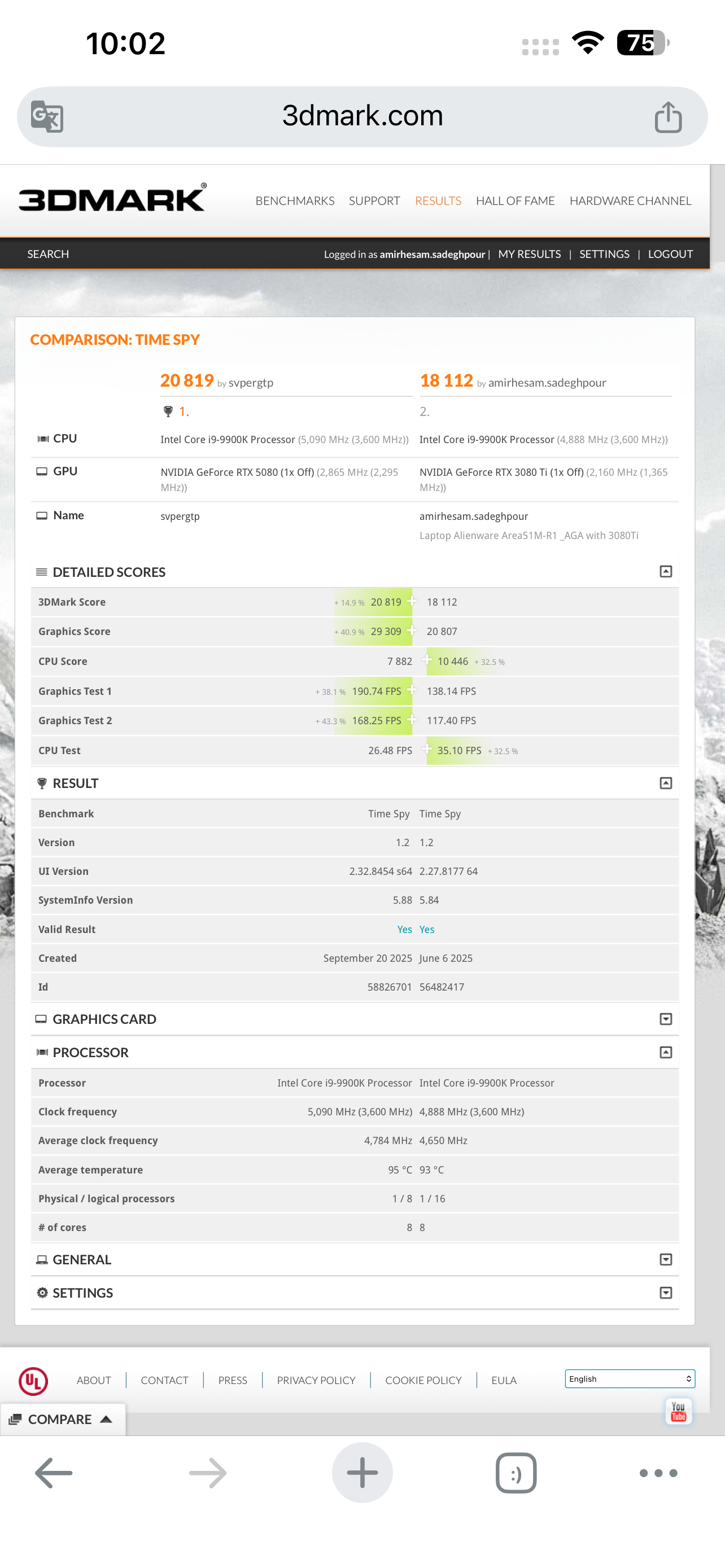
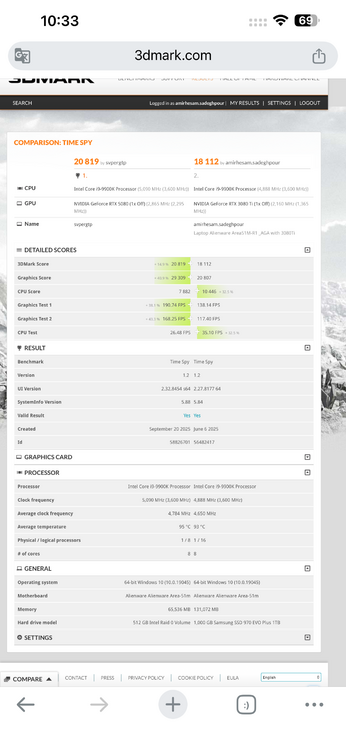
I think the result you got is more due to CPU throttling rather than the actual power of your system. Your CPU score for the Intel Core i9-9900K is below normal, and this typically happens when the processor is heavily throttling due to high temperatures, which causes its speed to drop. For retesting, apply the following settings in Intel Extreme Tuning Utility (XTU): • Reduce CPU voltage by around -0.100V (Undervolt) • Set the all-core multiplier to 47x • Set fan speeds to 100% This will: • Lower temperatures • Prevent throttling • Keep the CPU frequency stable Also, before running the test, close any CPU-intensive programs from Task Manager so the processor isn’t under unnecessary load and you get more accurate results. Then run the 3DMark Time Spy test again. Also, pay attention to the image you shared — it clearly shows CPU performance degradation. Your GPU score is good, but this CPU drop is lowering the overall score. An important point is that improving CPU performance doesn’t only affect its own score — 👉 it can also improve GPU performance and ultimately enhance the entire system’s output. I’m confident you can easily reach around 24K to 25K. If you’d like, we can try to set a solid record with your system 😄 With that score, you’ll outperform many 2025 and 2026 laptops. Additionally, in the image, the Time Spy scores of our systems are compared — your CPU achieved about 35% lower performance. Overclocking requires proper knowledge, and if all factors are not carefully evaluated, it can actually lead to performance degradation. The main reason for the drop in your system’s performance is high temperature combined with voltage and frequency settings that are not well balanced. At first glance, one of the cores briefly reached around 5100 MHz at the start of the test, but it’s highly likely that within a few seconds the frequency dropped below 4000 MHz, which resulted in the recorded score of around 7700. With proper voltage and thermal conditions, you should realistically achieve a standard score in the range of 10K to 11K. For effective overclocking, you typically need an upgraded heatsink, high-quality thermal paste, upgraded fans (for example, moving from R1 to R2 fan configurations), and solid overclocking knowledge. With these adjustments, the CPU score can reach around 12K to 13K in the Time Spy Benchmark. That way, you can showcase the true power of your system.
-
Alienware Graphics Amplifier with 40 Series GPU's
amirhesamsadeghpour replied to Maxware79's topic in Alienware
I think the result you got is more due to CPU throttling rather than the actual power of your system. Your CPU score for the Intel Core i9-9900K is below normal, and this typically happens when the processor is heavily throttling due to high temperatures, which causes its speed to drop. For retesting, apply the following settings in Intel Extreme Tuning Utility (XTU): • Reduce CPU voltage by around -0.100V (Undervolt) • Set the all-core multiplier to 47x • Set fan speeds to 100% This will: • Lower temperatures • Prevent throttling • Keep the CPU frequency stable Also, before running the test, close any CPU-intensive programs from Task Manager so the processor isn’t under unnecessary load and you get more accurate results. Then run the 3DMark Time Spy test again. Also, pay attention to the image you shared — it clearly shows CPU performance degradation. Your GPU score is good, but this CPU drop is lowering the overall score. An important point is that improving CPU performance doesn’t only affect its own score — 👉 it can also improve GPU performance and ultimately enhance the entire system’s output. I’m confident you can easily reach around 24K to 25K. If you’d like, we can try to set a solid record with your system 😄 With that score, you’ll outperform many 2025 and 2026 laptops. Additionally, in the image, the Time Spy scores of our systems are compared — your CPU achieved about 35% lower performance. Overclocking requires proper knowledge, and if all factors are not carefully evaluated, it can actually lead to performance degradation. The main reason for the drop in your system’s performance is high temperature combined with voltage and frequency settings that are not well balanced. At first glance, one of the cores briefly reached around 5100 MHz at the start of the test, but it’s highly likely that within a few seconds the frequency dropped below 4000 MHz, which resulted in the recorded score of around 7700. With proper voltage and thermal conditions, you should realistically achieve a standard score in the range of 10K to 11K. For effective overclocking, you typically need an upgraded heatsink, high-quality thermal paste, upgraded fans (for example, moving from R1 to R2 fan configurations), and solid overclocking knowledge. With these adjustments, the CPU score can reach around 12K to 13K in the Time Spy Benchmark. That way, you can showcase the true power of your system.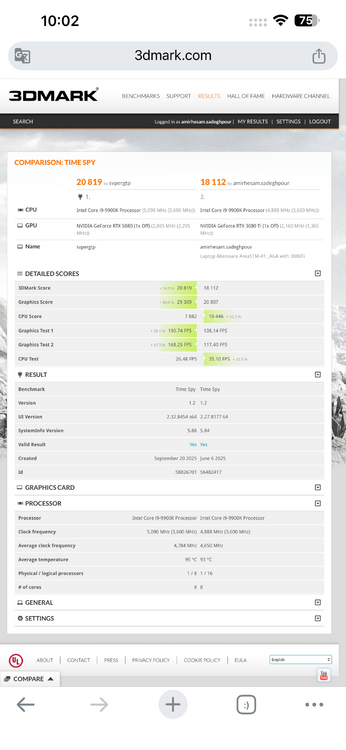
-
Alienware Graphics Amplifier with 40 Series GPU's
amirhesamsadeghpour replied to Maxware79's topic in Alienware
-
Alienware Graphics Amplifier with 40 Series GPU's
amirhesamsadeghpour replied to Maxware79's topic in Alienware
My friend, BIOS version 1.9.3 is newer than 1.3.2, and you won’t have any issues. This problem will be resolved by upgrading the BIOS to version 1.9.3. https://www.dell.com/support/home/en-uk/drivers/driversdetails?driverid=tc3x1 -
These settings control memory bandwidth, and the other option enables custom settings and XMP profiles. If you configure both options, you will get a 2933 MHz memory frequency. Can’t you find these hex values in RU.efi? To be stable at 2933 MHz, your RAM may need timing adjustments. You can also try CL20 or CL22 timings. The hexadecimal equivalent becomes this, meaning: CL16 → 0x10 CL18 → 0x12 CL20 → 0x14 CL22 → 0x16 CL24 → 0x18 and so on… Where are the other timings? In RU, usually after address 0x940, the following addresses correspond to: Address | Timing | Description 0x940 | CL | CAS Latency 0x941 | tRCD | RAS to CAS Delay 0x942 | tRP | Row Precharge 0x943 | tRAS | Active to Precharge Delay For example, for timings 20-20-20-48 (CL-tRCD-tRP-tRAS), you enter: Address | Hex Value 0x940 | 0x14 (CL20) 0x941 | 0x14 (tRCD 20) 0x942 | 0x14 (tRP 20) 0x943 | 0x28 (tRAS 48) Decimal value 48 in hexadecimal becomes 0x28 By the way, send me the link to your best Time Spy score so I can take a look. .