
Amir.s
-
Posts
118 -
Joined
-
Last visited




Amir.s's Achievements






-
You’re welcome! That’s the beauty of the Area-51m. With the right upgrades, even a 2020 laptop can stay relevant in 2026 and beyond. No need to give up on a great machine just yet!
-
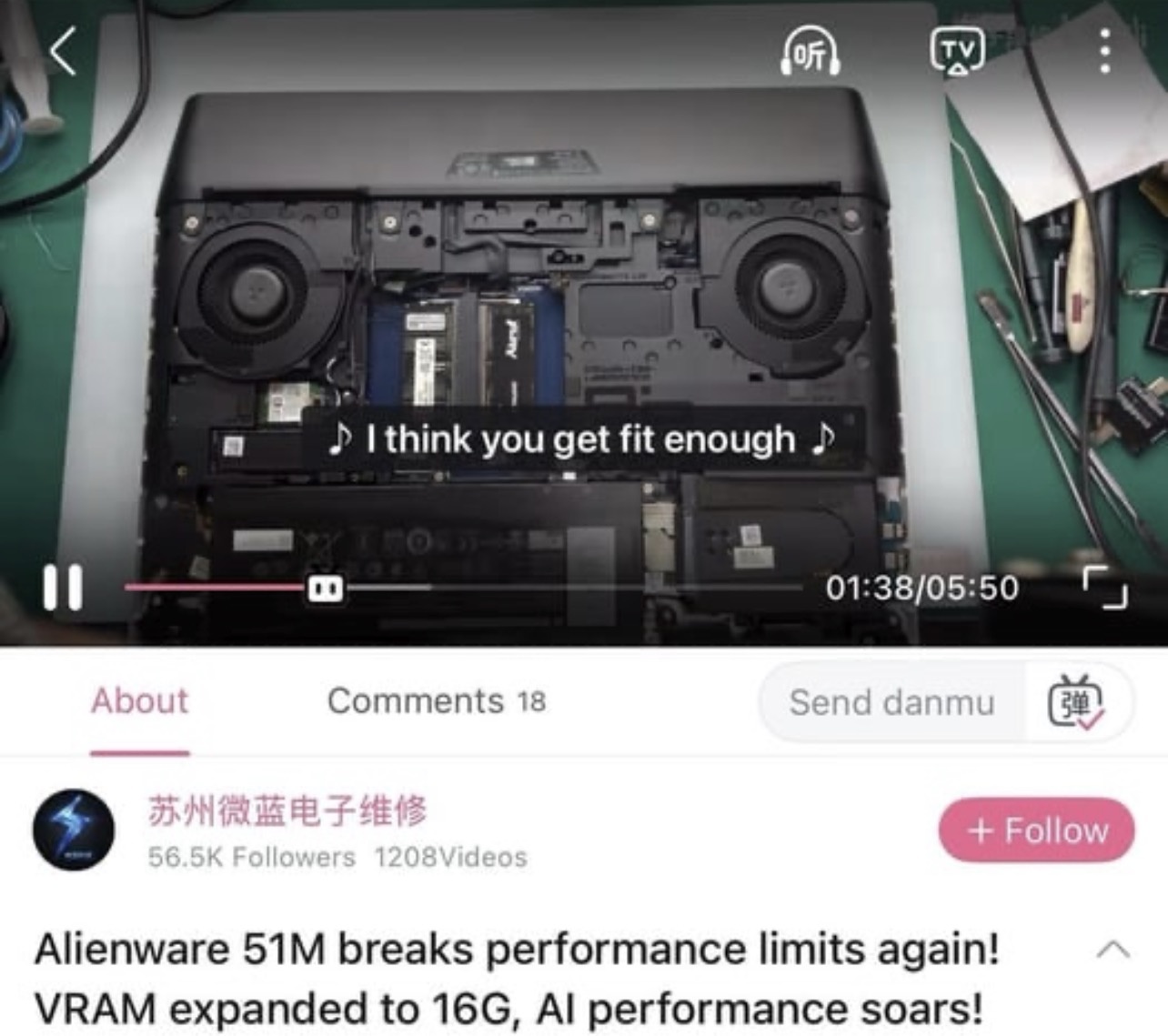
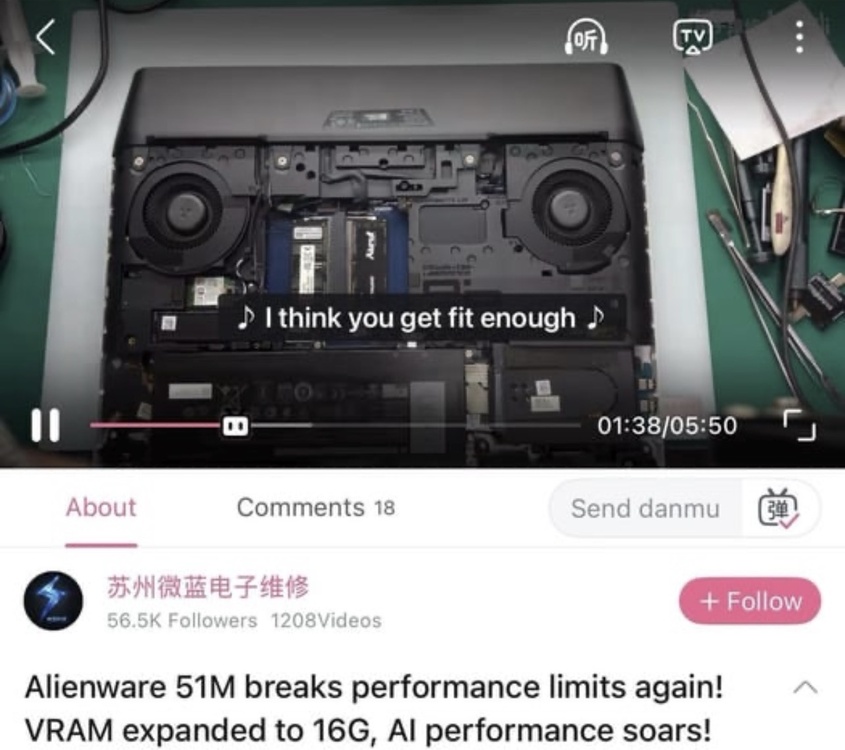
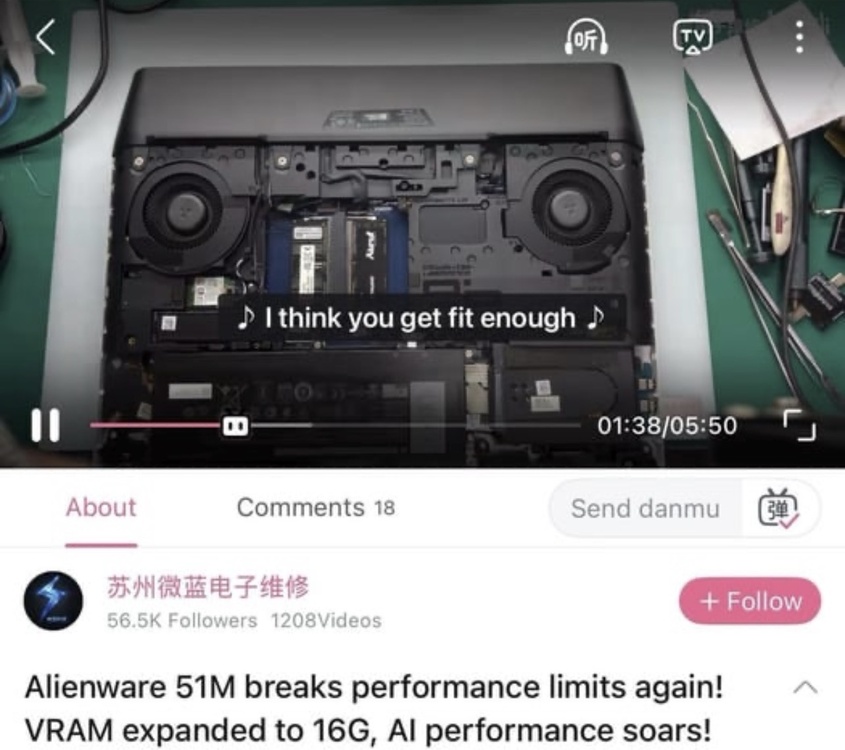
 Please check the video I sent. The VRAM has been upgraded from 8 GB to 16 GB.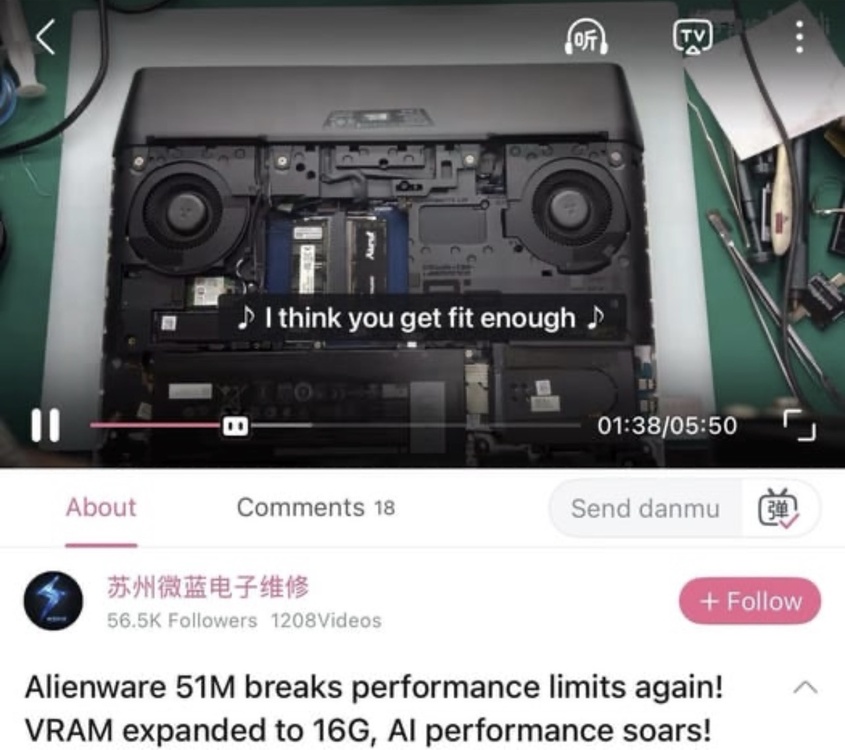
-
I’m really happy that your system is stable now and you’re able to use it without any issues.
-
【外星人51M性能天花板再突破!显存扩容到16G,AI运行起飞-哔哩哔哩】 https://b23.tv/VPoCtI2
-
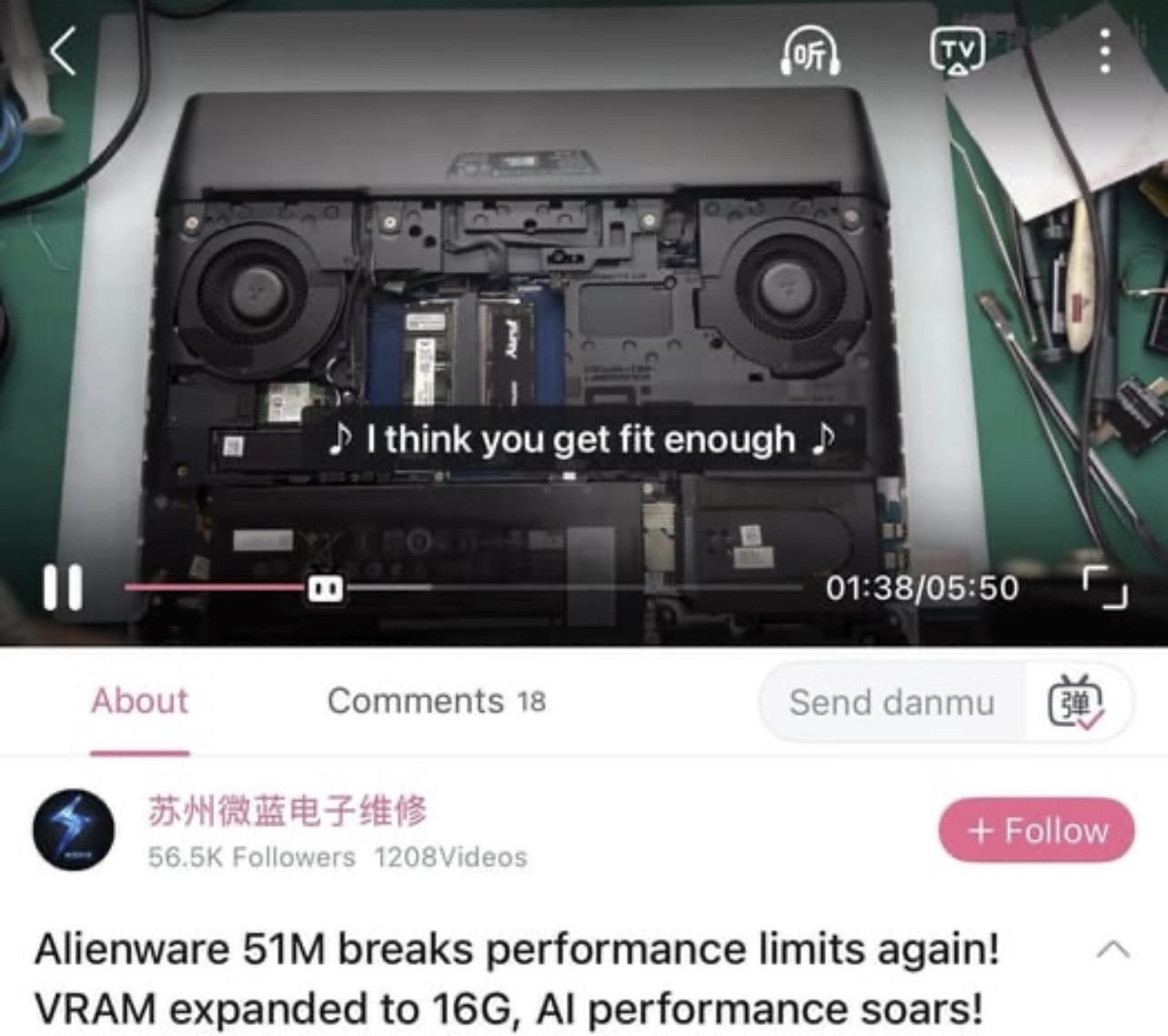
【外星人51M性能天花板再突破!显存扩容到16G,AI运行起飞-哔哩哔哩】 https://b23.tv/VPoCtI2
-
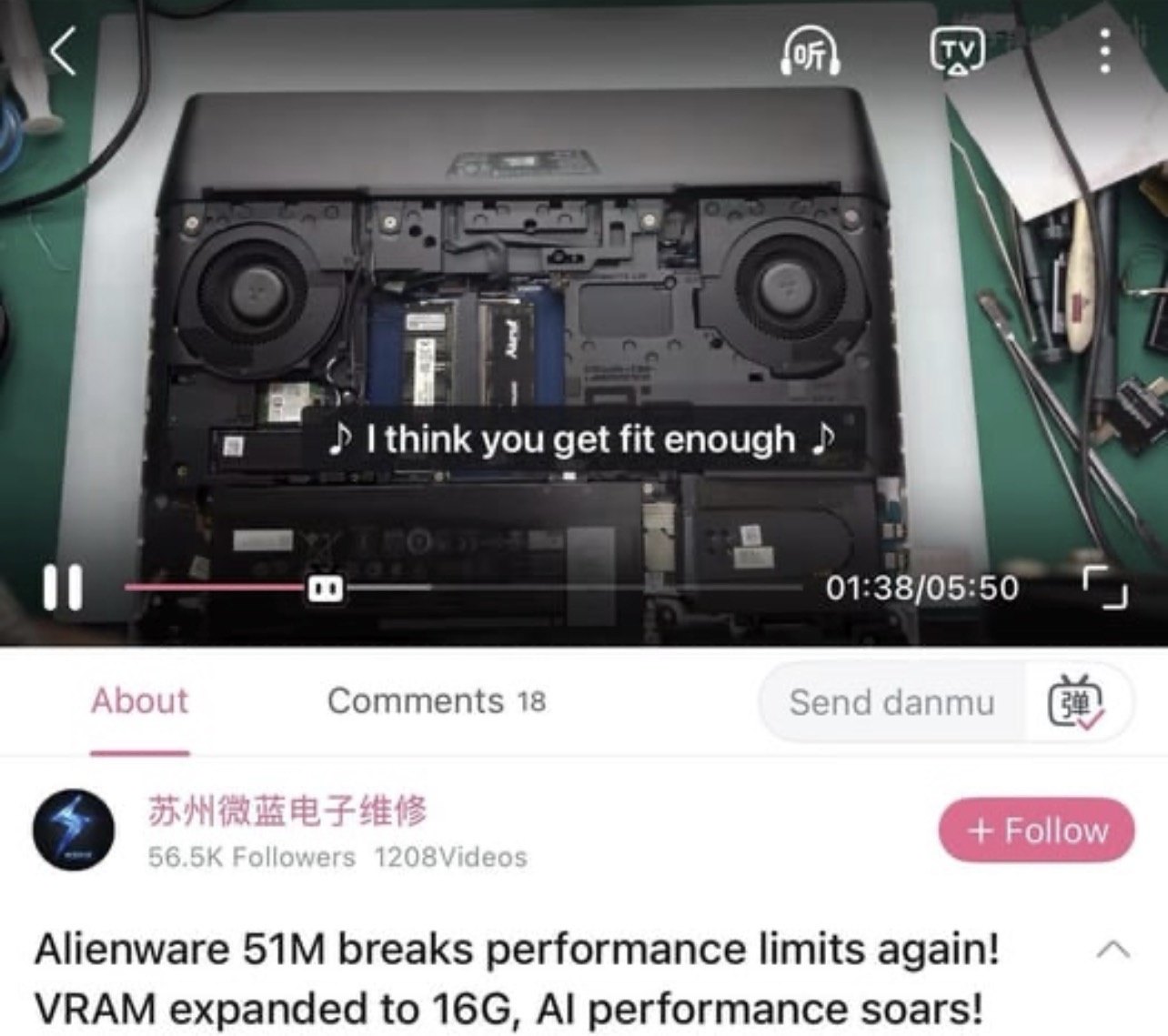
【外星人51M性能天花板再突破!显存扩容到16G,AI运行起飞-哔哩哔哩】 https://b23.tv/VPoCtI2
-
【外星人51M性能天花板再突破!显存扩容到16G,AI运行起飞-哔哩哔哩】 https://b23.tv/VPoCtI2 see link
-
Project: Unlocked BIOS Area-51m Series
Amir.s replied to ssj92's topic in Alienware 13 / 15 / 17 / 51m (2015-2020)
That’s good progress. So, do you now have access to all the BIOS settings, and does the system boot normally after applying the changes? Unfortunately, the motherboard of my laptop was damaged due to a severe power fluctuation 😔. I sent it in for repair, but unfortunately, Alienware parts aren’t available in my country. That’s why I wasn’t able to send you the BIOS dump. -
Project: Unlocked BIOS Area-51m Series
Amir.s replied to ssj92's topic in Alienware 13 / 15 / 17 / 51m (2015-2020)
Hey my friend! Any news or progress on the project? I’m sure that one day we’ll get this BIOS unlocked. -
Project: Unlocked BIOS Area-51m Series
Amir.s replied to ssj92's topic in Alienware 13 / 15 / 17 / 51m (2015-2020)
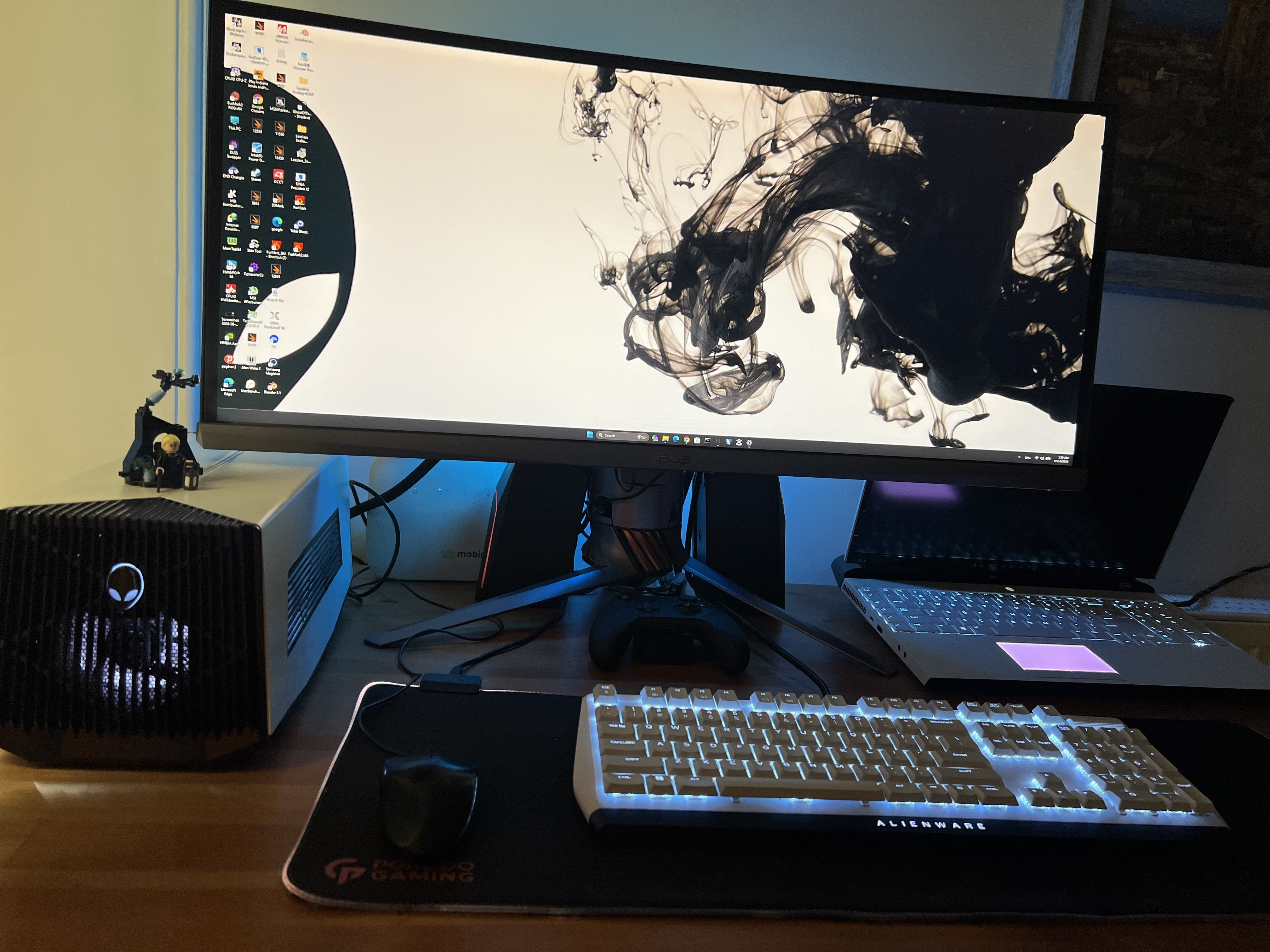
Just having a 5080 in your AGA means you’re definitely doing it right! This laptop has won me over so much that I honestly can’t bring myself to move on to another laptop. I really like the R2 as well. The 10900K is an amazing CPU, but since there isn’t much of a difference in GPU performance and it only has two RAM slots, I decided not to go for it. After upgrading the CPU to a 9900KS, the performance has become really impressive, even though there was never a properly optimized BIOS for it and the CPU is limited to 130W. Interestingly, the CPU temperatures have also dropped significantly. I was comparing the performance of Thunderbolt 5 and OCuLink, and the benchmark results with the same GPU I’m using were almost exactly identical. On top of that, I’m also really satisfied with the Area-51m’s appearance, design, and build quality. It’s a laptop I genuinely love in those respects. By the way, regarding the limitation that many people experienced with the newer BIOS versions, where GPU performance would become limited once the GPU reached around 75°C, I actually found a workaround for it. Because of that, I never had this issue even with BIOS versions newer than 1.5. I’ll post a guide explaining how to do it as soon as I get the chance. One more thing regarding RAM frequency: BIOS 1.7.3 and the older versions perform much better and are significantly more stable. There’s another point I always keep in mind: if I’m going to put a system under heavy load 24/7, constantly gaming and rendering on it, which setup is actually more reliable in the long run — an Area-51m paired with an AGA, or one of these sleek and delicate new-generation laptops with a single-piece motherboard where practically everything is soldered directly onto the board? -
Project: Unlocked BIOS Area-51m Series
Amir.s replied to ssj92's topic in Alienware 13 / 15 / 17 / 51m (2015-2020)
Could you tell me how you managed to access these menus? Maybe I can study the method as well and see if I can help with this. -
Project: Unlocked BIOS Area-51m Series
Amir.s replied to ssj92's topic in Alienware 13 / 15 / 17 / 51m (2015-2020)
I’m honestly really happy and grateful to see such talented and knowledgeable people on this forum. A big thank you to ssj92, janepa, and all the other members who generously share their knowledge, skills, and expertise with the community. It’s truly appreciated. -
I saw this and it made me really happy.👍🏼
-
Project: Unlocked BIOS Area-51m Series
Amir.s replied to ssj92's topic in Alienware 13 / 15 / 17 / 51m (2015-2020)
User ssj92 is also working on the same project and has made some progress. If you are familiar with this BIOS, perhaps you could work together with ssj92 and finally unlock this damn BIOS. Unfortunately, I’m not familiar with Aptio or its editing environment. However, if you need any files from my side, I can provide them and help however I can. -
Project: Unlocked BIOS Area-51m Series
Amir.s replied to ssj92's topic in Alienware 13 / 15 / 17 / 51m (2015-2020)
So, are you saying you can unlock the Area-51m BIOS? As far as I know, there’s no source or evidence so far that anyone has successfully done this. One of the guys on this very forum is currently working on it. If this BIOS can actually be unlocked, that would be really impressive.