Hi everyone,
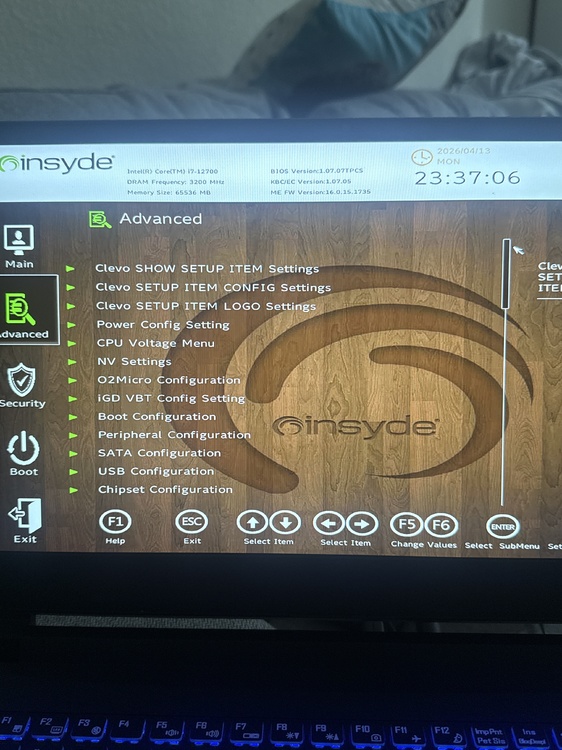
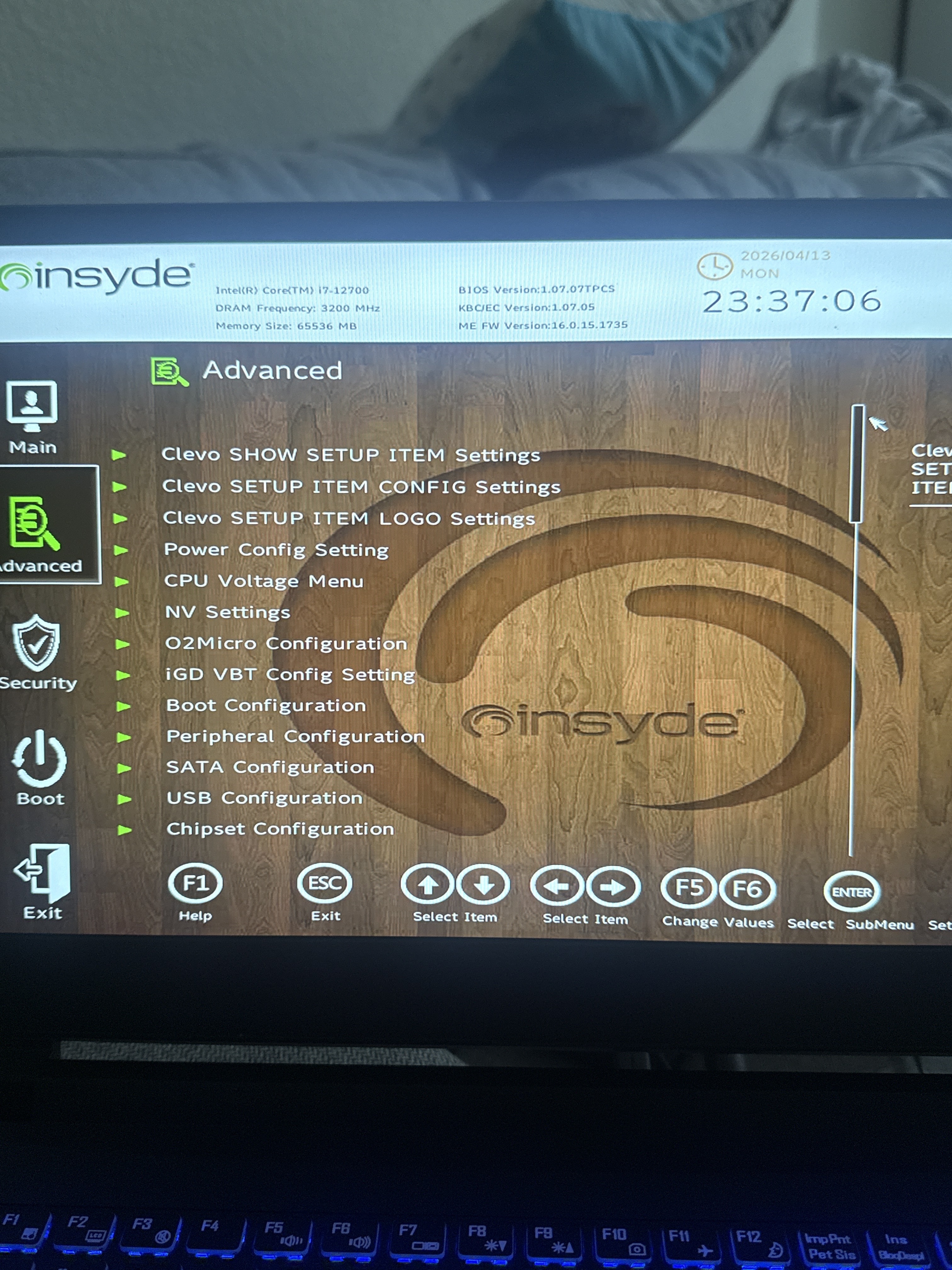
First of all, sorry for arriving about four years late to this thread 😅🤣. I happen to own a PCSpecislist flavor NH55JNNQ (i7-12700, 64GB 3200 MHz RAM, RTX 3070Ti, 1.07.07TPCS BIOS version).
A lot of useful NH55 information is already here, so I’ll try not to rehash things the thread already covered well. What I wanted to add is the part that took me a lot longer to figure out and that, at least from what I’ve seen, was never really written up in one place:
how I got a broad and actually usable Advanced menu without flashing a modded BIOS
why a brute-force full Advanced root unlock turned out not to be the best practical solution
and what the unlocked menus later revealed about the machine’s real CPU power behavior in runtime
I started the usual way: dumped the BIOS with Intel CSME System Tools v16.1, opened it in UEFITool, extracted SetupUtility, generated the IFR, and then spent quite a while correlating the IFR with Ghidra analysis and real hardware behavior.
One thing became obvious very quickly from the IFR:
the firmware already contains a much larger Advanced tree than what the stock BIOS shows.
So the problem was not “creating” missing menus. The problem was getting the right forms to appear in a healthy runtime context.
A few forms ended up mattering a lot during this process:
0x600 – Advanced Chipset Control
0x601 – Clevo SHOW SETUP ITEM Settings
0x602 – Clevo SETUP ITEM CONFIG Settings
0x603 – Clevo SETUP ITEM LOGO Settings
0x583 – Power Config Setting
0x585 – CPU Voltage Menu
0x100E – Power & Performance
0x100F – CPU - Power Management Control
0x1046 – Thermal Configuration
I also learned fairly early that this BIOS/browser is not as simple as “one form body in one place”. There are multiple runtime copies involved, which explains why naive pattern replacement or simple variable tweaking gets confusing very quickly: some changes affect the visible UI, some do not, some copies matter, some clearly do not.
At one point I did manage to expose the full Advanced root.
Visually, that looked like a success. In practice, it really wasn’t.
Once the whole root tree was exposed, some important menus behaved badly:
Power Config Setting became absurdly large and clearly multi-SKU
Power & Performance -> CPU - Power Management Control crashed when opened
overall behavior was clearly not the same as when those menus were opened in isolation
That was actually one of the most useful turning points, because it proved two things at once:
the hidden content absolutely exists
a “pure” full-root unlock is not the same thing as a usable Advanced unlock
The real issue turned out to be runtime context, not missing content.
The breakthrough came when I stopped insisting on a brute-force root unlock and instead started hijacking the visible reference that normally opens Advanced Chipset Control (0x600).
In practical terms, I took the visible Ref that points to 0x600 and redirected it to other already-existing forms.
That worked much better immediately.
For example:
redirect 0x600 -> 0x583, and Power Config Setting opens correctly and stays limited to my SKU
redirect 0x600 -> 0x100E, and Power & Performance also opens correctly
That was the key clue: those menus were not inherently broken. They were only becoming problematic under the bad runtime context introduced by the global root unlock.
From there, the patch evolved in a few steps.
At first I simply redirected 0x600 to one useful target at a time. Then I redirected it to 0x603 and rewrote that form into a small custom hub. Later I expanded the idea into a two-hub setup using 0x603 and 0x602. Finally I consolidated everything into one large custom hub in 0x602, which is what I currently consider the functional final patch.
So the final flow is now:
the visible Advanced Chipset Control reference is redirected from 0x600 to 0x602
0x602 is rewritten into a large custom hub
that hub contains most of the actually useful Advanced references plus a few useful standalone items
The end result is that opening:
Advanced -> Advanced Chipset Control
now leads to a large custom hub containing, among others:
Clevo SHOW SETUP ITEM Settings
Clevo SETUP ITEM LOGO Settings
original Advanced Chipset Control
Power Config Setting
Power & Performance
CPU Voltage Menu
OverClocking Performance Menu
Memory Configuration
System Agent (SA) Configuration
CPU Configuration
PCIE Configuration
PCH-IO Configuration
PCH-FW Configuration
Thermal Configuration
Platform Settings
BCLK Configuration
Boot Configuration
Peripheral Configuration
SATA Configuration
USB Configuration
Chipset Configuration
PCI Subsystem Settings
and a few useful extras such as:
Enable VMD controller
Battery Low Alarm Beep
Custom Fan Control
Firmware Configuration
Most importantly, this setup is not just “big”, but usable:
Power Config Setting no longer turns into an absurd multi-SKU mess
Power & Performance opens correctly
the menus behave like useful menus instead of broken proof-of-concept pages
That is why, in practical terms, I think this custom runtime hub is better than a “true” full-root unlock. It gives almost all the useful functionality, in a healthier context, and it does it without flashing a modified BIOS image.
For anyone curious, I am not flashing a modified BIOS image for this. Instead, I use a UEFI Shell and load the patch as a runtime driver.
My USB stick is FAT32 and looks like this:
EFI\
BOOT\
BOOTX64.EFI <- EFI Shell (renamed to BOOTX64.efi)
PatchIfr.efi
Then the usual shell flow is (with SecureBoot disabled):
BIOS->Boot Menu->Boot from your thumb drive, then:
fs0:
load PatchIfr.efi
exit
The important part is:
load PatchIfr.efi
not running it like a normal application.
After loading it, wait till "driver left resident" prompt appears and type:
exit
and then enter BIOS->Setup Utility normally.
The important part is that the patch is loaded with load, not run as a normal EFI application. After that I just return to firmware UI and use the modified menu structure.
That was the first half of the project.
The second half started once I had a stable and usable menu structure and could stop asking:
“How do I expose the menus?”
and start asking:
“Which settings actually matter in runtime?”
This turned out to be at least as interesting as the unlock itself.
Once the relevant menus were visible, I documented the OEM power profiles.
For the standard modes, the important values were roughly:
Performance
PL1 = 70 W
Tau = 56 s
PL2 = 150 W
Platform Psys PL1 / PL2 = 235 / 235
PL4 on AC = 170
Tcc Offset = 2
Entertainment
PL1 = 65 W
Tau = 56 s
PL2 = 126 W
Platform Psys PL1 / PL2 = 235 / 235
PL4 on AC = 170
Tcc Offset = 13
Quiet
PL1 = 30 W
Tau = 20 s
PL2 = 45 W
Platform Psys PL1 / PL2 = 235 / 235
PL4 on AC = 170
Tcc Offset = 15
Power Saving
PL1 = 18 W
Tau = 20 s
PL2 = 45 W
Platform Psys PL1 / PL2 = 235 / 235
PL4 on AC = 170
Tcc Offset = 15
One thing became clear very quickly from testing:
editing the visible Performance PL1 value was not enough by itself.
Even when BIOS clearly saved the new PL1 value, the machine could still behave as if a different effective sustained limit was active. That became obvious when comparing:
what BIOS showed
what HWiNFO reported as static/dynamic PL1
and what CPU Package Power actually did under a long Cinebench R23 run
The next big clue came from the hidden OEM visibility controls.
Inside Clevo SHOW SETUP ITEM Settings, I enabled the hidden item that exposes True Performance Mode. After rebooting, that option appeared in Advanced Chipset Control.
The important surprise was:
True Performance Mode was not set to Performance. It was set to Entertainment.
That explained a lot of the strange runtime behavior I had been seeing.
Once I changed:
True Performance Mode = Performance
the reported PL1 behavior changed in a meaningful way.
But that still was not the whole story.
At that point I could still get situations where HWiNFO reported:
PL1 static = 90 W
PL1 dynamic = 80 W
or, after toggling profiles:
PL1 static = 90 W
PL1 dynamic = 90 W
while the machine still behaved as though about 80 W was the effective sustained ceiling unless another runtime layer was also dealt with.
The missing piece turned out to be Intel Dynamic Tuning Technology (DTT).
Once I disabled DTT in BIOS, the behavior finally changed in the way I had been aiming for:
HWiNFO reported 90 W / 90 W
and, more importantly, the CPU actually sustained about 90 W in a 10-minute Cinebench R23 multicore run
That was the point where 90 W became real, not just visible.
Another interesting result was that not every configured PL1 value seemed to exist as a distinct effective runtime state.
In particular, when I tested 85 W in BIOS after the profile/runtime changes above, the machine did not appear to settle around 85 W in practice.
Instead, it behaved essentially like a 90 W configuration:
HWiNFO reported 90 / 90
sustained CPU Package Power was about 90 W
score and thermals were almost identical to the explicit 90 W runs
So at least in the configuration I tested, the machine behaved as though 80 W and 90 W were real runtime buckets, while 85 W effectively resolved to the higher one.
For validation I used repeated 10-minute Cinebench R23 multicore runs with HWiNFO sensor logging.
All measurements below were taken with the laptop on a custom stand.
A clean effective 80 W run produced roughly:
15,923 points
sustained CPU Package Power: ~80.0 W
sustained Average Effective Clock: ~3.12 GHz
sustained CPU Package temperature: ~78.7 °C
sustained core average temperature: ~76 °C
A comparable 80 W run in another test environment produced roughly:
15,862 points
with very similar sustained package power and only a small thermal difference.
That suggested the 80 W profile was highly repeatable once the machine was configured correctly.
At effective 90 W, with DTT disabled, a 10-minute run produced roughly:
16,606 points in one test environment
16,580 points in another
Typical sustained values were about:
CPU Package Power: ~89–90 W
Average Effective Clock: ~3.27–3.29 GHz
CPU Package temperature: ~84.5–87.2 °C
core average temperature: ~81–85 °C
So the 90 W profile was clearly faster than 80 W, but not proportionally so:
roughly +4% to +5% score
for about +10 W extra sustained CPU power
In other words, the improvement was real, but there were already signs of diminishing returns.
The nominal 85 W setting, once the runtime/profile pieces were aligned, behaved almost identically to the 90 W profile:
16,727 points
sustained CPU Package Power: ~90.3 W
temperatures and clocks basically matching the explicit 90 W runs
That is one of the reasons I concluded that 85 W did not seem to exist as a distinct effective runtime state in this setup.
For reference, a single-pass Cinebench R23 multicore run reached roughly:
18,966 points
That is obviously influenced by the aggressive turbo phase, so I do not treat it as representative of sustained operation. It is still useful as evidence that short-load behavior is much stronger than the original stock sustained profile would suggest.
A finer HWiNFO run with shorter polling interval also made the turbo behavior much easier to understand.
What actually happens is not just an instant spike. The machine can stay in a higher-power turbo region for quite a while:
it may spend tens of seconds above 120 W
peak CPU Package Power reaches roughly 130 W
the hottest part of the run occurs during this transient
only after that does the system settle into the sustained 80 W or 90 W plateau
The important practical conclusion was:
the ugly part is mostly a transient.
For long CPU loads, the relevant behavior is the sustained plateau, not the initial burst.
At 90 W, the turbo phase is clearly more aggressive and hotter than at 80 W, but in my testing:
PROCHOT did not become the defining sustained behavior
the worst thermal behavior remained concentrated in the transient
and the sustained plateau itself remained usable
That made the 90 W profile look much more reasonable than it would if one only focused on the first seconds of the run.
I also compared the stock 230 W adapter and a 280 W adapter.
For CPU-only Cinebench R23, the larger adapter did not materially change the result.
That makes sense, because total system power in these CPU-only runs stayed well below what either adapter could provide.
So for CPU-only sustained tuning, the adapter was not the bottleneck.
At this point, my interpretation is pretty simple.
80 W effective is the clean profile:
very good sustained behavior
noticeably better than stock
low thermal drama
very suitable for long CPU loads
90 W effective is the performance profile:
higher sustained throughput
clearly hotter
more aggressive transient behavior
still usable for long CPU loads
I would not describe 90 W PL1 as “unsafe” or “broken” at all based on my testing.
The main thing this whole tuning phase changed for me is how I think about the platform.
Before doing this, one might look at stock behavior and conclude that the cooling system itself is the main limitation.
After the menu unlock and tuning work, that feels too simplistic.
What I found instead is that the platform is heavily shaped by:
OEM profile logic
hidden mode state
runtime enforcement
DTT
and the distinction between transient boost behavior and sustained operation
So the main lesson is not:
“the cooler is weak”
or “the CPU cannot do more”
The main lesson is:
firmware policy and runtime control matter enormously on this platform.
Once those are understood and adjusted correctly, the machine behaves very differently.
At this point, I consider both the menu-unlock phase and the first tuning phase to be in a good state.
The menu side is good enough for practical use.
The tuning side has already produced a few meaningful results:
effective access to 80 W and 90 W sustained CPU profiles
identification of hidden profile logic
identification of DTT as a real runtime factor
and a much clearer picture of what the machine can actually sustain thermally
The next things I am considering are:
more systematic combined CPU+GPU testing
possible CPU upgrade to i9-12900K
further work on TIM / repaste / phase-change materials
and later, possibly, undervolting
On that last point, the thread already had good signs that K CPUs are the interesting path if real undervolting is the goal, while non-K behavior looked much less convincing, so I won’t pretend that part is a new discovery here. My own findings on the hidden BIOS side and the power behavior just reinforced that conclusion and made me more interested in moving toward a 12900K later on.
If I had to summarize the whole project in one sentence, it would be:
unlocking the menus was only the first half of the work; the second half was discovering which hidden settings and runtime controls actually make the visible power limits real.
And in my case, the main findings were:
the firmware already contains a much larger Advanced structure than what is shown by default
a brute-force full-root Advanced unlock is not necessarily the best practical solution
a custom runtime hub turned out to be more stable and more useful than a pure full-root unlock
visible PL1 alone was not enough
hidden True Performance Mode mattered
DTT mattered
80 W and 90 W appear to be real effective runtime states
and the platform becomes much more understandable and usable once those layers are mapped properly
If anyone with the same model, or a closely related Clevo / Insyde platform, wants to compare notes, IFR trees, menu IDs, or runtime behavior, feel free to reply.
A lot of firmware work online stops at:
“the menu exists”
or
“I can see it now”
In my experience, that is only half the problem.
The real challenge is getting a menu structure that is not only visible, but also:
stable
meaningful
usable
and actually connected to the runtime behavior you care about
And in my case, that finally came from:
BIOS dump
IFR extraction
Ghidra-assisted runtime understanding
EFI Shell runtime patching
and then actual power/thermal validation on real hardware
rather than from a flash-based BIOS mod.
I have attached my bios unlock in this post, in order for all of you to have access to it. I also have a way more in-depth writeup of all the process involving this SetupUtility reverse engineering, decompiling and patching that i can release in a pdf file if anyone is interested 😇
Clevo NH55JNNQ Bios Unlock.zip