

seanwee
-
Posts
105 -
Joined
-
Last visited
-
Days Won
1
Content Type
Profiles
Forums
Events
Posts posted by seanwee
-
-
On 7/12/2023 at 8:01 PM, ryan said:
I have a omen 16 and stock thermal paste. just wondering what cooler i should get or just repaste with better paste? suggestions?
For best performance and temperatures, both.
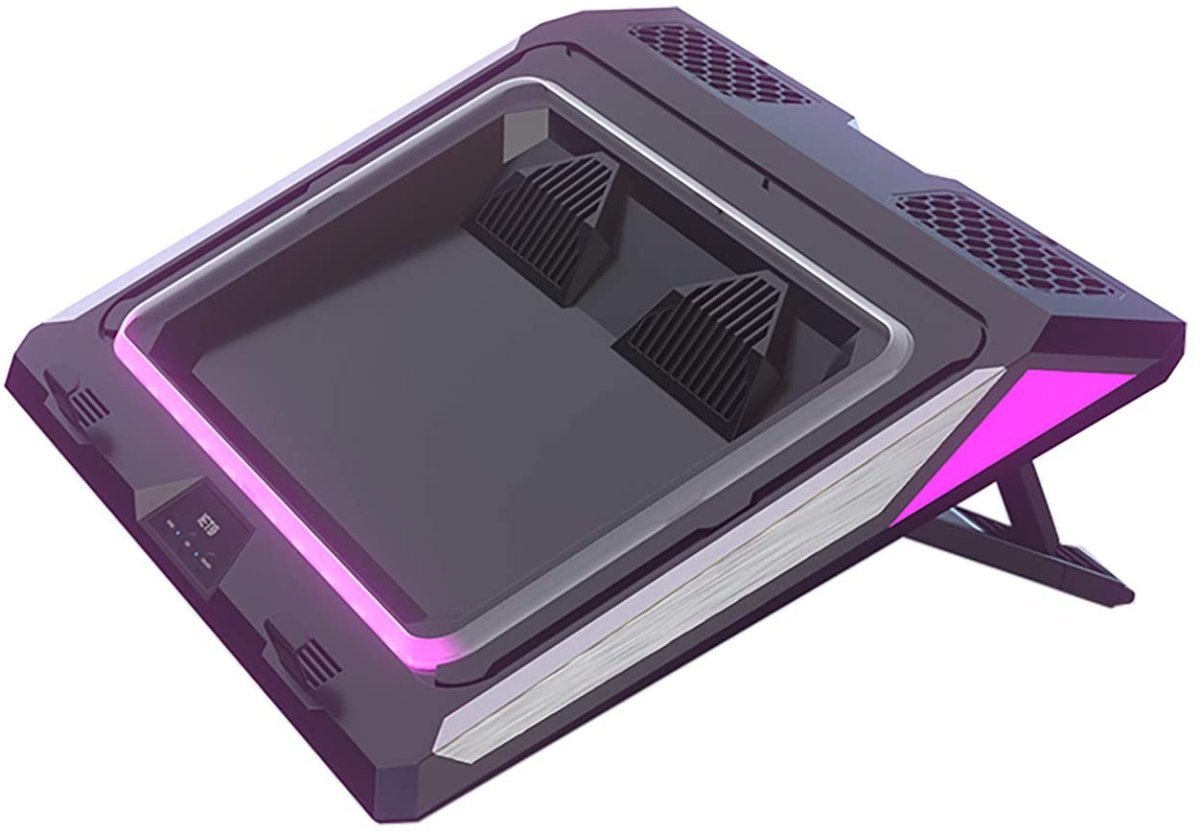
Liquid metal on cpu, high quality paste (TFX, SYY-157) or PTM7950 on gpu then either buy a IETS GT500 or make your own custom cooling pad.
If you're more budget constrained just get any 2x120mm/140mm cooling pad and take off the mesh.
If you don't mind taking off the bottom panel you can do that as well and just place it on top of the de-meshed cooling pad.
On 7/16/2022 at 12:31 PM, 1610ftw said:Would be nice to be able to get this as a kit as then it would be possible to get better fans without having to pay for the added fans which I expect to be less than great.
It would also enable us to use other fan arrays like for example 2 x 2 or 3 x 2 with 140mm fans or 2 x 1 with 200mm fans.
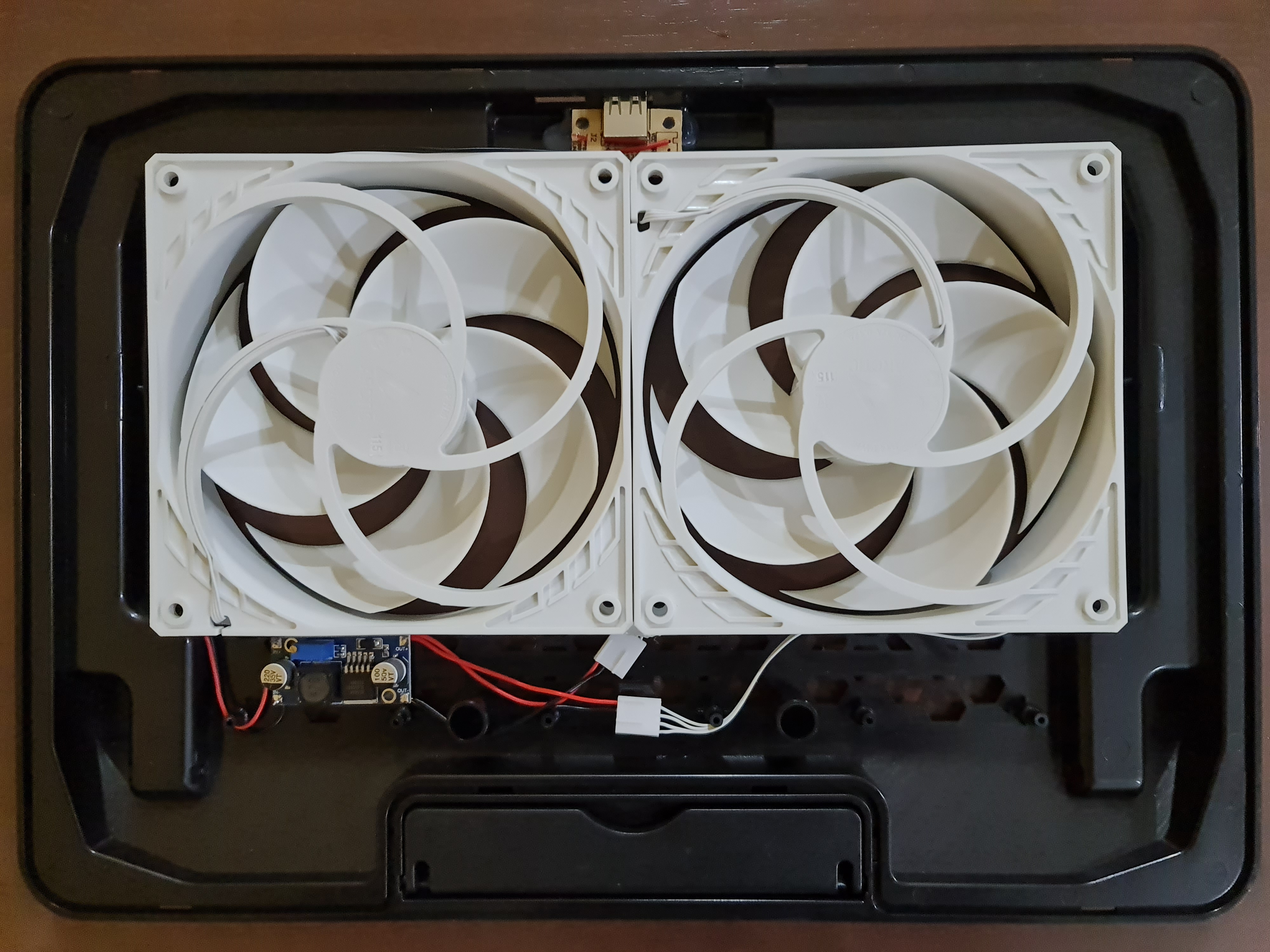
I've since made 2 other custom cooling pads since the last time I shared on this post.
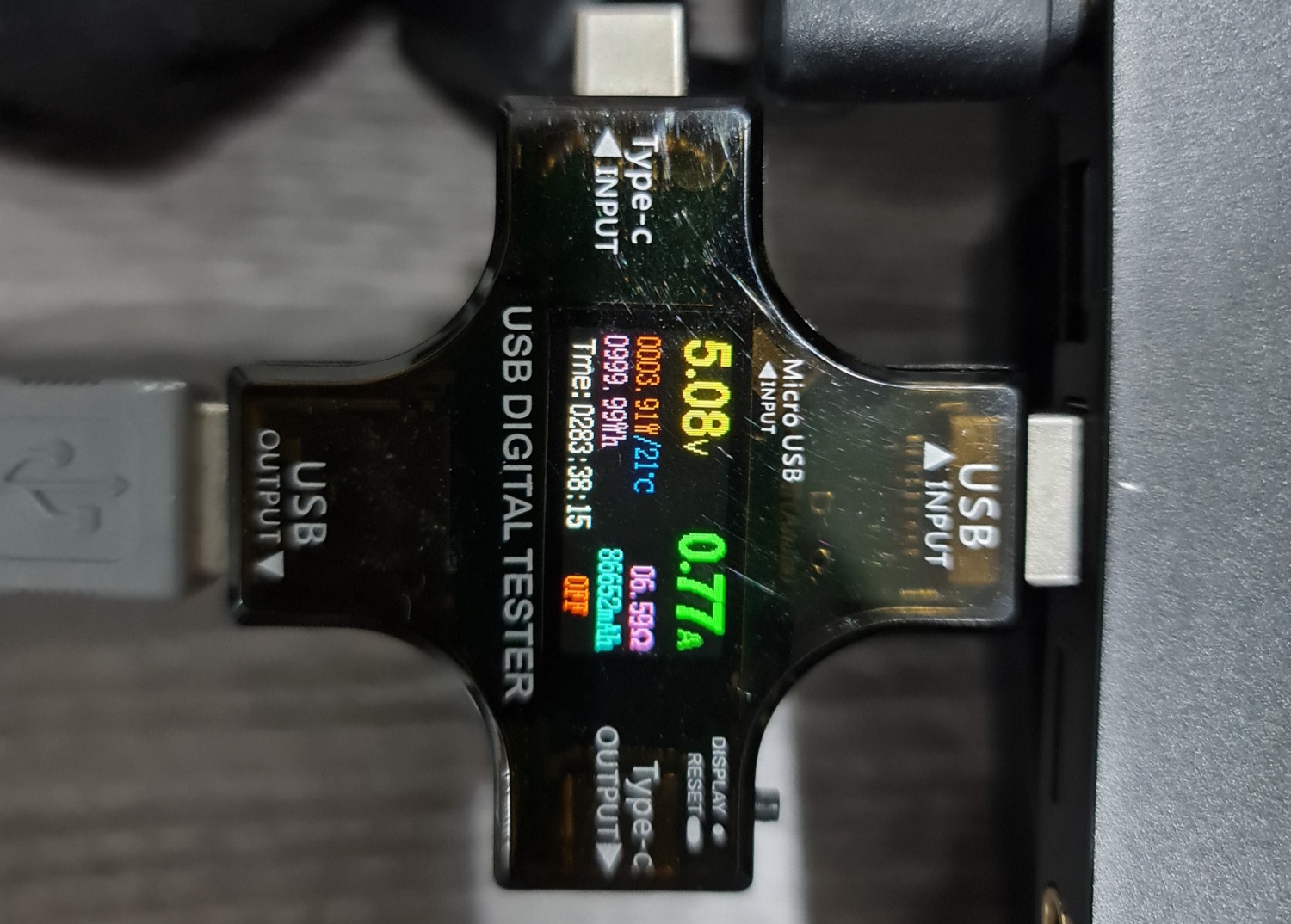
This is what I'm currently using. Same Arctic P14x2 at 13.6v. Draws under 4w, no need to carry around an ac adapter to power it.
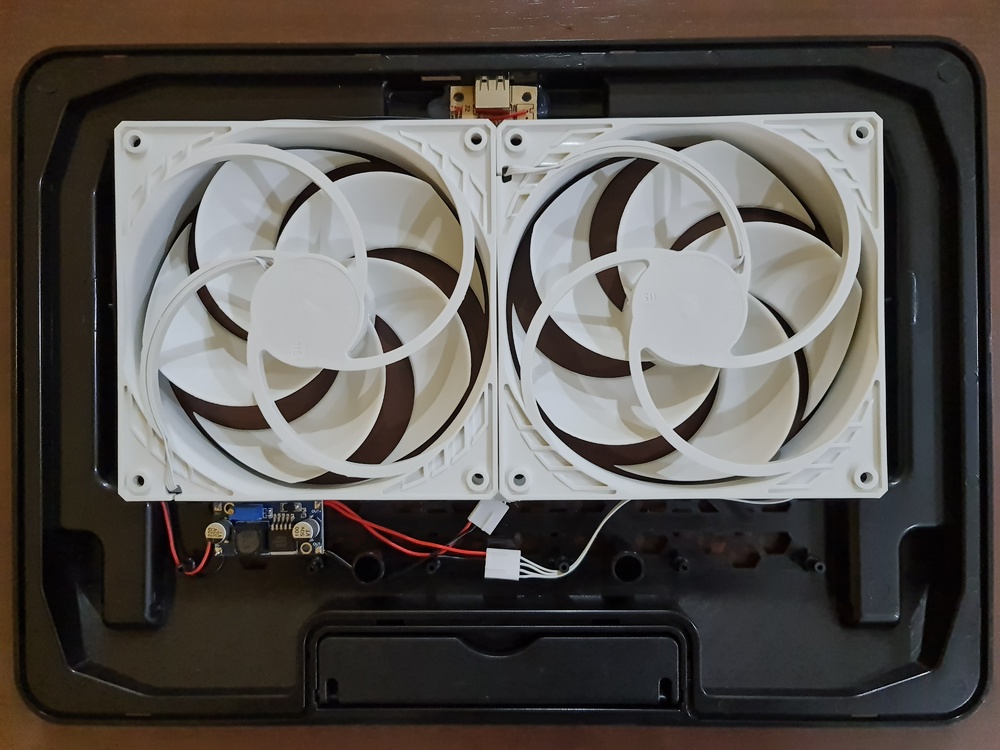
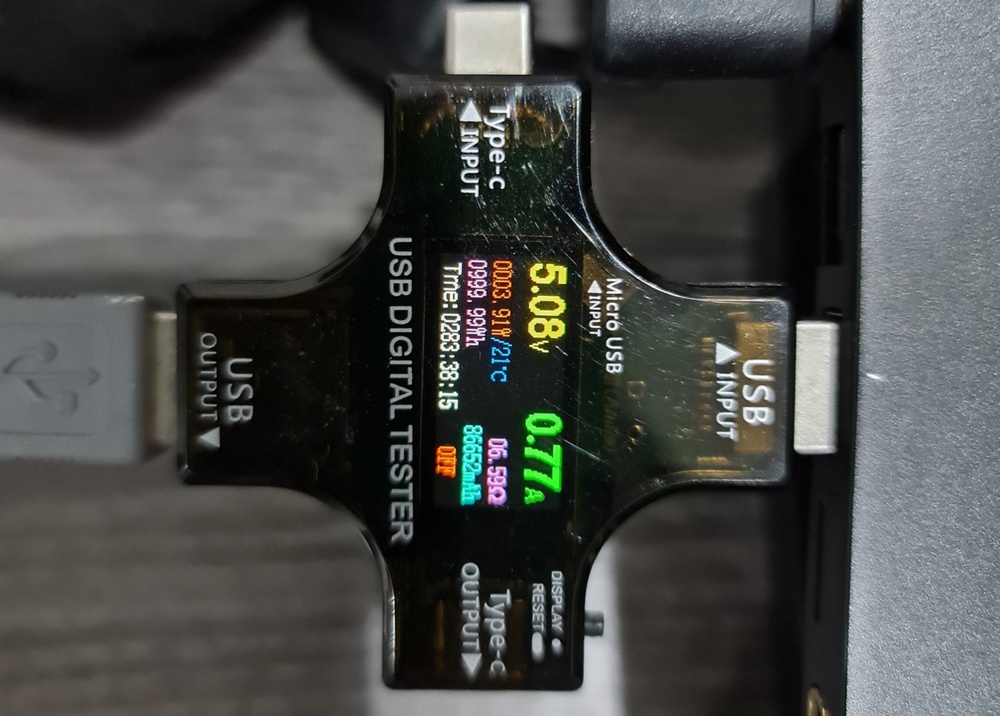
-
 1
1
-
 1
1
-
-
3 minutes ago, KING19 said:
No current games are going to use over 16GBs of RAM unless its badly optimized 2023 games like Hogwarts Legacy for an example which requires having more 16GBs of RAM or it'll stutter like mad. 64GBs of RAM is a overkill unless you're doing CAD work or even 4k-8k video editing. After upgrading to 32GBs of RAM i havent noticed any FPS increases in games but it performs more smoothly plus i dont have to worry about closing firefox everytime i load up a game or something that uses almost all of my RAM.
Yeah because steam runs on Chromium which is dropping Windows 7/8.1 support. Still sucks though....
Even ai workloads hardly touch 32gb
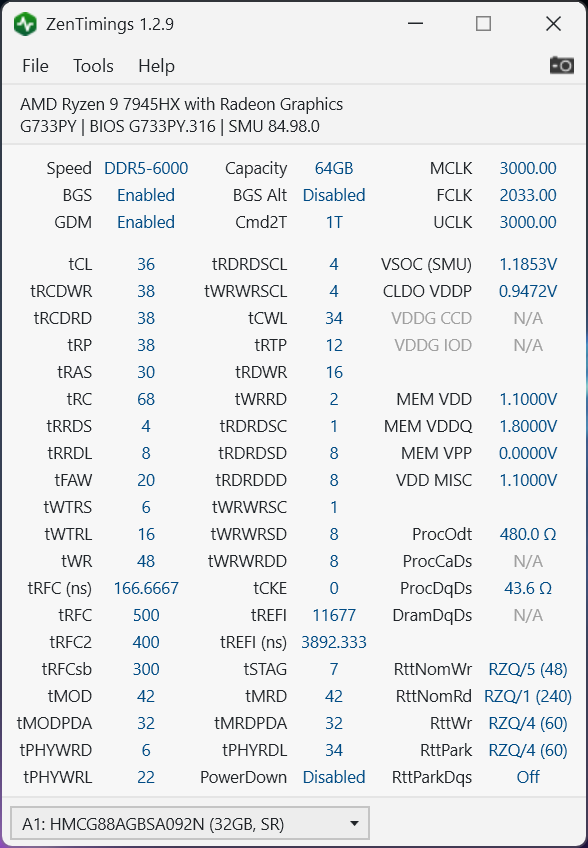
I got 32x2 micron a die because I wanted the dual rank performance improvement since ryzen is capped to 6000-6200mhz.
-
1
-
 1
1
-
-
7 minutes ago, ryan said:
I have 2 laptops and 0 desktops, somethings wrong with this picture. I am wondering if anyone knows when the 5000 series will be out? are we a few years away if so I might jump laptop ship and get a desktop for benchmarking and light gaming was thinking the only card worth buying albeit expensive is the 4090 on nvidias side of things. I would go amd if they had a better version of FSR but hey maybe down the line ill switch to AMD.
and one final question, is windows 7 still active and will I be able to use it for older games, and is it available for free?
And papusan thanks for that northern lights heads up, is that today if so i'll check it out and take pics !!
2025. No cards are really worth it this gen. Snapped up an alienware 3080ti for $500 new which was a sweet deal.
For windows 7 it'll work on anything that doesn't use dx12. Regarding free or not you can just use it with the watermark or an oem activated key.
-
2
-
-
3 hours ago, ryan said:
Thanks bro, im sorry for being so detached lately (just my illness). NO excuses 😛
I was really hoping to get in the top ten with windows 10 but it did very little, mind you I still have to tweak it but so far tweaked windows 11 > windows 10. But once I even the playing field im sure ill score higher in timespy, but Im crossing my fingers, my score was 9228 and in windows 11 it was around 9550 so its a pretty big drop, but ill try. I honestly don't know how you and @Papusan do it like do you guys come up with your own secret tweaks or do you find them on google?
3 hours ago, ryan said:Yeah I buy laptops because a 3060 desktop was 2500 and a laptop was 1800. Now it's clear desktop is the way to go. It will be fun getting or making my first gaming desktop..
somewhat disappointing as cpu and gpu scores are down, but about even g/take 30 points

gpu is down 200 points cpu is up 200, like bro @Mr. Fox you said it. pick your poison

I run tweaked windows versions exclusively and recommend revios for windows 10.
I got higher scores with it vs ghost spectre windows 11
3 hours ago, Papusan said:And it will be worse. The twin with 16GB vram for $100 more will be even a worse purchase. How big chance you think that Nvidia will reduce MSRP at launch for 4060Ti@16GB cards? Or is the $499 MSRP put in stone?
Why I ask.... "Very Few Are Interested" in RTX 4060 Ti 16GB GPUs, Nvidia AIB Sources Reportedly Say
If nvidia was smart from the beginning... Only released 4060Ti with 16GB vram for $429. Still more expensive than prev gen but they could at least have avoided the massive complaints about 8GB vram. And the price hike would only come from inflation. Not greed.
With the review of the coming 16GB variant... Nvidia will get shitstorm Nr2 for same Sku. Not the best if you want sell loads of these 4060Ti cards.
The 4060ti should be $299 and 16gb at $329.
Drop the garbage 4050 being masqueraded as a 4060 down to $199
-
6
-
-
10 hours ago, ryan said:
why? shunt modding seems risky and won't improve performance much, i upped my tgp from 115w to 140w and it was risky barely see 3fps difference in games, if i had known that i wouldnt have done it as the temps are higher.
what gains did you get?
20-30% uplift vs stock. The more demanding the game, the greater the uplift. Frame stability is also improved as its not constantly throttling itself back due to power limits. Instead you get a locked 2610mhz.
As for your 3060, 115w is close to the end of its performance curve already. How often do you see it hit 140w?
Same goes with every card in the 40 series laptop except for the 4090 laptop. The 4050,4060,4070 don't even scale past 110w due to their tiny gpu.
The 4080 laptop also barely scales past 175w.
The performance of the 4090 is still capped by its 0.95v voltage limit unlike 1v with every other 40 series mobile so there's actually some more headroom to be tapped into.
-
3
-
-
9 minutes ago, Talon said:
150w! Wow that’s insane. The efficiency is quite a bit better. I think it takes around 170w for just 33-34K range on my chip but I’ll double check. Might be worse.
I wonder why AMD doesn’t just release an X3D laptop gaming chip and be done with it.
I’m using 6000 CL36 38 38 87 TREFI is 20000 and trfc 480. At stock 1.1v
Looking at yours, I need to tighten down my tRAS. And I wish I could run DR 6000. I think something in the Legion BIOS blocks or prevents it.
Yeah, i do a lot of cpu+gpu load so intel wasn't a viable option for me.
I got 34k at 90w stock.
As for why no X3D, tenperature sensitivity was the most cited reason. Another would be no competition from intel since they cant push 350w+ cpu on laptops.
-
1
-
1
-
-
16 hours ago, Izy said:
wait what it can be shunt modded lmao
also how was removing the cooler safely?
i know that its liquid metal cooled, at least my scar 16 2017 is on both the 4080 and 13980hx
wouldnt mind chaning the thermal pads for more cooling
Why wouldn't it be?
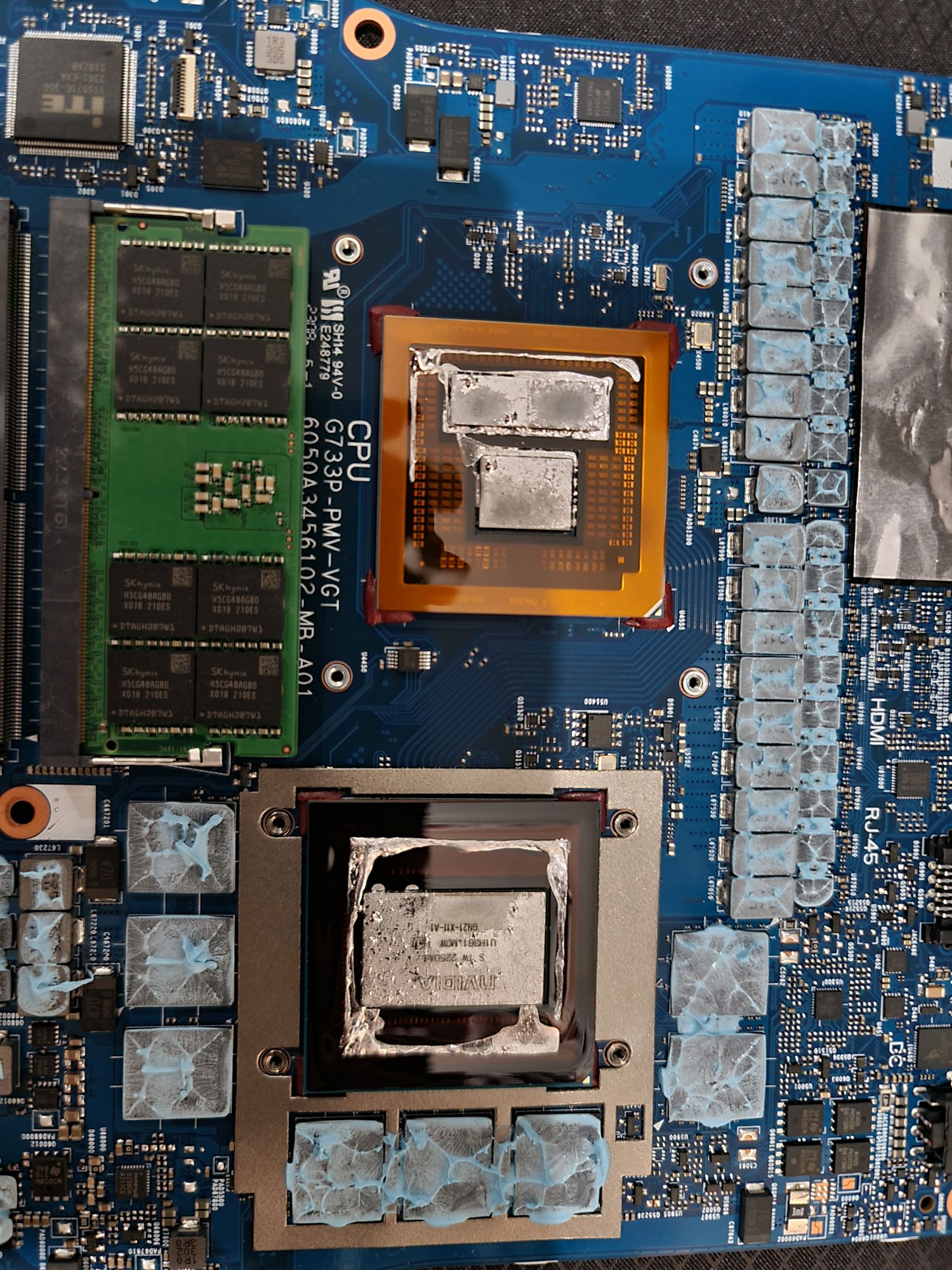
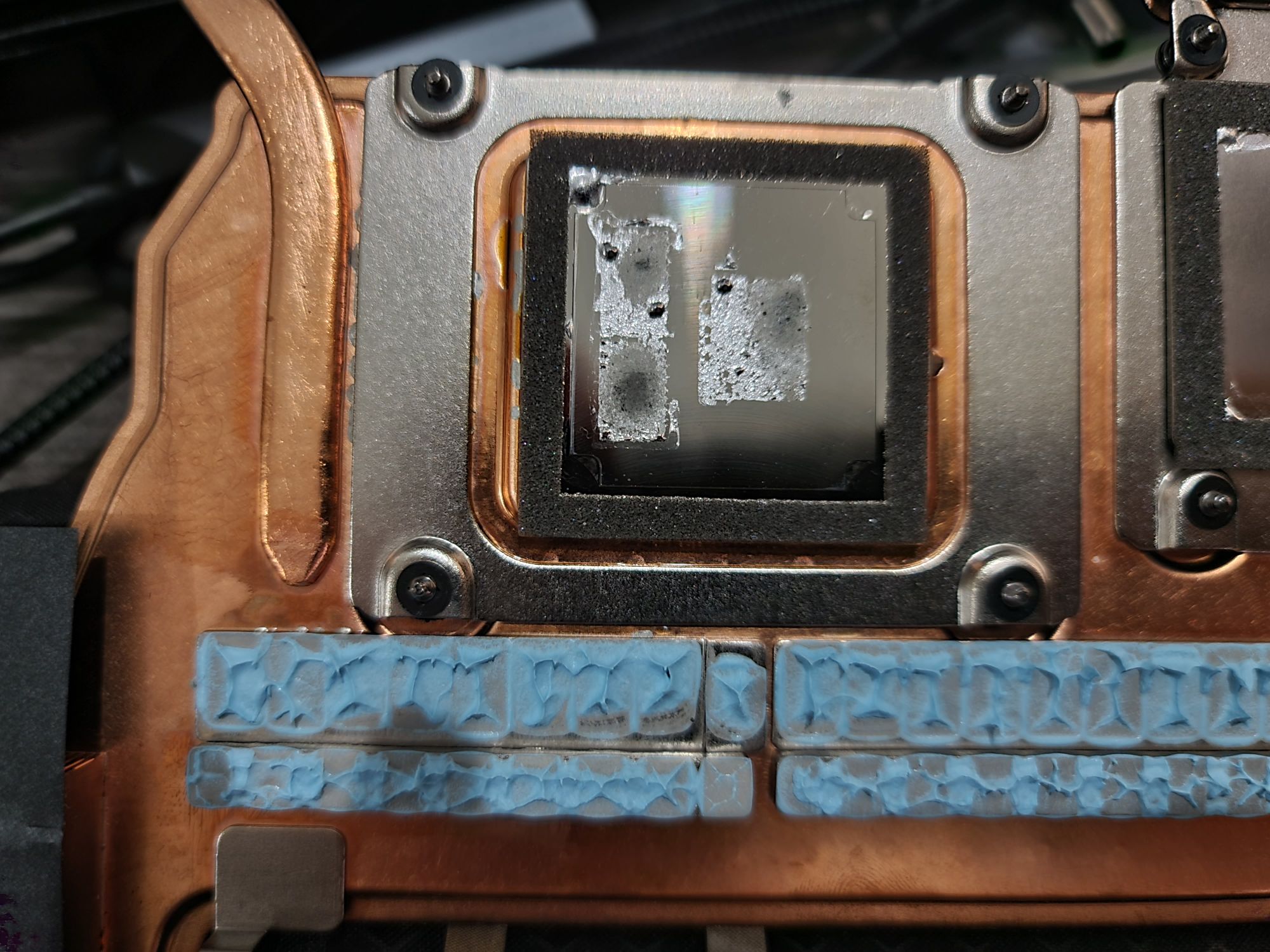
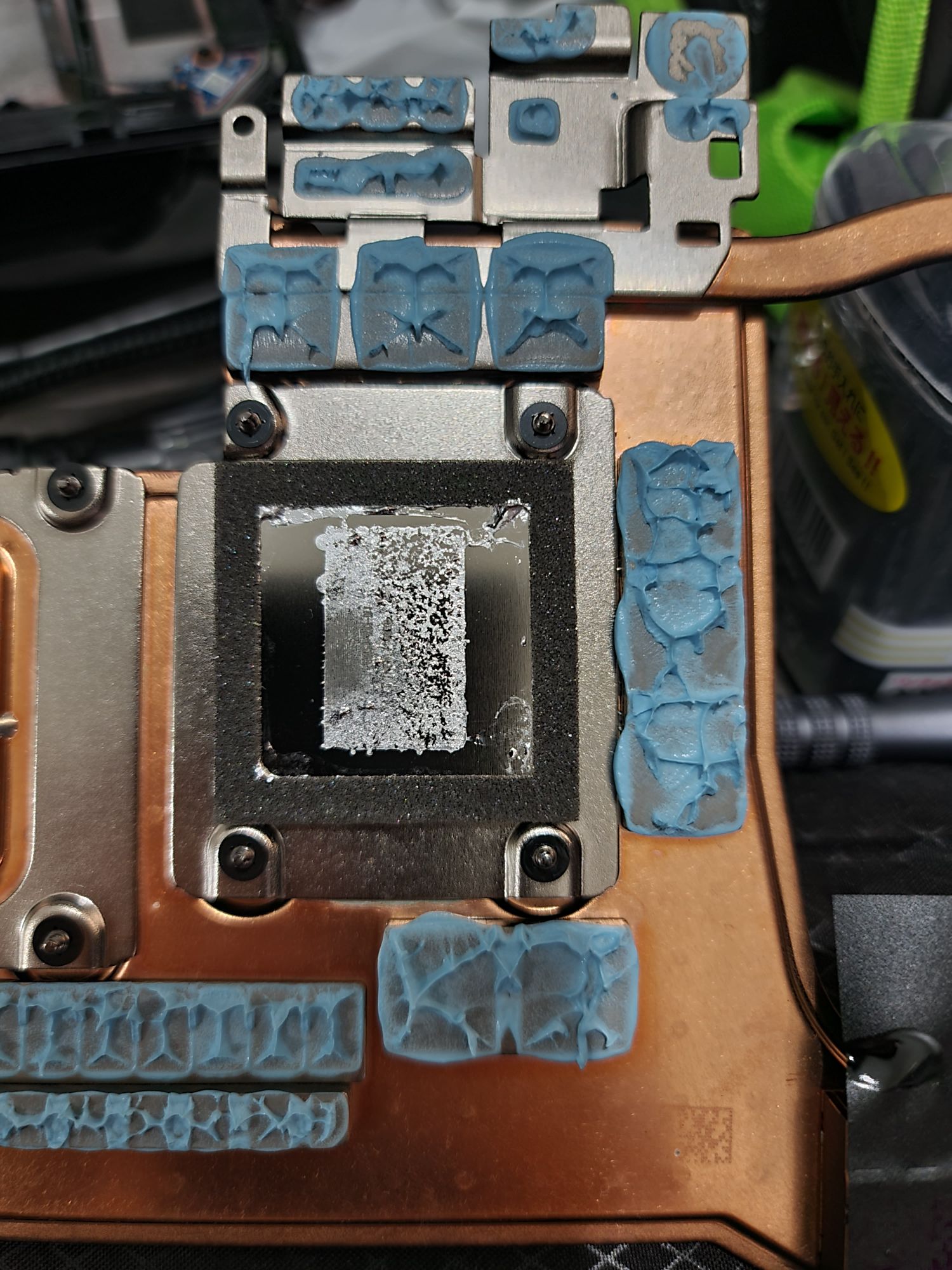
You definitely have to be careful when removing the heatsink. Asus's application method guarantees a lot would be spilled.
Re-spreading the LM definitely helps with temps. Hottest to coldest core temp delta went from 20C to 5C
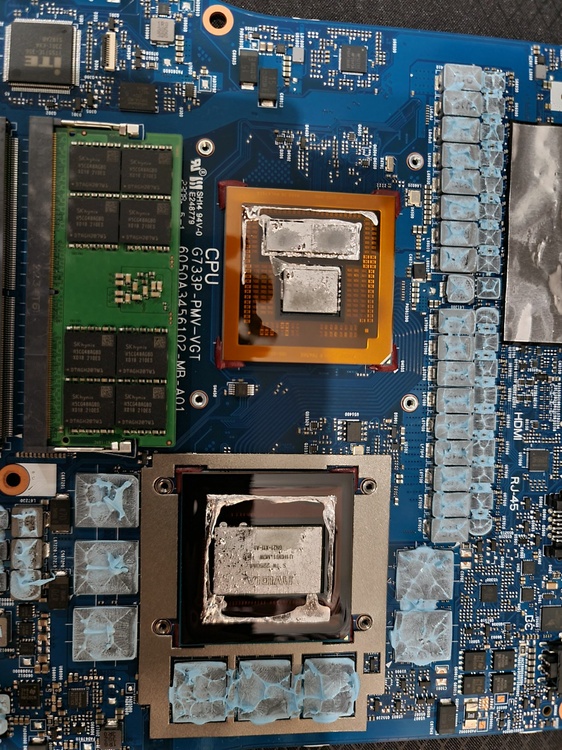
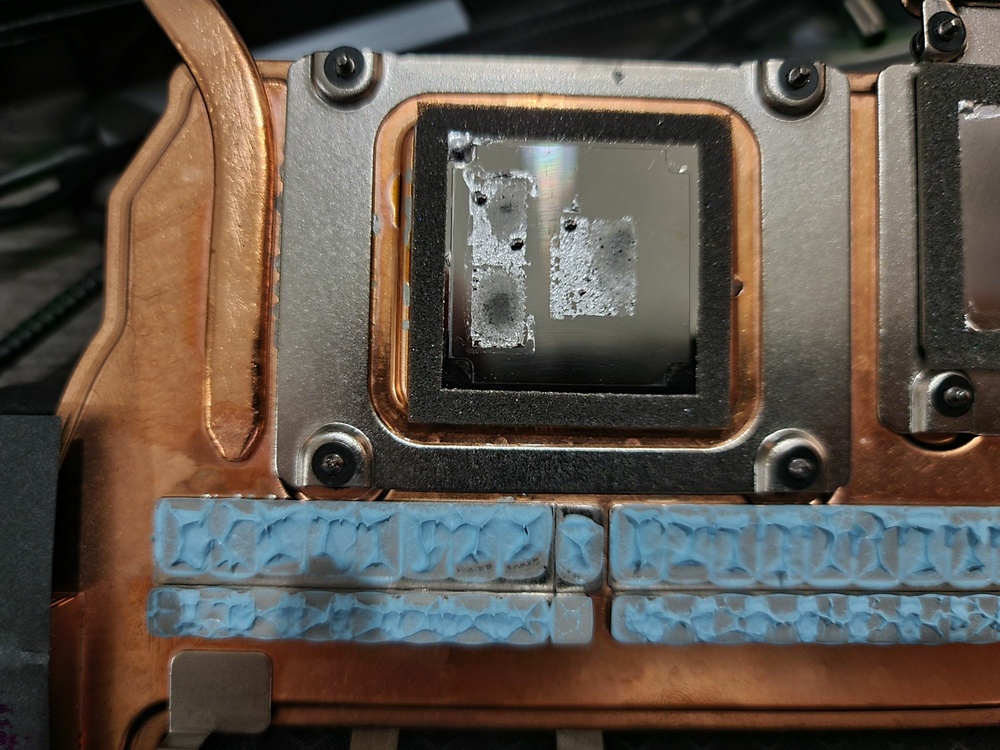
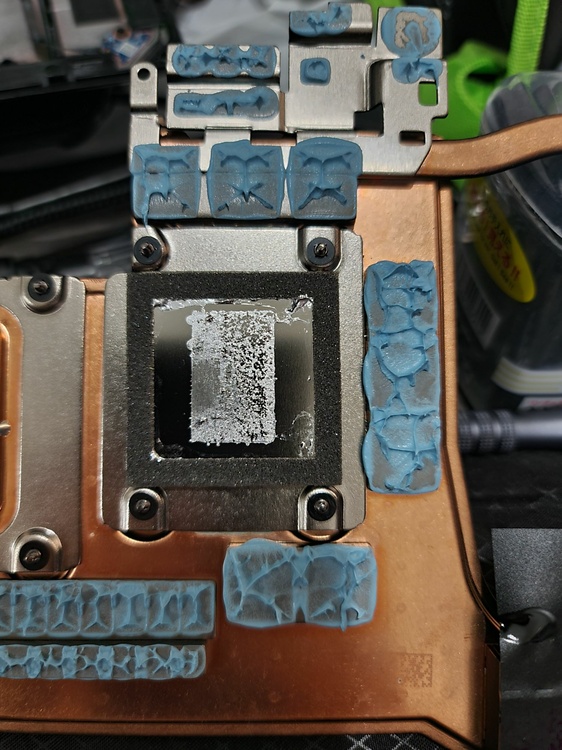
I changed the stock blue thermal putty to upsiren u6 pro.
-
4
-
1
-
-
25 minutes ago, Talon said:
@seanwee Nice scores! Ya it's crazy how much TS seems to hate AMD CPUs. I saw a 13950HX posted the other day over 37K CB23 and I think a 13980HX is 38K territory. I'd be more curious how well the power limit and temps look for that score.
My non-shunted 4090 in Far Cry 6 bench with your settings, a lowly 13900HX and single rank DDR5. Curious how much better I'd do if I was shunted too. There just isn't much in it for shunting it seems.

Nice, and no, shunting the 4090 won't help much more with far cry 6 as its not gpu bound. I did the run before and after the shunt mod, no difference. It's more a test of your cpu and ram speed like any other far cry game.
What clocks and timings are you running on your ram btw? I've done what I can with UMAF but I can't adjust the TREFI timings.
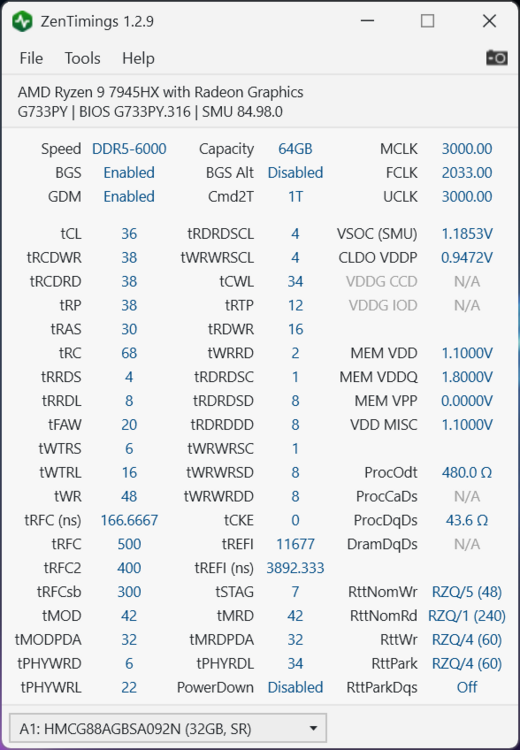
For the cinebench score that's 150w with an undervolt. Waiting for dragon range support on UXTU.
-
4
-
-
15 hours ago, Mr. Fox said:
You can usually tell by the part number on G.SKILL, but the speed is also a dead give-away in most cases. The rated XMP speed is a reflection of the capability of the memory IC. So, you won't see Micron or Samsung memory kits above 6000-6200 because that exceeds their normal functional capabilities. It is almost guaranteed that above 6200 is SK Hynix M-die or A-die.
Anything in the 6400-6800 range is SK Hynix, usually M-die up to 6400. Above 6400 usually Hynix A-die. Samsung can generally be speed rated up to about 6000. Below 6000 it could be anything and it really doesn't matter what it is because you're shopping for cheap parts and don't care about overclocking or performance tuning in the low-budget product category. There is that point of possible overlap in the 6000 realm. TeamGroup Delta is SK Hynix and they advertise that is the ony IC they utilize.11 hours ago, Talon said:Nice! Anyway to get that CPU score up? Seems pretty low and holding back your overall hard.
10 hours ago, tps3443 said:
I was impressed as well. It’s actually a little faster than my 3090 desktop. And to be a laptop, that is just crazy. Only that laptop has benefits of DLSS3, frame insertion etc. Not bad at all. I think the GPU score is really good because the CPU uses less of the available max system power limit. So on average that 4090 will be a little quicker in GPU bound scenarios than the Intel/4090 laptops.10 hours ago, Talon said:No that GPU score is so high because it's shunt modded. It has absolutely nothing to do with stock power at all. All 4090 laptop will happily sit at 175w TGP which is the max allowed through any vendor (except tongfang chassis that use a built in shunt). All 4090 laptops will happily sit at 175w in games/benchmarks.
This is the BEST RTX 4090 Laptop (shunted of course) and i9 13900HX. It curb stomps that score. Legion 7i Pro Gen 8 beast mode.
https://www.3dmark.com/spy/38610285
7 hours ago, tps3443 said:
You know how all of these machines have a combined CPU and GPU max limit for both component loads? Some are 200 watts, others are 250 watts maybe.
Well, I saw somewhere during testing with Battlefield 2042, and with the Ryzen 4090 machine it was straight whooping the Intel 4090 laptops. And this was because 4090 and Intel CPU was scaling back during gameplay because power consumption. The Intel chips were using much more power. While the Ryzen chip stayed clocked higher during gameplay, and it allowed the 4090 GPU to use more power too.
I don’t think they can lock that 175 TGP watts during gameplay. Not even a GT77 can do that (Maybe games like Dying Lite 2 or low cpu power games). Because the CPU can hit just 60-70 watts in plenty of titles, and it starts throttling back the 4090 available power to the 130’s and 140’s range. It kind of sucks that they do this. But they just stay inside of that 230ish combined CPU/GPU power range. They have to power other components with the 330W brick like the panel, keyboard, trackpad, fans RGB lights, motherboard, storage, and other items.
4 hours ago, Talon said:
Yes I’m aware of the combined/crossload power limits on these laptops. I have one.
Got a link to that whooping you’re talking about? I’d be curious to see it. 1080p low settings to drive FPS in BF2042 I was seeing over 300fps on my 13900HX and 4080 laptop.
My 4090 likely does the same given it’s almost entirely CPU limited in that situation with the GPU pulling nowhere near max TGP. The crossload is under 240w CPU/GPU. Swap to 4K and you’ll be GPU TGP limited and nowhere near CPU limited.
3 hours ago, tps3443 said:
I have no idea, this was a while back when I was considering getting a 4090 laptop. I think it was actually a video on YouTube. But I was researching and investigating the crossload thing a lot, and I was able to see some advantages where a 7945HX CPU would spare more overhead for your 4090 somewhere. This was part of what kinda turned me away, because I had my mind set on the faster clocked intel chips.
I don’t doubt your machine is fast though.
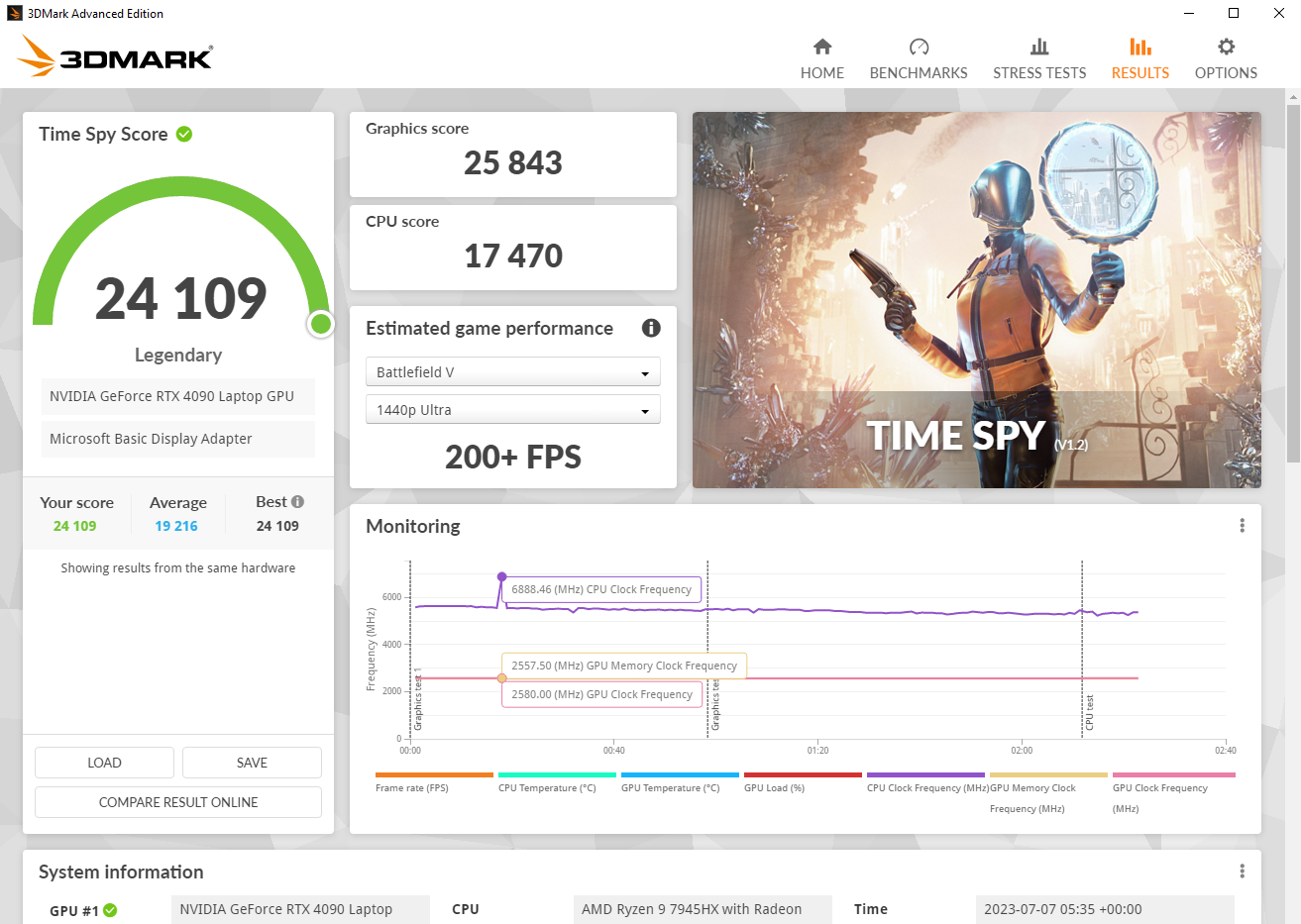
Windows 11 kills performance. Surprise surprise
Retested with windows 10.
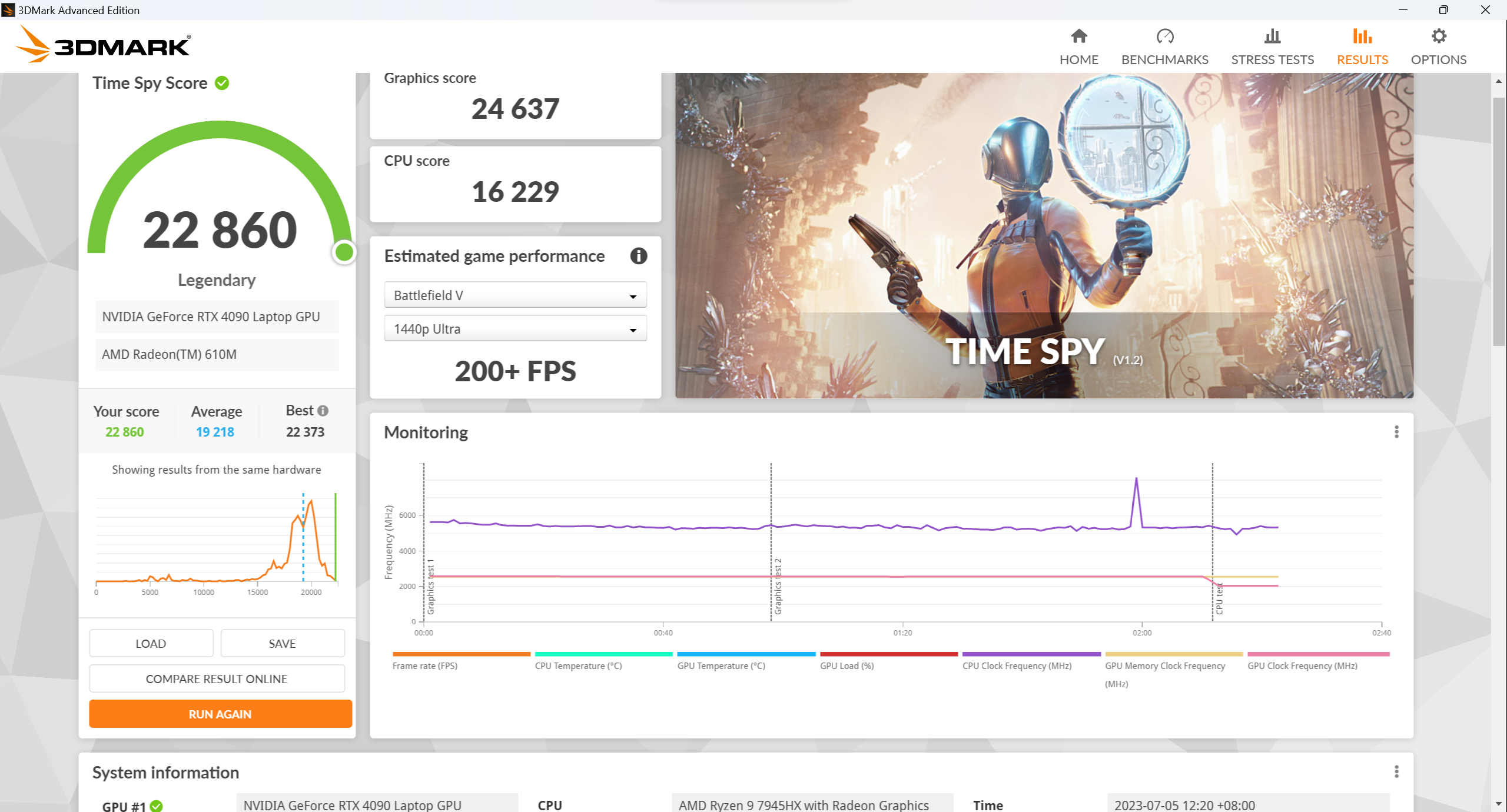
Prema is left in the dust now but 3dmark
still favors Intel's faster cores it seems. Timespy is limited to 10 cores so it doesn't scale with amd's cpus.
I helped GQNerd with the shunting, power draw is the same. Clockspeeds are similar as well so the only factors would be cpu and ram.
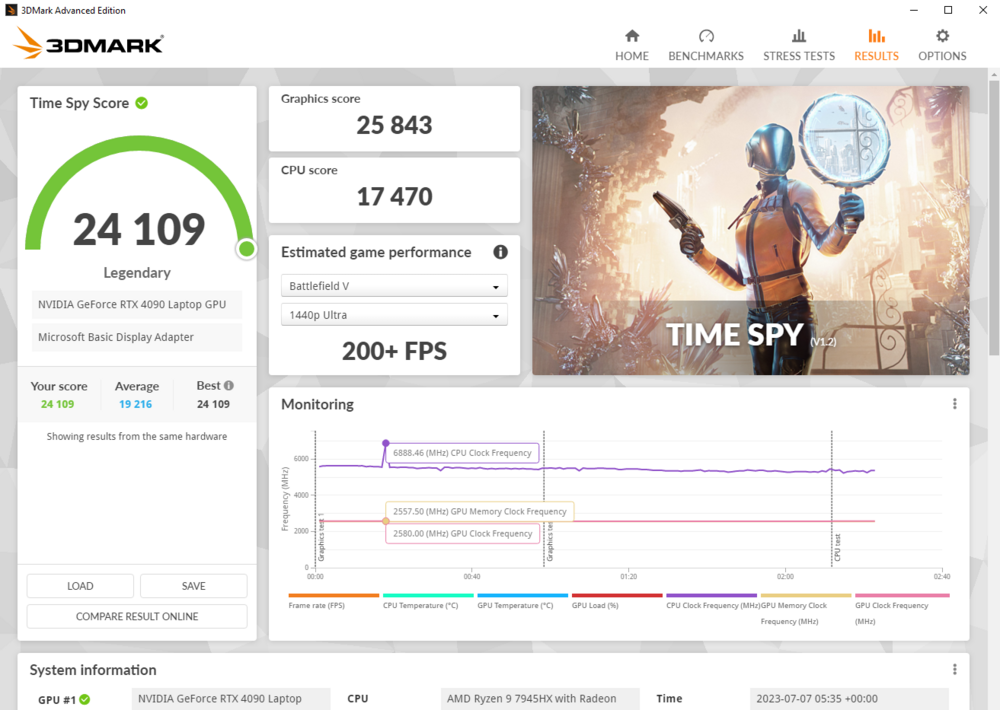
https://www.3dmark.com/3dm/96711130
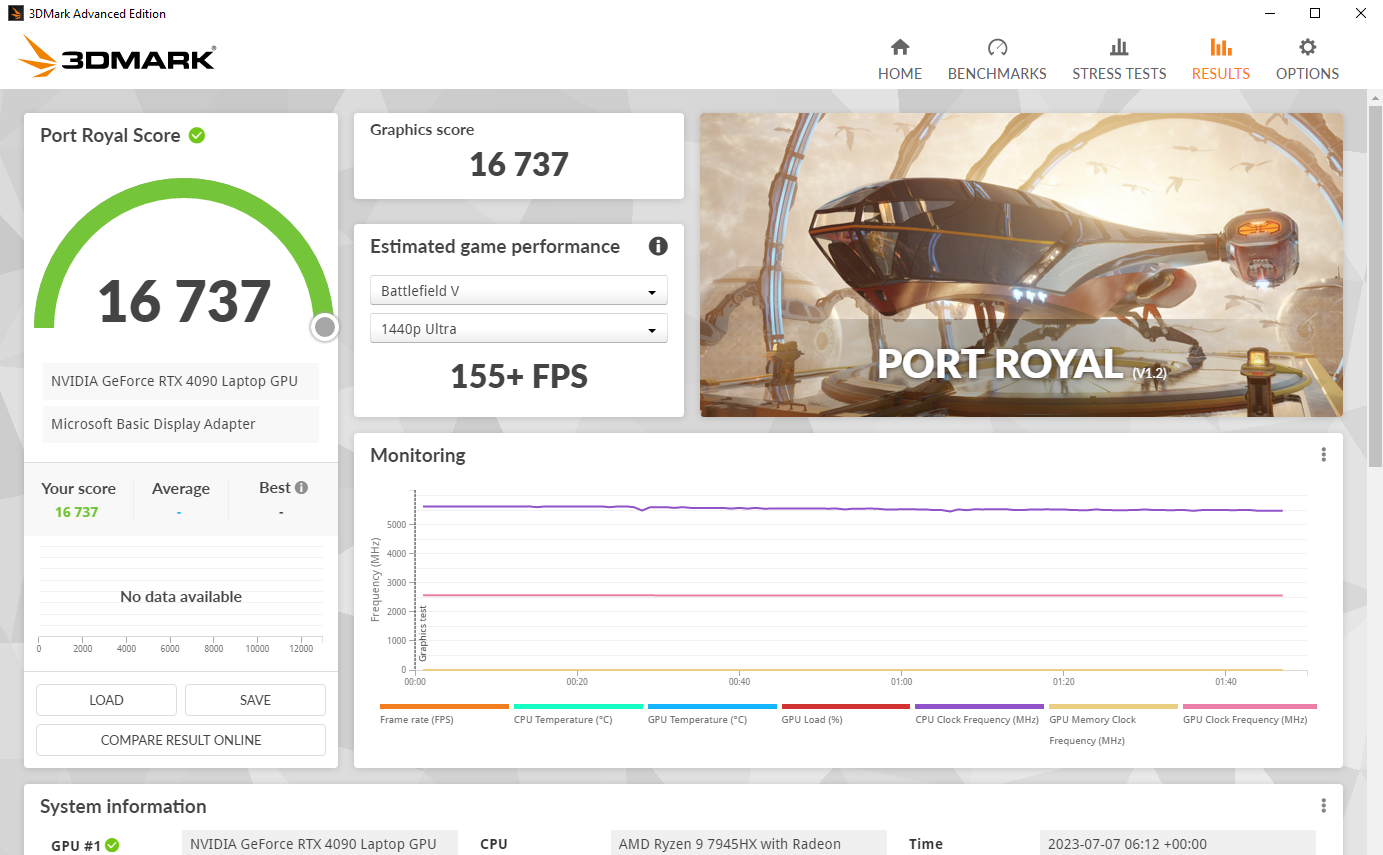
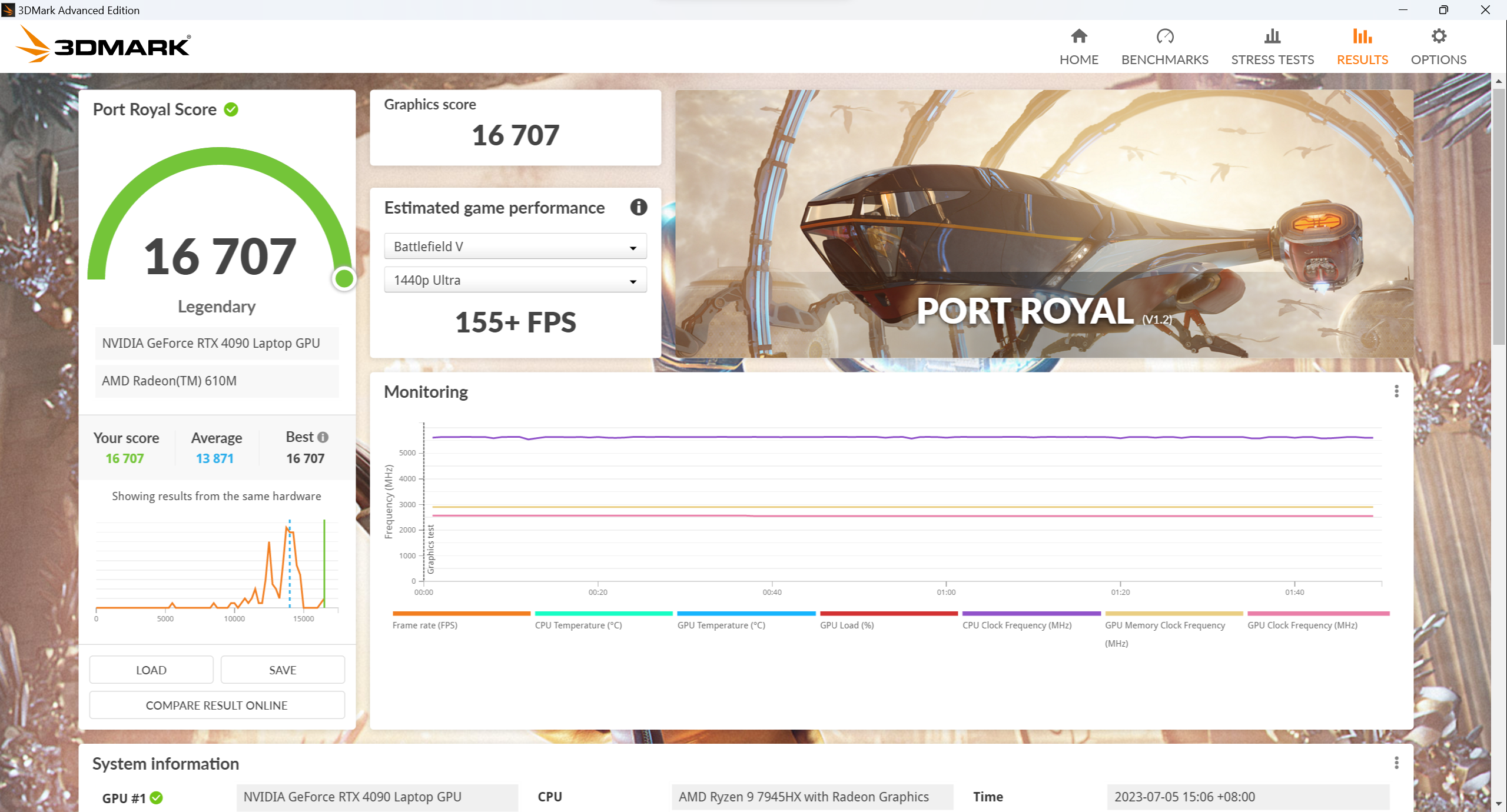
Scores are closer with port royal but still can't beat his score even with better clocks.
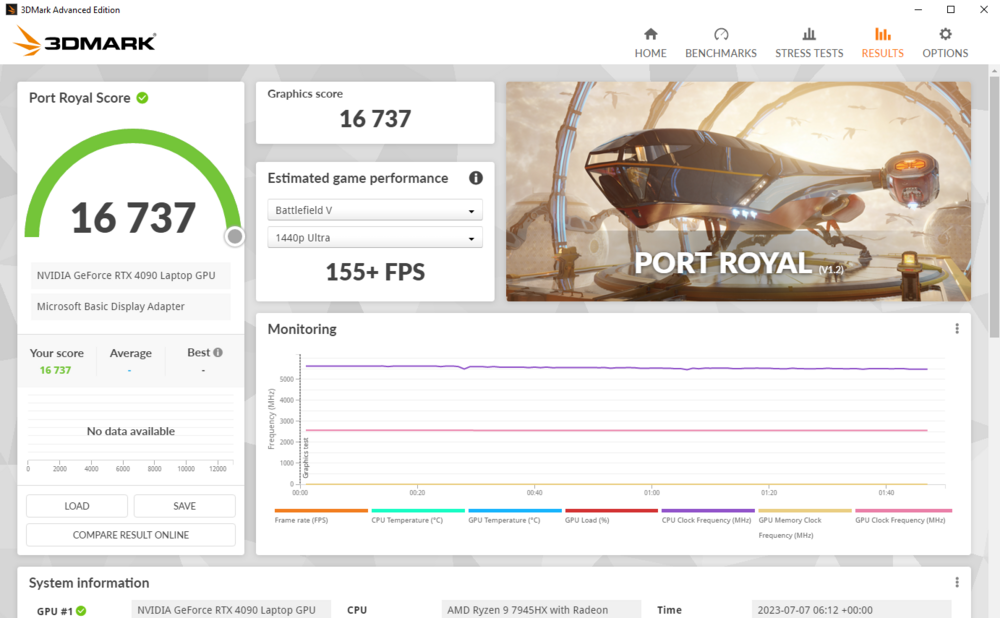
https://www.3dmark.com/pr/2434467
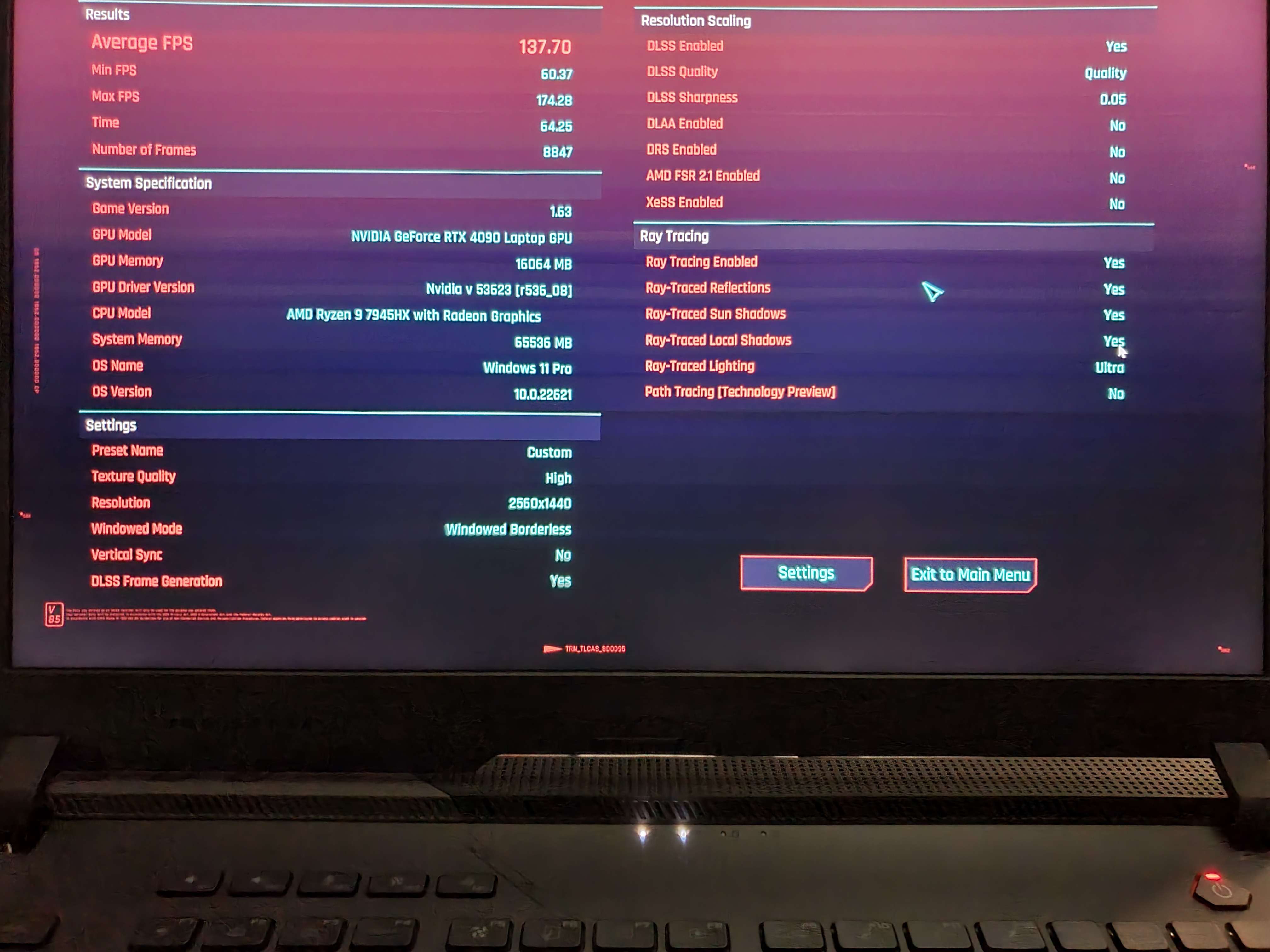
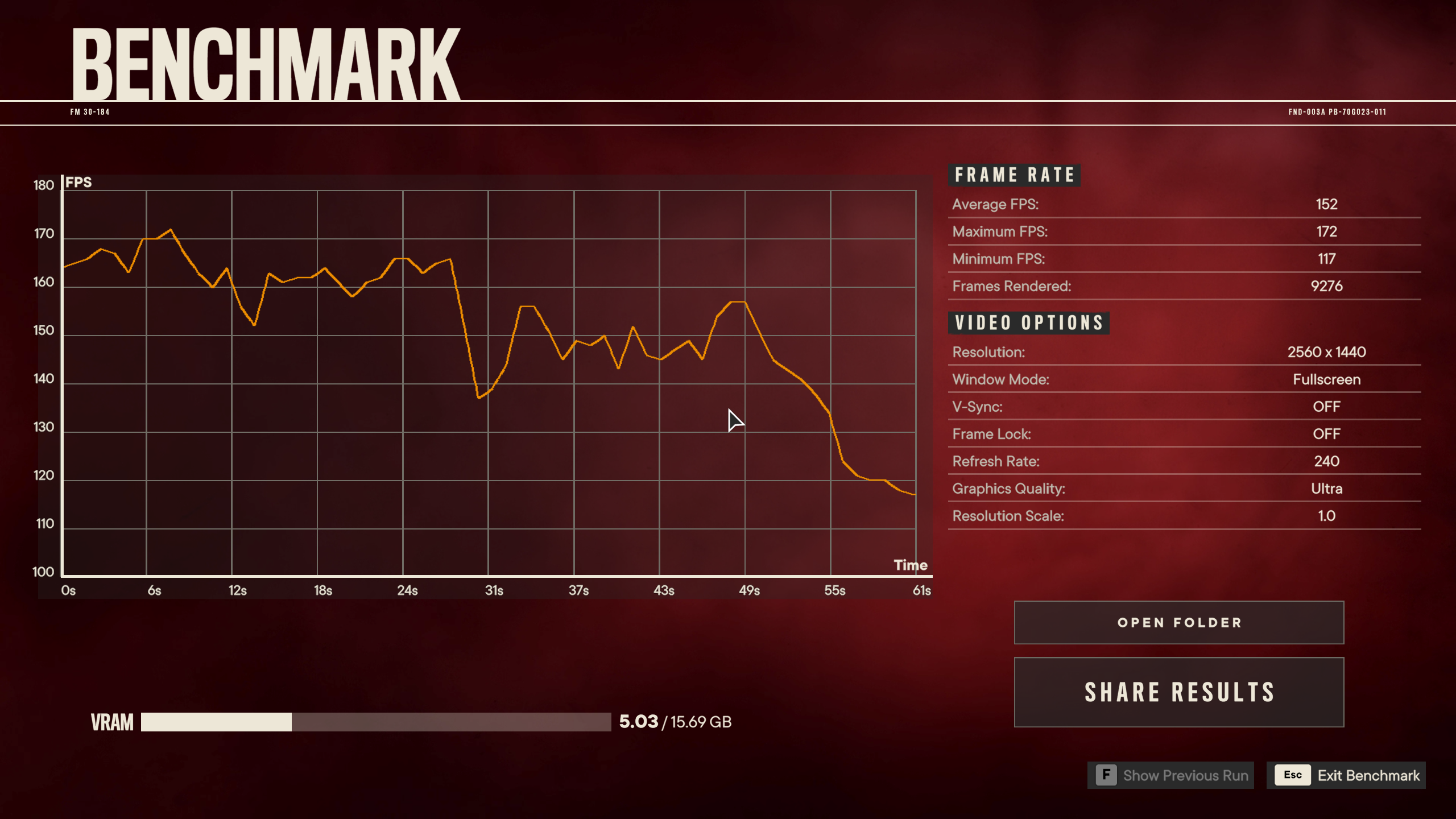
Here's a few game benchmarks I ran on windows 11
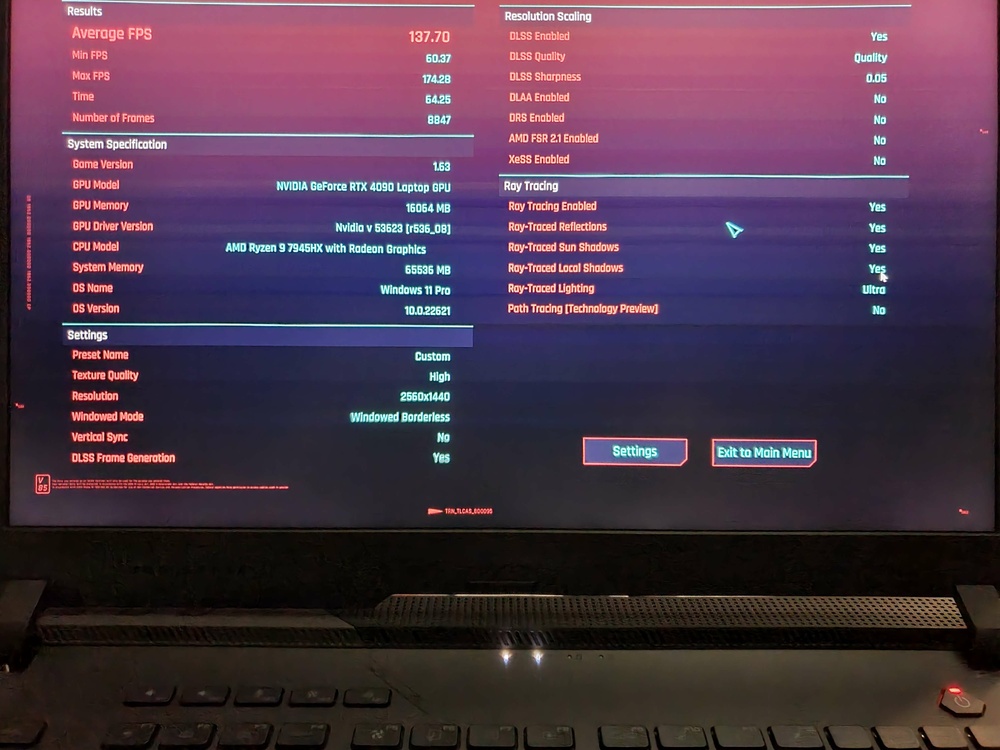
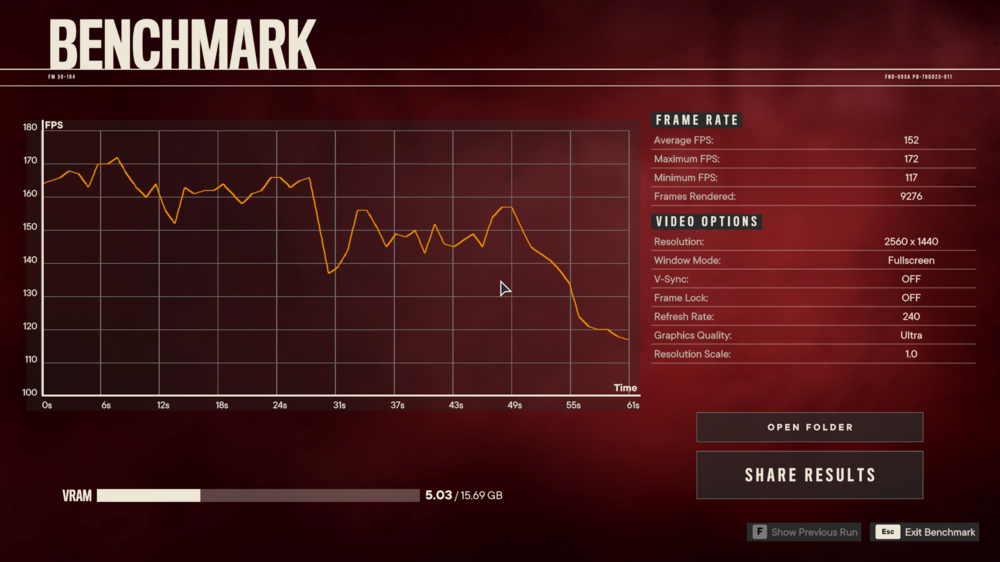
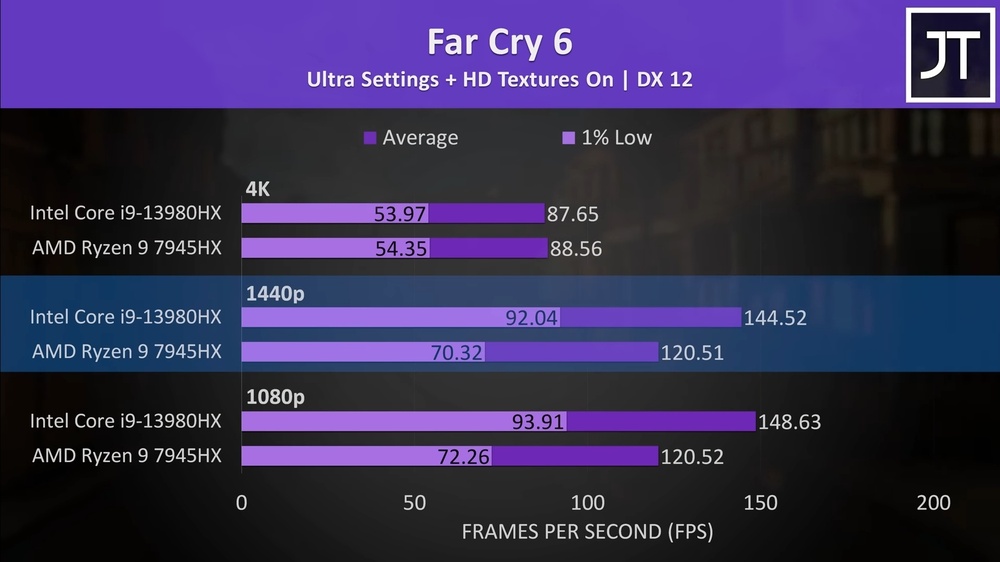
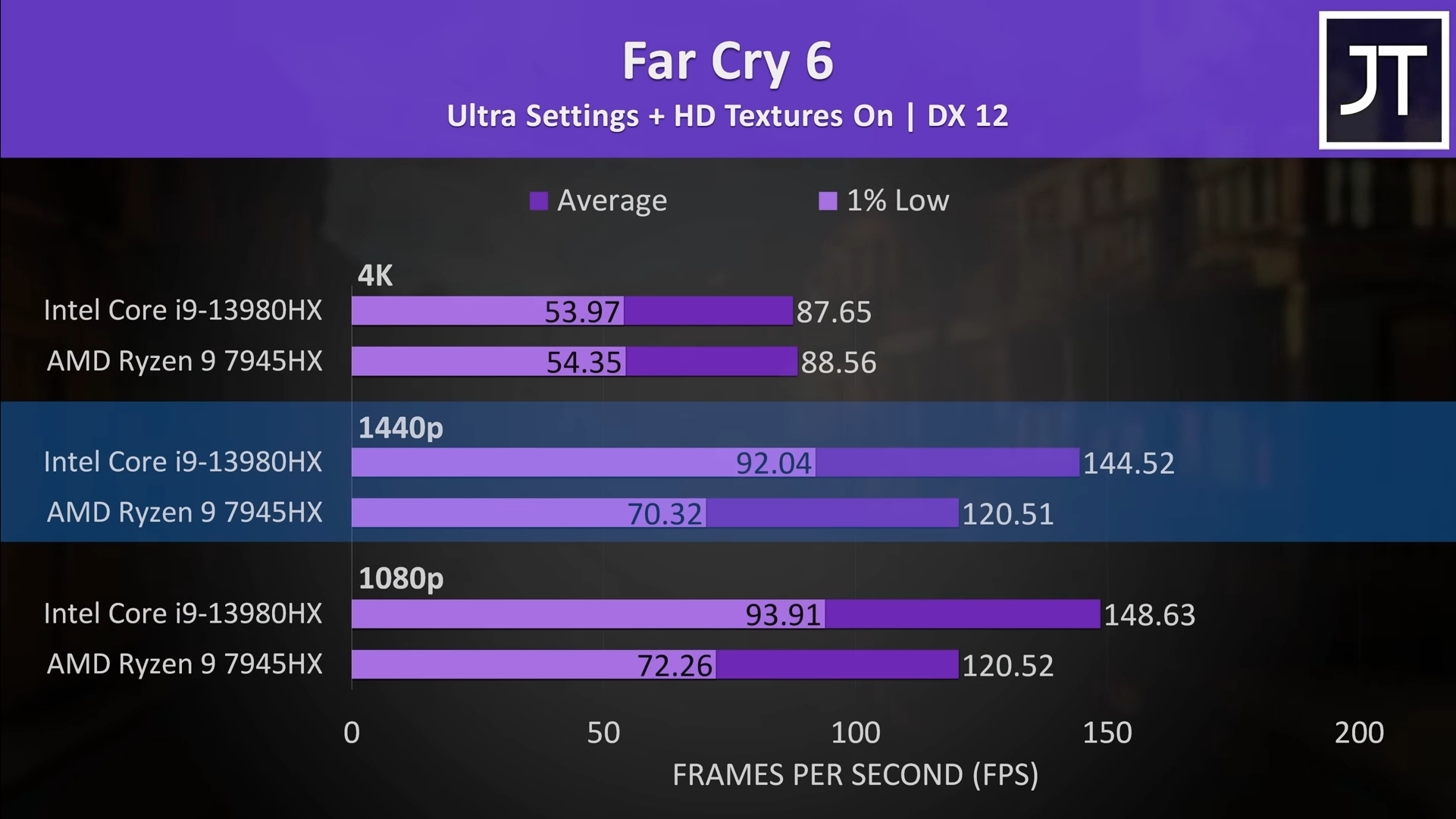
Creams the 13980hx even in the most Intel biased game
For reference, this is Jarrod'sTech's bench
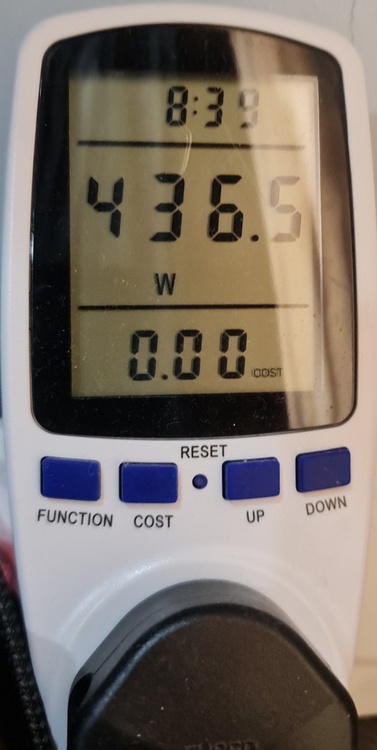
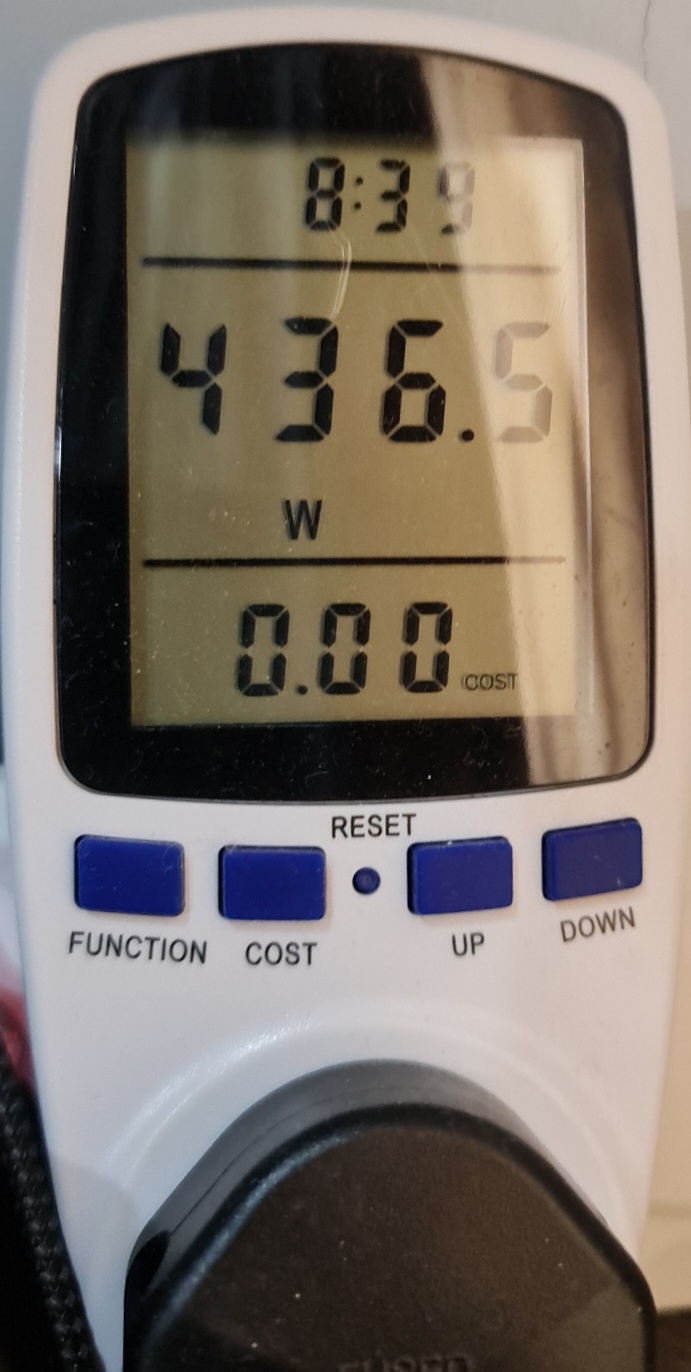
As for combined power draw. Hows 436w sound? Prime95 small fft + furmark
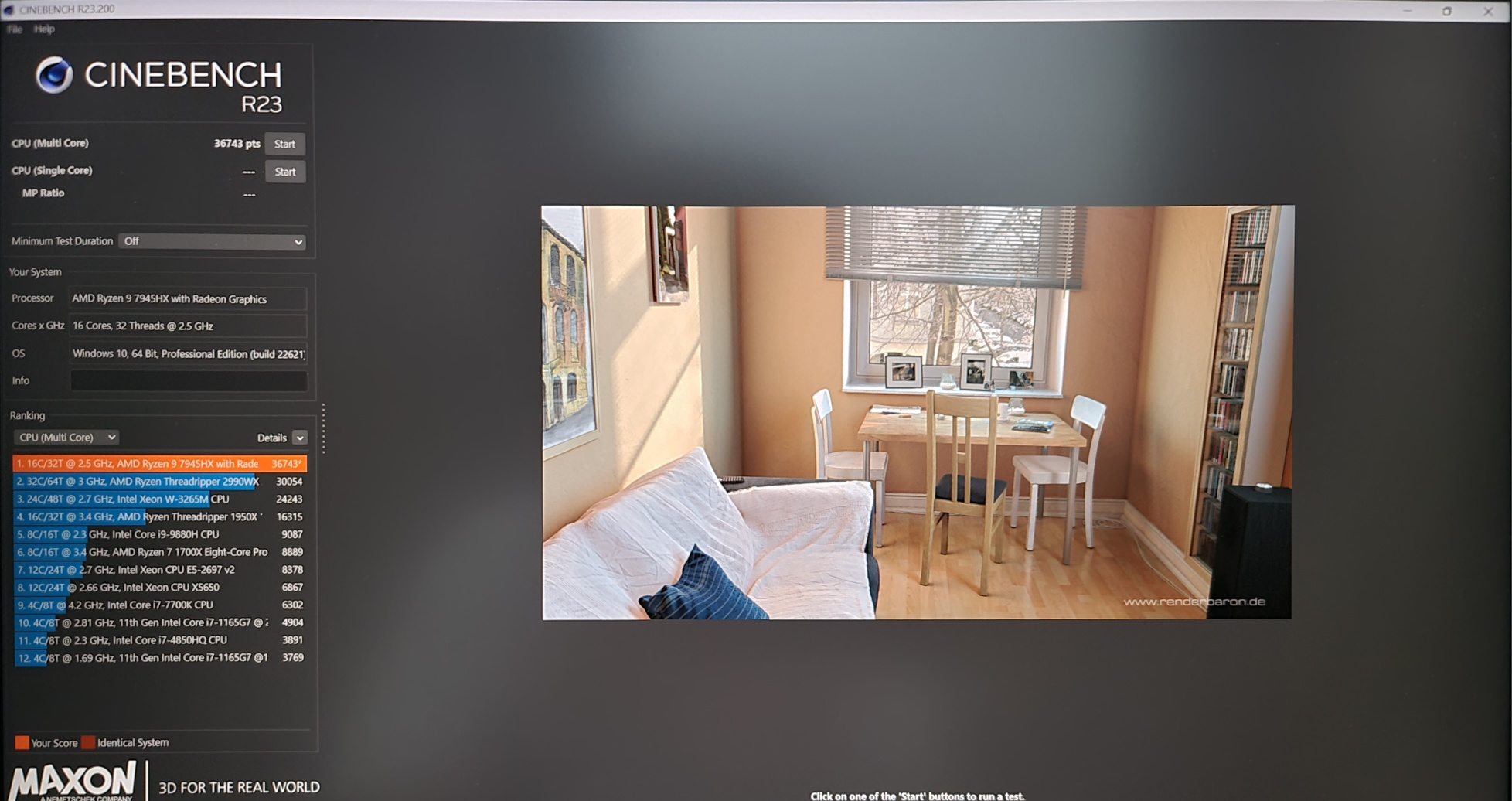
Bonus cinebench R23
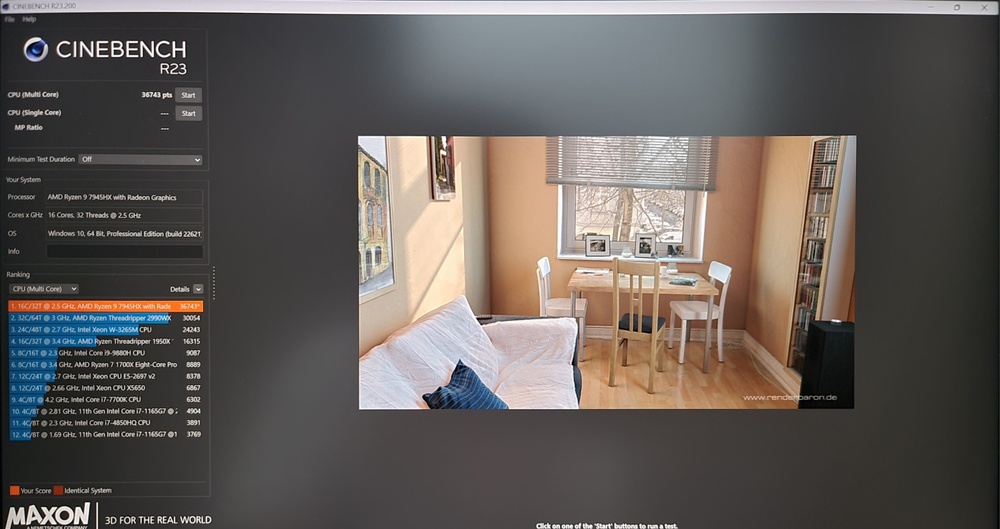
-
5
-
3
-
-
-
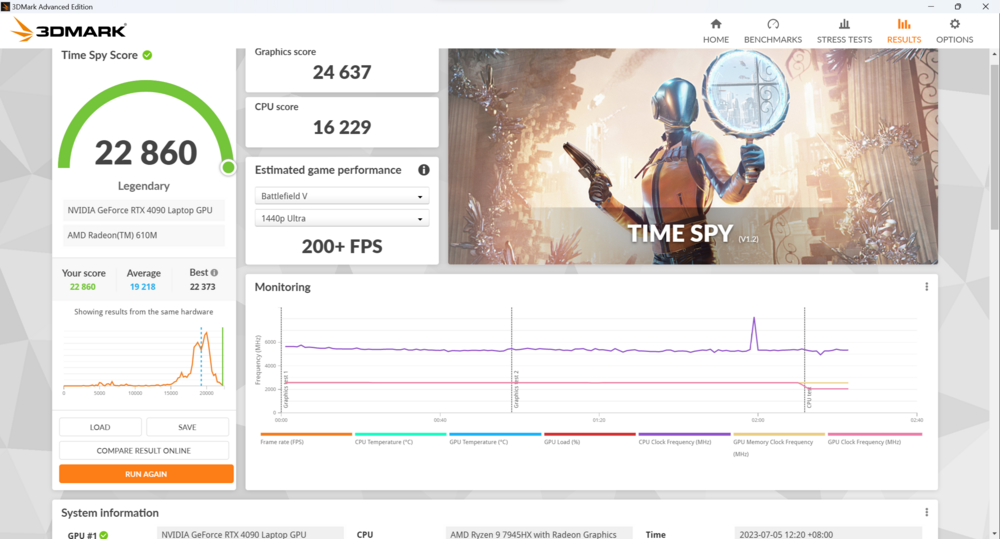
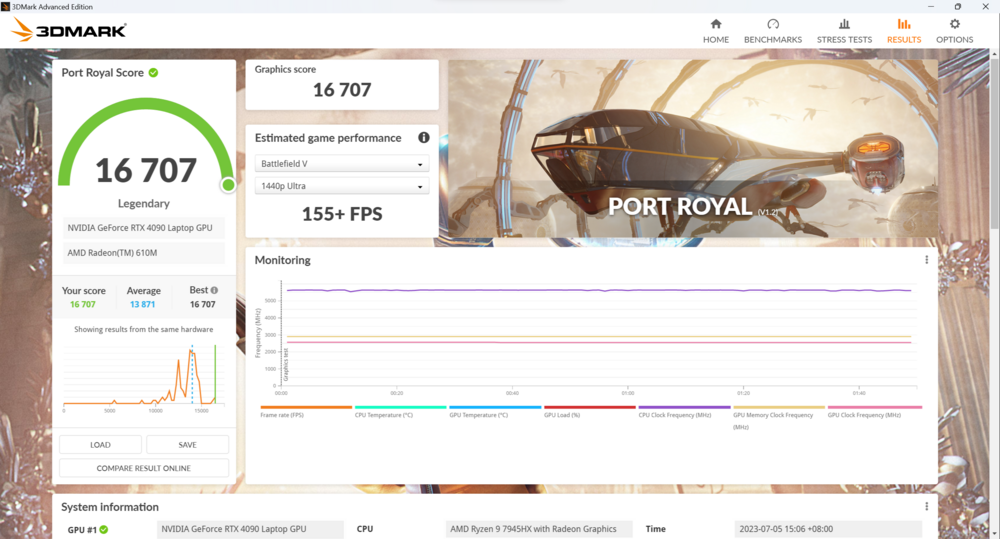
Finally upgraded from my GS75
Respread LM + changed stock thermal putty to Upsiren U6 Pro. Shunt modded gpu to 250w.
It's a beast.
-
1
-
1
-
-
On 5/3/2023 at 3:40 PM, ssj92 said:
It's quite clear DDR5 SODIMM has huge limitations. I am running 128GB 2400Mhz DDR4 RAM in my 2019 Area-51m running a 9th gen CPU but these newer 12th gens can't run 128GB unless it's capped to almost previous gen speeds? lol
The new 48GB modules will be nice because it should allow 96GB DDR5 and hopefully at full speed.
My 5600Mhz 64GB CL40 kit runs at 5200Mhz CL38 in my m18. Of course if we had full control in bios for timings, speed, voltage, I'm sure we can hit higher.
I have 2x32gb kits of dual rank dual channel Hynix A die kits on the way for my 7945x + 4090 Strix Scar 17.
I will be overclocking them with the smokeless UMAF which allows me to change cpu power limits, vrm settings and overlock ram as well. I am targeting 6000 CL30 @ 1.35v. Expecting up to a 25% fps boost in memory intensive games. The stock 4800 CL40 JEDEC spec is atrocious for amd cpus.
On 5/1/2023 at 5:51 AM, Mr. Fox said:It would be logical for a number of reasons. Thermal management is already nearly impossible with pre-DDR5 laptops. The need for increased voltage and access to memory settings, a good CPU sample and superior motherboard design are the reality on desktops. The likelihood of laptop manufacturers getting these extra things right and giving purchasers of their products access to associated BIOS features is like slim to none.
I will try to take some thermal images pre and post overclock. Thermals shouldn't be overly concerning (desktop kits actually run in comparable conditions nowadays, thanks to nvidia's flowthrough design) but I do wonder how much i will be limited by the suboptimal memory layout (optimised for space rather than speed).
As for manufacterers giving access to advanced bios, I know that its present with MSI and Razer albeit its hidden. With AMD systems you are able to access them with Smokeless UMAF tool.
-
2
-
-
20 hours ago, ryan said:
I don't want to argue this as its highly subjective, but carbon specifically diamonds are tops when it comes to thermal conductivity..fact. but as for implemtation thats another story, and I don't think any paste has dropped me close to 15c vs arctic silver 5 since iv'e been laptop gaming(circa 2004)
Yes but you're not using a solid continuous piece of diamond. Its more like diamond powder suspended in silicone oil so the conductivity won't even come close to matching diamond.
Theory is one thing, how it works in real life is another matter entirely. Thats why actual testing is important.
-
On 3/17/2022 at 8:50 AM, Papusan said:
The diseased thin and sllim laptop trend strikes again. It comes with a huge drawback. Design over functionality. Why go for worlds thinnest design over functionality for an gaming laptop? Make it so damn thin that you can't offer better performing graphics cards and on top have to opt for the most castrated version of cards match the thread topic as hand in glove.
"The new Alienware x14" offers the latest technology and stable gaming performance, but the slim chassis requires some compromises. A thicker chassis would have probably been better for
manymost customers.Alienware x14 Review - The world's thinnest gaming notebook requires compromises
The marketing phrase “world’s thinnest gaming notebook” sounds good, but we are pretty sure a slightly thicker chassis would have resulted in a better product.
It's meant to compete with the zephyrus g14 and stealth 15m i think
-
On 3/17/2022 at 11:49 PM, Blacky said:
I may be wrong, but my understanding is that IC Diamond doesn't degrade over time as badly as other thermal pastes. If you have a laptop that it's difficult to tear down and replace the thermal paste, I usually recommend IC Diamond. Put it once and forget. The next best thing is liquid metal, but I don't recommend that to the uninitiated.
On 3/18/2022 at 2:10 AM, ryan said:yeah im an ol OG nbr member... and as I understand it back in the day IC diamond was the best and still is..however trolls are saying it scratches the die and the performance is mediocre? weirdos.....the diamonds are nano particles and don't scratch the die
I used it on an old asus gaming laptop with overvolting I was seeing gpu temps exceed 100c with ic diamond they peaked around 80c...
argue this?
I applied it many times on many laptops and it never scratched my die? it kinda angers me with all the false info out there
on a tangent, the new switch state pads seem like they are tops. they are solid below 50c and liquid after
I don't know anything about scratching the die but thermals wise IC diamond does lose out to newer pastes like TFX by quite a large margin in my testing. 5C worse to be specific.
-
On 3/4/2022 at 11:26 AM, duskw4lker said:
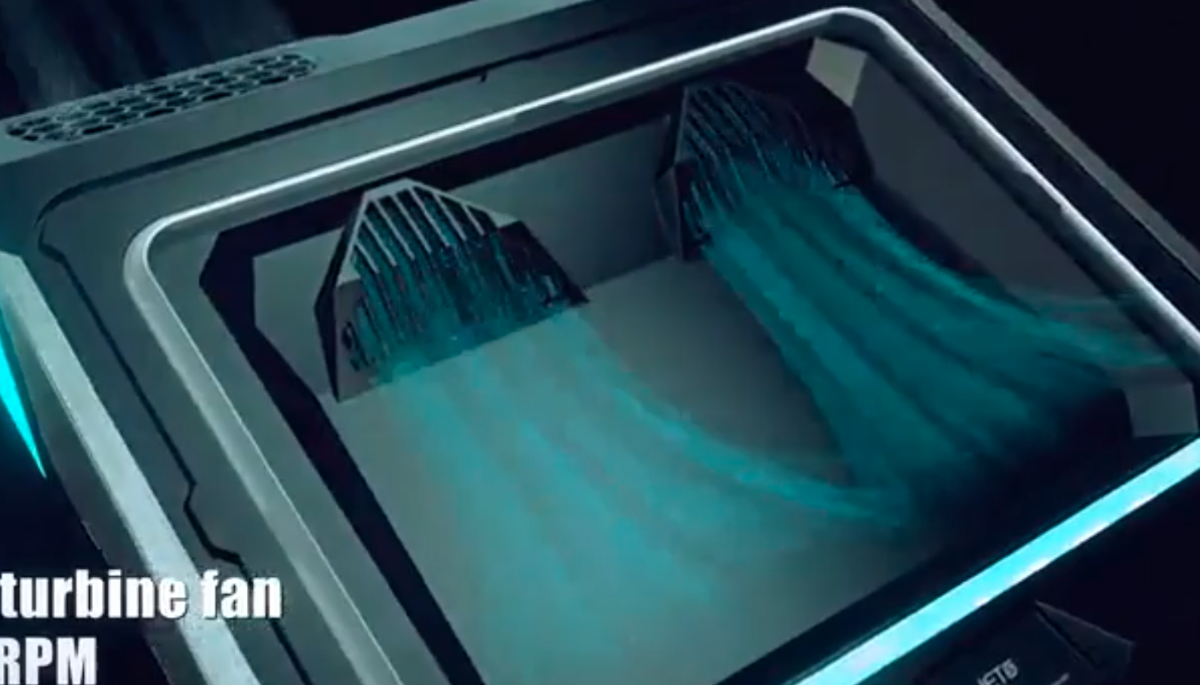
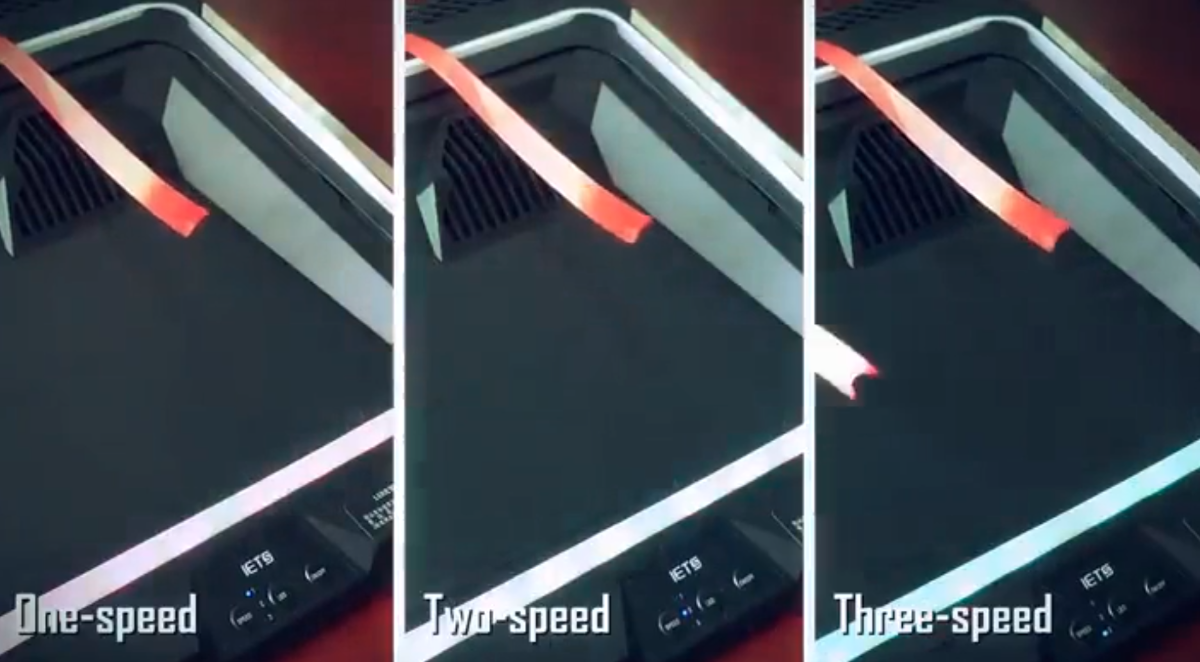
I've been tempted in the past to buy this .. thing 🤣 that claims to cool down your lappy beyond recognition with its dual blowers and hermetically sealed chamber of absolute freezing madness. The reviews seem positive enough though. but what concerns me is some kind of myth? or misinformation? around this kind of cooler that uses blowers instead of a regular fan, and that supposed problem would be damaging your laptop's own fans because of spinning way too fast beyond the intended max speed due to the volume and pressure of air inside that sealed chamber (4500 rpms at max speed from those blowers according to the manufacturer)
any thoughts?
https://www.amazon.com/IETS-Cooling-Flexible-Colorful-Adjustable/dp/B07WVK2ZZ9
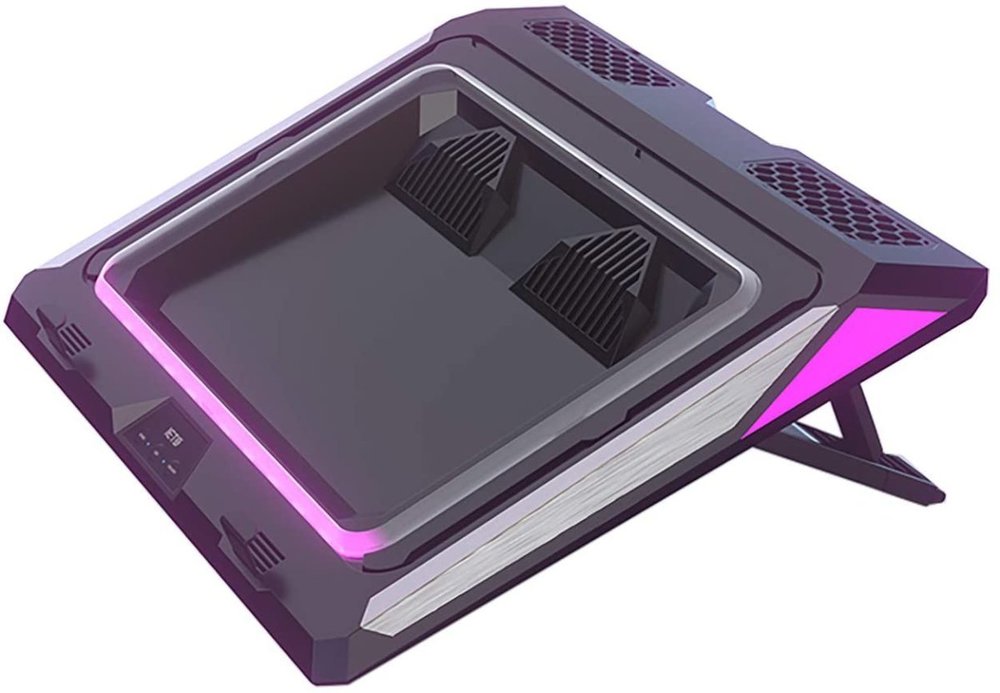
A member of the MSI Enthusiasts discord I manage just bought this for his GF65. He figured it would be the best option for the GF65 since that laptop doesnt have any direct fan intakes and so a sealed cooling pad like this would be helpful in forcing air through the laptop.
When it arrived and tested it however, the temperatures were 3C worse than not using a cooling pad. He said that the fans ran slow and was barely pushing any air through. In fact, it was restricting the amount of fresh air the laptop could intake due to its sealed design.
Basically, avoid this cooling pad at all costs
9 hours ago, serpro69 said:Damn that thing looks super futuristic, would probably look very cool along with something like Alienware M18x R2.
As for damaging the laptop's fans, I'm not sure how that would happen. Most laptops have a thin mesh covering the air intake slots on the bottom, and hence the air that is blown into the them will dissipate quite a lot.
Also, looking at the video, the air does not go straight up like it would from a fan, but rather it blows more or less parallel to the laptop then starts curling up around the middle.
Even with my custom cooling pad forcing tons of air into the laptop intakes, I have not observed any "damage" to the fans. In fact, the fans run quieter than before since they no longer have the high pitched whooshing sound from air being sucked into the laptop as air is already being blown into the laptop.
-
1
-
 1
1
-
1
-
-
Backup of post by Che0063 on forum.notebookreview.com
With manufacturers chasing for thin and light systems, we haven’t seen much innovation in battery capacity and soon will have laptops so thin they'll slit our fingers when we touch them. Manufacturers now think that if new hardware is more efficient then the need for a large battery has reduced. In some laptop line-ups, the battery capacity has actually reduced, such as the Aspire E15 series.
To get your battery’s capacity in Whrs, multiply the voltage by the amp-hour rating. Your cell count doesn’t matter. E.g. a 11.4v 5.2Ah battery = 59Whrs.
On idle and a 0% brightness setting with no programs in the background (just windows desktop), modern & optimised:
13" laptops with 5th gen Intel Y-series CPUs (or later) should idle at around 2W.
15” laptops with 4th gen Intel U/Y series CPUs (or later) should idle at or below 3W.
15” laptops with HQ/HK CPUs should aim for about 6-8W on idle. Far more if you don’t have Optimus.
Laptops with full-on desktop CPUs and dual 1080s will have a hard time hitting even 10-15W on idle, I imagine. Don't get them.
My 14" Thinkpad E14 Idles at 2.0-2.1W (specs in signature).
Check with BatteryInfoView
All my PCs have been laptops. This guide includes all my experiences with working with laptops and will take some time and may be quite advanced to some users. If you are not comfortable doing something, please research before doing it yourself. Some parts may be risky and (unlikely) cause software issues (Windows failing to boot, iTunes not recognising devices). I will not be responsible for any harm done to your computer. Your mileage may vary, but:
I raised my battery life on my Xiaomi from 7hrs to 10+ hrs. Also my Teclast from 5hrs to a comfortable 7-8hrs
In 20 minutes of fiddling around with the settings, I raised the battery life of my friends’ Aspire V Nitro from 2-3hrs to 6hrs. I could have increased it more but I didn’t have the time.
Premise:
Laptop battery life can mostly be split up into two parts: System baseline power usage, and power usage actually dedicated to doing tasks.
System baseline power refers to the power your laptop uses when it’s on and doing nothing. This is power used for CPU Idle, display backlight, HDD/SSD idle, and for devices such as RAM just to stay on. Regardless of what you are doing on your laptop, this power remains constant. Depending on your
Power usage for processing is mostly affected by your CPU and GPU. This is unavoidable and no amount of software optimization will change how much power a CPU or GPU uses to complete a task. However, it is more efficient for a CPU to quickly boost to its maximum performance state to finish a task quickly, then rapidly drop down to an idle state.![[IMG]](https://web.archive.org/web/20220129183023im_/https://i.imgur.com/Mgr9KTs.png)
This is the system power consumption of my ThinkPad E14 during a PC-Mark 10 Benchmark. I do not have a dedicated GPU on my laptop, so the chart tells you two things: The majority of power is consumed during tasks. The spikes are my CPU boosting to around 4GHz to complete a task, and then dropping down quickly to a baseline idle power.
Research
Ensure that the display is bright enough. You should look for a display brightness of at least 250 nits. A 300nit screen operating at 50% screen brightness is significantly efficient than a 150nit screen operating at 100% brightness.
Ensure that the touchpad/keyboard is good enough. By 2021, all laptops should be using Microsoft Precision touchpad drivers. Avoid using external mice, as they keep the CPU PCH/IO controllers active, along with using extra power.
Ensure that the battery life capacity is well over 50Whrs for all-day battery life.
DO NOT purchase laptops with G-Sync, unless you can turn it off, otherwise the dedicated GPU must stay on. Don’t expect more than 4 hours with these laptops, even with 99Whr-batteries.
DO NOT purchase laptops where the discrete graphics are enabled and bypass the integrated graphics. Your battery will die.
Every MILLIWATT counts.
External mice keeps your internal USB I/O controller to be active as it waits for an input from the mouse. In 2021, all laptops should be using Microsoft Precision certified touchpads, which are extremely responsive and handle gestures flawlessly.
The keyboard backlight should be turned off, unless needed in the dark. They generally use between 0.5W-1W of power, which doesn’t sound like a much, but over the course of an entire discharge cycle, that costs over 1hr of battery life.
Avoid port-expansion hubs (E.g. Type C, USB hubs etc) if you can. Some are poorly designed and excessively keep the CPU’s IO controller awake. If the ports of that laptop weren’t enough for you, you shouldn’t have bought that laptop. USB to HDMI converters are an absolute no-no. USB was not designed to carry a video signal, and there will be significant CPU-overhead when used.
From basic, to advanced.
“Disable unnecessary background tasks, services, apps” blah blah blah No. Actually do it. Pressing X doesn’t help. On a few of my friends’ laptop they had all sorts of things in the background, including Skype, Discord, Steam, Intel HD Graphics Control Panel, Dolby Audio, Adobe Creative Cloud, Nvidia Control Panel, Realtek HD Audio Controller, and worst of all McAfee. All in the background. They were complaining about 2hrs of battery life. Manufacturers boast about 10+ hours of battery life, and then they ruin it themselves by preloading garbage on their devices.
Go to Task Manager (Right click taskbar)>Startup.
Disable all the things you don’t need. You should be able to disable most of the things here. The world will not end if Adobe Acrobat doesn’t get its update. Gaming launchers such as Steam and Epic Games Launchers are poorly optimized and chew through CPU cycles even when doing nothing.![[IMG]](https://web.archive.org/web/20220129183023im_/https://i.imgur.com/60AhaiR.png)
All non-Microsoft services should be disabled, unless you specifically need it. Here is a good way to do so:
Win+R, then type in "msconfig" without quotes, then press enter:
Warning: DO NOT modify anything you are unsure of. This may render your computer unbootable.
Go to the Services tab, then click "Hide all Microsoft Services"
Essentially all programs can be disabled, unless you absolutely need it. If your life support depends on Adobe Acrobat downloading an update the instant it comes out, then enable it.
Note: This one-click 'solution' entirely disables the services. If you are worried that it may break some things, set it to 'manual' in services.msc
Some programs also put pesky startup scripts, which are not viewable in Windows’ Startup Folder. They are hidden in Task Scheduler. To view and disable some of these scripts:
Win+R > taskschd.msc > Task Scheduler Library (on the Left side)
Most of these check for updates on startup, and depending on your usage patterns they really bog down your startup times.![[IMG]](https://web.archive.org/web/20220129183023im_/https://i.imgur.com/RWAG6ds.png)
Use UWP programs, where possible.
Watching videos? Use the built in Films and TV app in Windows. This video player is far more energy efficient than other alternatives such as VLC. When watching a 720p video, Films and TV used 1.4-1.6W of power, whilst VLC used 2.5-3W (CPU-Package consumption)
Disable eye-candy (Skip if in a hurry)
Desktop Windows Manager (dwm.exe) renders things related to mouse movements, window movements, animations etc. Disabling effects like shadows will reduce the amount of rendering done by dwm.exe.
To do so, go to Control Panel > System and Security > System > Advanced System Settings > Performance Settings and uncheck things you don’t need. Things especially like shadows behind windows and shadows behind mouse pointer are so useless and I never even knew there were such shadows until I discovered this ‘Performance Options’ window.
This will result in the dwm.exe service (The process that draws windows) using less CPU![[IMG]](https://web.archive.org/web/20220129183023im_/https://i.imgur.com/Rts094w.png)
HIPM+DIPM+DevSleep (important)
Host-Initiated Power Management (HIPM), Device-Initiated Power Management (DIPM), and Device Sleep (DevSleep/DevSlp) are power saving features of almost all modern hard drives. DevSleep is only available on SSDs, and generally puts the SSD into a sleep function than uses >5mW. That being said, your motherboard needs to support DevSleep. By default, Windows only enables Host-Initiated Power Management. To change this:
Win+R > Regedit > HKEY_LOCAL_MACHINE\SYSTEM\CurrentControlSet\Control\Power\PowerSettings\0012ee47-9041-4b5d-9b77-535fba8b1442\0b2d69d7-a2a1-449c-9680-f91c70521c60
There should be a Description that says ‘Configures the LPM state’, as well as an ‘Attributes’ DWORD with the value 1. Change the value of ‘Attributes’ to "2,” as per this image:![[IMG]](https://web.archive.org/web/20220129183023im_/https://i.imgur.com/wOIRAaK.png)
Now go to Control Panel > Hardware and Sound > Power Options > Change plan settings (of your active power plan) > Change advanced Power Settings > Hard disk > ACHI Link power Management and set it to Lowest. If that is not an option, change it to HIPM+DIPM.![[IMG]](https://web.archive.org/web/20220129183023im_/https://i.imgur.com/7NV3YN8.png)
Additionally, in the same subfolder, change the value of "Attributes" to "2" in these folders:
d3d55efd-c1ff-424e-9dc3-441be7833010
d639518a-e56d-4345-8af2-b9f32fb26109
dab60367-53fe-4fbc-825e-521d069d2456
And play around with these settings:
Try lowering these values (but not to 0ms) and you may see differences in your C7/C8 states. the ACHI Link Power Management especially may be beneficial. My laptop does not have a NVMe drive so changing the nVMe settings do not change anything.
As a side effect, on some systems, such as my older Aspire V Nitro and Mi Notebook Pro, enabling DevSleep and DIPM allowed the Package C State to enter C3, using 2.1W of power on idle. Previously it idled at C2, using 2.4W. Modern mobile CPUs should idle at less than 0.5W, however. (Tested on U, Y, and HQ CPUs) More about C states below.
EDIT: It seems that more people are benefiting from this than I thought. Give it a try and measure idle power consumption using ThrottleStop.
Undervolt (EXTREMELY IMPORTANT)
You can reduce the voltage of your CPU, making it use less power. This increases battery runtime and reduces temperatures. There are plenty of guides and explanations out there so have a look if you aren’t familiar. There are no downsides apart from possibly unstable system if you are lazy or stupid.
I highly recommend ThrottleStop for Intel CPUs, an extremely lightweight but powerful program made my unclewebb and backed by an equally supportive community. Download here: http://forum.notebookreview.com/threads/the-throttlestop-guide.531329/
I do not have any experience with AMD’s APUs, so I cannot comment if there are similar undervolting software.
Extract the files anywhere but your Temp folders, and double click ThrottleStop.exe to start the program. For beginners, this program will be quite intimidating. Tip: Don’t click anything you don’t know about. Search the ThrottleStop thread and your question likely has been answered. In the unlikely event of you mucking up ThrottleStop, delete the ThrottleStop.ini and reboot to reset the settings.
For undervolting, all you are interested in is the FIVR button (Fully Integrated Voltage Regulator). Open that up, and you should see something like this.![[IMG]](https://web.archive.org/web/20220129183023im_/https://i.imgur.com/3u6dJP3.png)
Here, you can go undervolt your Intel CPU. Check ‘Unlock Adjustable Voltage’ and move the slider left to decrease the voltage. Here are the estimates for the average undervolt of your CPU. Results vary heavily depending on your luck.
7th gen U CPUs and earlier: -80mV
8/9th gen U CPUs: -100mV or more![[IMG]](https://web.archive.org/web/20220129183023im_/https://i.imgur.com/t9vcYZf.png) 10th gen U CPUs and later: -80mV
10th gen U CPUs and later: -80mV
6th+ gen HQ/HK CPU: -120mV or more
Y CPUs: 50-80mV
Ensure the undervolt is the exact same for both your CPU Core and CPU Cache. One some systems if these values are different the undervolt won’t be applied. To check if the undervolt is stable, run a Prime95, LinX, IntelBurnTest, AIDA64 Stress Test or whatever benchmark and see if your laptop crashes. If it doesn’t, keep lowering the voltages until you hit the point where your system is unstable. Then, raise the voltage by a few millivolts to ensure you have a stable undervolt. Now here’s the fun part: Sometimes a voltage will be stable under a CPU stress test, but will crash when opening something simple such as Edge. If this happens, it means your undervolt is not yet stable so you have to raise the voltage.
On some systems, you can disable TurboBoost and get an even better undervolt. On my i5-8250U, I can only undervolt -140mV with TurboBoost enabled, but can undervolt to -200mV with TurboBoost disabled.
For best results, set ThrottleStop to start on startup. The guide is in the ThrottleStop thread.
Enable Speedshift
Speedshift is a technology available on 6th+ generation Intel CPUs. Basically it is a newer version of SpeedStep, allowing the CPU itself to control its frequency and power states instead of the OS. This reduces the time required for the CPU to raise its frequency and go back to its idle state, reducing power usage and decreasing latency. Intermittent tasks such as loading webpages can see benefits. On some systems, Speedshift is automatically enabled by the BIOS. But on many, they have to be manually enabled. To enable Speedshift:
Go to ThrottleStop, and check the Speed Shift -EPP box. The SST should light up in green. You can choose from a range of 0 to 255, where 0 maximises the CPU frequency at a cost of higher power consumption, but 255 reduced frequency to the point where your laptop may be unbearably slow. 128 is great for a balance, 80 is sufficient for games, and 180 is my value for battery savings. Your mileage may vary.![[IMG]](https://web.archive.org/web/20220129183023im_/https://i.imgur.com/yN1fmLb.png)
Check/Enable deeper C States [Intel] (VERY IMPORTANT)
Once again, this is an issue faced by Intel users. I don’t know if this is experienced by Ryzen mobile APU users. Generally speaking, if you have clean reinstalled Windows (without manufacturer image) you may have this issue.
This may be the most effective battery saving tweak in this entire guide if your laptop isn’t configured correctly. Once again, open ThrottleStop and look at the C0% column. Your C0% state in all cores should be less than 1% on idle, if you have been correctly following this guide.
If your C0% is below 1%, then check your package power consumption. Is it less than 0.5W? If it is, you may skip this section. If it is above 1W, and you are certain your C0% is below 1%, then you may have an issue many users face on NotebookReview Forums. Now click this button![[IMG]](https://web.archive.org/web/20220129183023im_/https://i.imgur.com/3yCRCkv.png)
It should say CX (C7, C8, C9, etc)
Check that 95% of your cores are in C7. It should be.
Now check your Package C State Percent. This is where the problem lies on a lot of notebooks with incorrect drivers
Over 80% of your package should be in either C6, C7, or C8 state (maybe perhaps even C10!). Is your package idling in C2 or C3? Then you likely have a problem.
I am still not completely sure about what exactly causes the issue, however it is thought that the cause is a generic or outdated disk-related driver. Try updating your disk controller. If you have a SATA based SSD, updating the ACHI controller may work.
Some users have reported success by uninstalling Intel Rapid Storage Technology (IRST) or installing IRST and disabling a performance related setting. Some users have reported success by enabling IRST SATA power savings.
For me, all I had to do was update the disk controller. Since I have a Samsung NVMe SSD, all I had to do was update the disk driver from a generic Microsoft one. SATA based SSD/HDDs usually benefit from an updated Intel ACHI controller.
My current tablet shipped with a generic Chinese SSD - it may have been a faulty one but it prevented the CPU from entering anything lower than C2 Package. The moment I upgraded the SSD, the system power draw dropped from 3.5W immediately to 2.5 watts. That is a huge improvement.
That being said, it may also be any other driver. Some members have reported that outdated Realtek Drivers for LAN/Ethernet or Wifi and the card reader was the issue. Try updating any driver from its generic Microsoft one.
Alternatively, you can install every driver provided by your manufacturer. They should provide the configuration that allows your CPU to enter a deeper idle C state.
Enabling DevSleep and DIPM appears to also work on some systems. On some systems, adding and removing devices (USBs, etc) change C state residency.
If all else fails, you could try downloading a driver updater utilityAS A LAST RESORT. Update drivers one by one to isolate the issue. Don't pay for a 'pro' version.
After a reboot, your package should idle at C6/C7/C8, depending on your manufacturer and CPU.
Essentially, this is a driver issue most of the time. If you, after many months, have not solved the issue, it may be down to a BIOS/EC/hardware fault. Search around if anybody else has the same issue, and if they do, GET IT RETURNED ASAP W/ FULL 100% REFUND. Don't put up with manufacturer garbage.
Some users will notice that, after connecting various devices (Thunderbolt/External Display, USB devices etc) your computer will get stuck in C3, instead of C8. If this issue still remains after you disconnect the device, see if a sleep cycle resolves this issue. This is likely a BIOS bug - something that manufacturers unfortunately can never be arsed to fix. Return the laptop, if possible. Don't put up with manufacturer crap.
ALL 4th Generation Intel Core CPUs and later should idle at less than 0.5W.
Thank you to @ONjA for the following tips:
"
- In case, your PC is stuck at C2, C3 and 'powercfg -energy' report says there are USB devices without selective suspend - you can force them to use it:
either by VID/PID or simply:
find 'SelectiveSuspendEnabled' under HKEY_LOCAL_MACHINE\SYSTEM\CurrentControlSet\Enum\HID and HKEY_LOCAL_MACHINE\SYSTEM\CurrentControlSet\Enum\USB\ subkeys, changing 0 to 1 (or 00 to 01) forces it on.
After you forced Selective suspend, check Device Manager and enable "Windows can power down this device" for USB devices.
I can even force it for my mouse and it forces mouse off after about of 2 secs of inactivity.![[IMG]](https://web.archive.org/web/20220129183023im_/http://forum.notebookreview.com/file:///C:/Users/antho/AppData/Local/Temp/msohtmlclip1/01/clip_image026.png)
I forced it on for problematic devices (touchpad in my case), and can achieve C6/C7 package state now with 0.3W package power. (I7-6700HQ)
"
Advanced Advanced Power Options (Meh)
There are many hidden power options in Windows. These require the Attributes value of each key in Computer\HKEY_LOCAL_MACHINE\SYSTEM\CurrentControlSet\Control\Power\PowerSettings to be set to 2. After running the script below, you should see a plethora of settings enabled in Advanced Power Options. You should be interested in the processor settings. Each device is unique – one some systems some settings don’t do anything. You should find your optimal value in each setting.
Download Script here.
https://gist.github.com/Nt-gm79sp/1f8ea2c2869b988e88b4fbc183731693
Intel Graphics (relatively important)
As terrible as intel integrated graphics are, they use a tiny amount of power.
Right Click Desktop > Intel Graphics Settings > Power
Edit: In the UWP version/after Windows 1809: Go to Start, then type in Intel Graphics.
And change all the settings to be Maximum Battery. Be sure to enable Display Power Saving Technology and Enhanced Power Saving Mode. Lord knows what that does, but it reduces power consumption of my laptop by 1W by (presumably) reducing LED brightness and reducing contrast. If you are a graphics designer then maybe don’t enable this.
Consider enabling panel self-refresh, etc.![[IMG]](https://web.archive.org/web/20220129183023im_/https://i.imgur.com/2xu915Y.png)
Enabling Panel Self-Refresh can help, especially when displaying still images.
Fan
With high end laptops featuring multiple fans, they can use 1W of power even on their lowest speed. Try editing the fan profile of your laptop. This can take hours to find the correct settings, and most people give up. On some laptops it is very difficult. Very few manufacturers allow users to control their fans but recommended third party fan controllers include NoteBook FanControl. I’ve spent over one month reading hundreds of pages of datasheets and still haven’t figured out how to control my right fan.
Each laptop is different, and I suggest searching google for the resources or spend hours, days, or even months trying to find the appropriate registers to control your fan. Most laptops don’t need this, but I find that it is completely unnecessary to have a laptop fan running when the CPU is below 45C.
Physically disconnect devices you don’t need
Did you know you had a second hard drive? Both my friends didn’t. Another one knew, but it stayed empty.
If you aren’t regularly using your second hard drive, consider removing it and putting it into an external enclosure instead.
According to various datasheets, 5400RPM Hard Drives use 0.5-1W when spinning and idling, but most high end 7200RPM drives use upwards of 1W
Disabling the drive in Device Manager won’t work. The HDD might spun down, but the hard drive circuitry will still draw power, between 100-300mW of power. If you have programs on your HDD which you regularly access, having your HDD constantly spin up and down not only wastes power but puts unnecessary strain on your HDD motor. If you use a program frequently, consider moving it onto your SSD as they are more efficient. Once again, disabling a device in Device Manager disables all the device’s features, including any power saving features. It might still be kept on.
If you have a secondary solid state drives, you might be tempted to think that it does not drain much power. However, you must ensure that DevSleep is supported BOTH by your SATA interface, AND by your SSD. It must also be enabled as well. Use HW-Info64 to check. Alternatively, use BatteryInfoView to measure your system idle power consumption, both with and without the SSD. The difference should be negligible, because SSDs use <50mV in DevSleep mode.
Increase the longevity of your laptop battery.
Every time you recharge your battery, you lose a tiny bit of battery capacity. This is an unavoidable effect of using any battery, and most laptop batteries are rated for 300-500 cycles before their full charge capacity drops below 80% of their design capacity. For example, after 500 cycles, a 100Whr battery will only be able to hold 80Whrs. The battery used in your laptop is based on the Lithium-ion chemistry. Tips for extending battery longevity:
Do not keep it plugged in 100% all the time. Lithium Ion batteries in laptops are generally charged to 4.2 or even 4.4v per cell to maximise battery runtime. Unfortunately, prolonged exposure to voltages above 4v (about 80%) per cell results in permanent capacity loss.
Don’t store your laptop in warm conditions. 20C is ideal, but during operation the inner case temperature of a laptop can reach 35C. This is unavoidable, short of moving to Antarctica or using your laptop in a fridge, but high voltages and high temperatures are the absolute killers of lithium ion batteries. Don’t store your laptop in a car on a hot summer day.
Similarly, don’t constantly drain your laptop down to 0% if you can avoid it. Full discharge cycles put strain on the laptop battery. Laptop batteries do not require full cycling. This is actually very damaging to Li-ion batteries. It is better to have very small charge cycles. Aim to keep your battery capacity between 20% and 80%.
Physically disconnect your battery if you can. Unfortunately, on increasingly more modern laptops with embedded batteries this is no longer possible, in which case you are out of luck.
When not using the laptop, aim to store the battery in a cool environment in a 40% state of charge. This keeps each li-ion cell to a nice 3.7-3.8v.
As far as I'm aware, Lenovo and Microsoft are the only mainstream laptop manufacturers to offer a "charge limit" - in Lenovo, this can be changed in the Lenovo Vantage software.
TLDR: Keep battery capacity between 20% and 80%. Keep battery cool. Store in a cool place at 40% when not used. Don’t use it if you don’t have to.
Antiviruses
Depending on your usage of computers, antiviruses may be more of a burden than a help. If you do not need an Antivirus software, don't use one. You do not need a software to be monitoring your every activity and every file you download.
Do not: (VERY IMPORTANT, PLEASE READ)
Do not disable your dedicated graphics card. When you disable the graphics card, you disable every feature… including Nvidia Optimus or AMD Switchable Graphics. Instead of being completely off and using (theoretically 0W), your GPU will be constantly on but idling and unable to do anything. This consumes an extra 3+ Watts depending on what dGPU you have, which is huge. Some laptops disable Optimus completely, which results in drastically reduced battery life. Don't get those laptops.
Do not lock your CPU down to 400MHz, or whatever the lowest operating frequency point of your CPU is. This makes your laptop slow and inefficient.
Using powercfg
By entering "powercfg -energy" in an elevated (administrator) command prompt, you get a nice report outputted as C:/Windows/system32/energy-report.html![[IMG]](https://web.archive.org/web/20220129183023im_/https://i.imgur.com/qttM7j2.png)
This highlights major energy problems that Windows can find. Try solving these issues. Devices can be identified here by entering the device Vendor and device ID.
Miscellaneous
For users with a dGPU, ensure that any monitoring software (e.g. HWInfo, AIDA, OpenHardwareMonitor, esp. MSI Afterburner) is not waking up your dGPU to poll the sensors. At an idle desktop, your dGPU should read 0.0C temperature. MSI Afterburner, for example, is known to keep the dGPU "awake" and not enter "Optimus", causing drastic battery life losses. MSI Afterburner developers know this and have expressed no intention for solving this issue, stating that MSI AB was never intended to support laptops.
Please post your experiences after following this guide including which worked and which didn't, as well as which settings were optimal for your device. I only have 1 primary device to test everything on and it'll be nice to compile a list of the best settings for each tweak for the community.
I hope this guide has been helpful. Good luck!
Edit: Please DO NOT ask for help without providing screenshots, or at least a list of what you have/haven't tried. It is impossible and unreasonable for anybody on the forum here to be able to help somebody who says "My C state P-
2
-
1
-
2
-
-
10 months tfx no issues so far
-
On 2/22/2022 at 12:32 AM, electrosoft said:
I think it is also an issue of TDPs being constrained to match thin and light chassis and to help offset overall heat issues of a shared cooling architecture keeping mobile CPUs as cool as possible so they can at least boost as much as possible (which is usually not much). I wish there were options even for 200w+ mobile GPUs and let the OEMs decide what they want to do with it and how.
TIM is a key issue but when the heatsink on some systems themselves aren't beefy enough you end up just soaking it faster and the heat can't be dissipated fast enough. The extreme example of this is Apple Macbooks when testing liquid metal on the lower and mid range of loads it provided lower overall temps as the anemic heatsink could keep up with the enhanced heat transfer but once placed under meaningful sustained loads it eventually throttled around the same point it just got there a tad slower.
I agree it is good to see certain manufacturers like Asus and others finally creating secure, specialized heatsink pairings to use liquid metal now to eek out as much cooling as possible.
I mentioned before in NBR that laptops like the GE76 can easily handle a 200w+ gpu, quite a few users have shunt modded it and the thermals stayed in the mid 70s. Its just a matter of nvidia constraining the tdps oems can set i think.
On the topic of heatsinks, aside from apple jokebooks, 13/14 inch gaming laptops and budget 2 heatpipe gaming laptops, all gaming laptops i've seen can handle an 8 core intel cpu pumping out 110w+ as long as they have properly applied LM
-
1
-
-
6 hours ago, toastofman said:
I don't think that's right. Like, at all. Starting with the 900 series Nvidia, there have been enormous generational leaps in laptop graphical horsepower. Like, each successive generation is a very big improvement, and while there will be a ceiling hit eventually (maybe even the current gen is the ceiling), for the moment laptop power is in a good spot. The performance is scaling up well from gen to gen.
The issue is that manufacturers don't want to build MXM standard stuff anymore. They want their stuff to be usable with their own OTHER parts, and thats it. 2 examples: Dell and HP. The Precision 7710 and 7720 were MXM board systems, and starting witht eh 7730 they went to DGFF. So its dead. HP's Zbook G5 (2018) and G6 (2019) are MXM boards, and starting with the G7 they are an HP-proprietary board with a "beam connector," a throwaway part that needs to be replaced with every disassembly.
Thicker laptops are better at cooling because the builders use the extra thickness to build out adequate cooling. Ironically, the thin and light laptops hit 100c right away until they throttle back, and the thicker laptops have an easier time handling the thermal load. With card-to-card comparisons you might be right, but the issue is that on thicker MXM laptops you have the OPTION of the upgrade so in that respect there isn't a point in comparing. I know for my part, I saw slight thermal issues on my HP Zbook 17 G5 on the CPU. I shimmed the CPU (.03mm) and saw a 29% increase (across 3 runs before and after) in 3dMark Firestrike physics score, so yes. Adequate cooling has the power to really perk up a system. It's only one result but imagine the same thing on a GPU. It would very easily trim 20-30% off the power of the GPU to restrict it to a lower power state because of throttling.
Not saying the thin and light laptops don't have a place. They do, and are very great systems. Heavy laptops have a lot of value to the market as well, and they are being pushed out: Not because they are inferior, but because a 10-year old product that has been upgraded several times doesn't provide any additional revenue.
GPU wise i'd like to see them allow the top end chips to draw more power like the recently released 3080ti mobile. At its current 160+ 15w config its quite noticeably hamstrung seeing its barely 10% faster than the 150+15w 3080 mobile.
Cooling wise poor thermal interface material is the main limiting factor in most laptops, cheap bulk paste just isn't good enough anymore. Even thicker laptops will throttle just as badly as a thin and light with the combination of ever hotter cpus and cheap factory paste. Its good to see laptop manufacturers like Asus address it by using Liquid Metal on the cpu, albeit with limited success due to their automated application method leaving dry spots still.
-
2
-
-
8 hours ago, solidus1983 said:
@Mr. Fox is going to be proud of me for saying this.
A laptop trend that shouldn't of made it mainstream was BGA, anything soldered be it CPU/GPU/RAM/WiFi they shouldn't exsist as they are the hands of obsolescence and obsolescence is the hand of the devil. Be gone BGA begone.
6 hours ago, Hertzian56 said:Not to mention the hypocritical lip service these manufacturers give to green tech, what happens when any of that soldered stuff fails? Yep the old garbage can, back when we had removable modular laptops if one component failed we could get another one and thus didn't just throw the whole thing away. I'm not even confident if you go out of your way to recycle anything that it actually gets recycled, or the movable definition of recycled means selling it to Asia so it can be heated up, releasing all sorts of pollution, so they can extract the precious metals. The rest is buried somewhere. I had a roommate who was deeply into recycling and he showed me that almost everything we think can be recycled, ie put in the blue can, is not actually recyclable, it was an eye opener for me. We also hear about how even recyclable stuff just gets dumped in the same landfill by various civil entities but they of course collect the higher fees for the privilege. Just liars everywhere.
1 hour ago, defcon42 said:Thank you for an objective voice of reason. Hard to find these days.
1 hour ago, defcon42 said:My perfectly running BGA machine always bursts out into uncontrollable laughter when reading "statements" like this. As @John Ratseyhas already stated correctly, everything has it's pros and cons.
Both sides of the argument make sense in the right situation.
For ultrabooks soldering on certain components makes sense, like the cpu and gpu since they will be designed with a certain power envelope in mind. Ram and wifi card will depend on the specific size target the manufacturer is trying to hit but seeing as even super thin and light 750g laptops like the Fujitsu UH-X can come with an upgradable wifi card slot I don't see a reason why it can't be done in any other laptop.
For gaming laptops ram and wifi card upgradability are a must, no excuses can be made for not having that (I'm looking at you Asus and Alienware). Cpu and gpu on the other hand will depend on the laptop form factor. (Originally I wrote a lot more but decided to shrink it down) Basically, DTR class laptops (>4kg) MUST come with socketed cpus and mxm gpus, Medium sized laptops (2.8-3.5kg) MUST come with Max-p gpus, and only smaller sized/thin and light laptops (<2.3kg) can come with sub 100w Max-q class cards.
-
1
-
-
12 hours ago, KING19 said:
I didnt know where to post this but this article on notebookcheck is interesting and it mentions some truths about bad trends with mainstream laptops that we been discussing on NBR for years.
Here's some trends that should of been in the article IMO
Soldiered on RAM, and WIFI especially on thin and light laptops
Laptop webcams still on 720p in 2022...
No separate touchpad buttons. Personally i always hated clickpads and after using them for years my opinion on them hasnt changed.
My top nitpicks would be
1. Soldered ram/wifi cards, also Asus zephyrus's semi soldered ram (8/16 gb soldered, one dimm free)
2. Blocking/having restrictive fan intakes to "reduce dust buildup"
3. Max-q design gpus
4. Removal of numpads
5. More thin = more better
Things i'm grateful for
1. Mux switch
2. 99.9 whr batteries
3. HDR displays
4. Type-C charging (assuming a beefier main adapter remains the primary option)
-
2
-
-
11 hours ago, User said:
I use simple 3D printed plastic stands to raise the laptop about 2" off the desk. Almost free, no noise, incredibly small and light, prints in 2-3 hours. I was given an Amazon generic laptop stand with fans and RGB, etc but honestly it's loud, gaudy, and intriduces more clutter to my desk. The 3D printed stands are invisible under the laptop.

I'd be afraid of the laptop sliding off with that setup. Assuming that doesn't happen, it looks like it might slide around the table
-
On 2/11/2022 at 11:48 AM, Sandy Bridge said:
So I checked my history, and my old laptop, with a Core 2 Extreme, is using Arctic Silver 5, last applied in mid-2017. My desktop's CPU paste is even older, probably the same that I applied when I swapped to a 212 Evo in 2014, and also probably Arctic Silver 5. By that time, whatever I'd applied in 2011 was obviously failing as shown by fans and temps. Dunno if it was what shipped with my Intel CPU, or the CoolerMaster Unspecified Type paste I still have laying around somewhere.
In 2014, the new ArcticSilver 5 setup hit 53C at stock, full CPU, 58C overclocked to 3.8 GHz. Now, 7.5 years later, at 3.6 GHz, I'm maxing out at 60C, with 1520 RPM fans instead of 1230 RPM in 2014 (it's also a different physical fan on the CPU heatsink). Other changes include more hard drives to impede airflow, and that I haven't done a good dusting for a while, as I had when testing in 2014. I also failed to note the ambient temperature in 2014; it's 67F currently.
I'm pretty happy with that longevity. I could probably get improved performance by re-pasting with the same type of paste (AS5 has a thermal conductivity of 8.9W/mK according to my search results), and I'm sure I could get even better with more powerful paste. But why bother? If I need more performance at this point, I'll rebuild the system with a CPU that isn't a decade old.
(Apparently Arctic Silver and Arctic aren't the same companies, either... I thought they were until looking them both up tonight)
I have wondered if my Core 2 Extreme laptop could hit 3 GHz on all cores with better thermal paste, and it's plausible. But again, it would kind of being doing it for the sake of doing it.
Props on the detailed comparison chart in the first post, definitely a good reference.
Unfortunately good paste is a must if you want to keep your laptop processor from throttling under load nowadays. And sometimes it may not even be enough especially on the 120ish watt i7 and i9 models which will require Liquid Metal to cope with their high heat density.
-
3
-
![[IMG]](https://web.archive.org/web/20220129183023im_/https://imgur.com/2xu915Y)
*Official Benchmark Thread* - Post it here or it didn't happen :D
in Desktop Hardware
Posted
14th gen will actually bring comparable performance uplift and a greater efficiency uplift compared to 12th to 13th gen. The digital voltage regulator allegedly does quite a lot.