
Chalybion
-
Posts
87 -
Joined
-
Last visited
Content Type
Profiles
Forums
Events
Everything posted by Chalybion
-
Precision 7540 & Precision 7740 owner's thread
Chalybion replied to SvenC's topic in Pro Max & Precision Mobile Workstation
I just saw this thread which is recently active. It looks like you're better off with the comparable Precision: -
Precision 7540 & Precision 7740 owner's thread
Chalybion replied to SvenC's topic in Pro Max & Precision Mobile Workstation
If you are peaking (not sustained) at 88-90 °C, that's pretty good and probably due to the fans ramping up slowly. Try Dell Power Manager's different Thermal Management plans? If 88-90 °C is sustained under load it is better than factory configuration, but has room for improvement. -
Precision 7540 & Precision 7740 owner's thread
Chalybion replied to SvenC's topic in Pro Max & Precision Mobile Workstation
Those fold out legs are a neat solution. Are they durable? I remember that the CPU VRMs use 0.5mm thermal pads, so even a tiny bit of extra thickness could cause contact issues for the CPU Notebookcheck has a good review of the ZBook: https://www.notebookcheck.net/HP-ZBook-Fury-15-G7-Workstation-Review-Vapor-Chamber-for-Maximum-Performance.512628.0.html The build quality looks solid. Compared with my Precision with similar specs (undervolted 8-core Xeon, RTX 5000 Max-Q), the HP scores 10% lower in Cinebench R20, and 15% lower on 3DMark graphics. -
Precision 7540 & Precision 7740 owner's thread
Chalybion replied to SvenC's topic in Pro Max & Precision Mobile Workstation
Your CPU is the 8750H, right? With PTM and a working undervolt, it should run in the low 80s at max load. I haven't used thermal putty before, but I would be really really cautious about applying too much, causing poor contact between the CPU and heatsink. These laptops are also really sensitive to ventilation. Set on a flat surface, the CPU temperatures will be higher. With the back elevated or on a ventilated surface, the CPU temperatures should hit low 80s max The circled component is the Platform Controller Hub (PCH) -
Pro Non-precision = Latitude. This naming scheme actually makes some sense, distinguishing the business from consumer lineups without throwing away decades of name recognition associated with "XPS" and "Precision"
-
Precision 7540 & Precision 7740 owner's thread
Chalybion replied to SvenC's topic in Pro Max & Precision Mobile Workstation
The 7730/7740 still have two heat pipes for the CPU, though they are larger diameter and will remove more heat. 85°C+ is still possible for the eight-core CPUs, but the 7730/7740 will run cooler at comparable power levels. I don't have firm data right now, but 5-10°C cooler at most. -
Precision 7540 & Precision 7740 owner's thread
Chalybion replied to SvenC's topic in Pro Max & Precision Mobile Workstation
Forgot to mention that the IR camera requires the lid without the WWAN antennae But if having a webcamp doesn't matter, you can always keep your current lid+bezel and just swap the screen and display cable -
Precision 7540 & Precision 7740 owner's thread
Chalybion replied to SvenC's topic in Pro Max & Precision Mobile Workstation
You can! The parts you need are: - 40 pin display cable - IR camera module - Screen bezel (The bezel for IR cameras has a different privacy cover mechanism) - Double-sided LCD adhesive, similar to this: LCD Adhesive on eBay - LCD screen with 40 pin narrow (0.4mm pin pitch) signal interface. Screens from contemporary 15" Alienware laptops will probably work, but always check with Panelook first (see a few posts up) -
If only I could run that for my work computer... My personal computer is installed from a custom 24H2 ISO with all AI features scrubbed out, and no significant issues yet (fingers crossed) from Windows Update.
-
Meanwhile, after months of nagging me after every reboot to reinstall the Copilot 'app' in Microsoft Teams, Microsoft installed it without my permission during the last patch Tuesday. So I re-uninstalled Copilot from Teams.
-
Finally the new RTX MXM cards will work in our laptops!
Chalybion replied to SuperMG's topic in Components & Upgrades
Physically, the RX6600 VRAM is much closer to the GPU than the Dell MXM designs. You will need thin thermal pad strips to level the heatsink surface around where it contacts the GPU die. The VRAM will mostly contact aluminum, not copper, so they will run hotter. The right-side R33 and 1R5 components don't exist on Dell MXM designs, so the heatsink may not clear them without shimming or physical modification. Heatsinks are $20, so get one to test 🙂 -
45W dropping to 35W sounds like the PL2/PL1 for operating on battery, not for operating with the power supply plugged in. I don't know the PL1 for the 7560, but it should be at least 60W when plugged in. Dell's embedded controller dynamically changes the power limit depending on the power source, and I've encountered a bug where the Intel Management Engine artificially limits the PL1 to 35W. Try updating the BIOS and Intel drivers to see if that fixes the issue. Side note: for processor power plans, "Ultra Performance" tends to push more voltage to the CPU, which actually hurts performance in cooling-limited laptops, so "Balanced" is better. But that shouldn't affect TDP limits
-
Good (great) 14" (Dell, or maybe other) ?
Chalybion replied to 6730b's topic in What Laptop Should I Buy?
The Precision 5470 looks like an intriguing option if you can use the extra graphics power. Build quality looks decent, and at least in the US, there are a number of good used options in the $600-800 range. It's a lot of power in a small volume, so reviews also say that the i7 frequently achieves 100 °C. No undervolting, so re-pasting and lowering the power limit are the main ways to reduce temperature. Two heatpipes/two fans is very good in a 14" form factor -
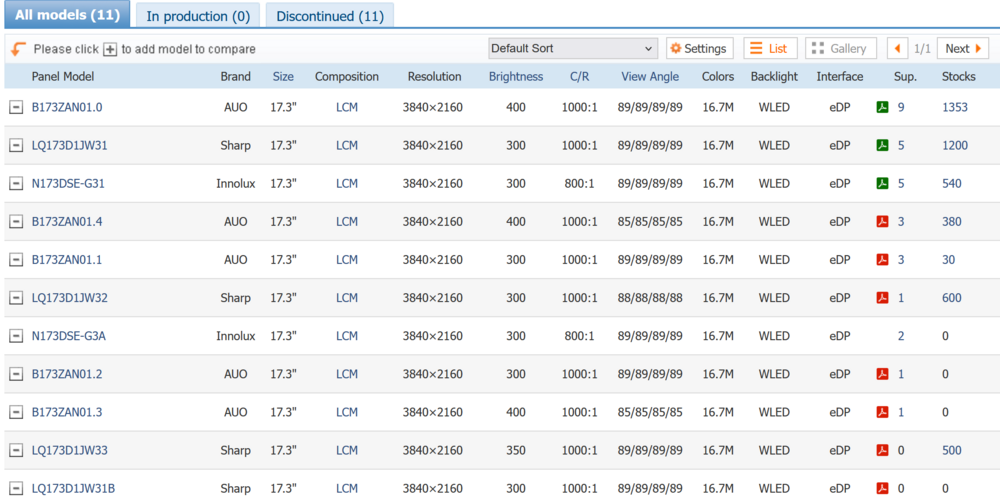
Sorry, I haven't had time to research your question above about the 40 pin screen options for the 7720, but check out the posts quoted above from the Precision 7740 subforum. I'm almost certain that Dell used the same screen type for the Precision 7710/7720/7730/7740 (and maybe even the preceding M-series), as well as 17" Alienwares of the same vintage. Theoretically more screen options are possible if you can get mounting brackets. However, I've only seen similar mounting brackets for 14"/15" screens on Ali/eBay. For the 7740 at least, the lid frame extends only partway up the lid, so I really think the screen needs a mounting bracket to keep the top half of the screen from flexing when opening/closing the lid.
-
Good (great) 14" (Dell, or maybe other) ?
Chalybion replied to 6730b's topic in What Laptop Should I Buy?
Among modern 14" laptops, the ZBook Firefly/Elitebook 845 with the Ryzen 7840U APU is a very solid all-round laptop. Lightweight, all-aluminum body, good screen quality (1080P or 2560P), all components are maintainable by removing the bottom cover, and the 7840U with 780M integrated graphics is a reasonably efficient x86 processor that can handle most anything thrown at it. The Lenovo equivalent is the Thinkpad T14s, which would also be a competent laptop Other issues I'm aware of on 14" business-class laptops: - Power: Dell uses a barrel plug, HP/Lenovo use USB-C. Lenovo has a history of higher-than-average failure of the USB-C port due to cracked solder connection. - Keyboard: Dell's modern latitude keyboards are crap. Cheap/thin/painted plastic keys with low travel and tolerable but mushy feedback. Gone are the days with beveled keys, satisfying key travel, and full-size arrow keys :(. The HP has the same cost-cutting keyboard layout as the Dell (and most modern laptops), BUT the key feedback and dampening feels really good when typing. Lenovo has the best keyboard layout with full-size arrow keys, though typing feel is probably second to HP. - Case: Newer Dell Latitudes use "aluminum-look" painted plastic. Utter crap. HP and Lenovo cases are both very solid in their respective construction. - Battery: Dell/HP second in battery life, Lenovo for longer battery life - Maintainability: Dell/HP have modular components; Lenovo uses more soldered components (typically RAM and Wi-fi) -
If the 6920HQ has the same overclocking features as the 7920HQ, you should be able to run 3.8 gHz on all four cores. With an undervolt, it will probably use 50-55W at that clockspeed
-
Yes. The relevant variables are in varstoreID 0x1 Setup Disable Overclocking Lock: 0x59c 0x0 On later BIOSes, you can still change the variable, but it will revert back to locked (0x1) on restart Without undervolting, a 7820HQ should use 47W of power at 3.5 gHz all-core; with undervolting it should use ~37W at 3.5 gHz all-core. Both are within the 60W PL1, so clockspeed won't throttle because of power; the only benefit will be 10W of power/heat dissipated.
-
Exactly this, and need to add thicker thermal pads for the CPU VRM to compensate. The vents are blowing cold air because the heatsink is not contacting the CPU well, so heat is not being transferred to the heatsink Really cool that the 4070 is working! The last BIOS which allows undervolting on the 7720 is 1.15.1 The procedure to downgrade BIOS is here, and moderately complicated: https://github.com/vuquangtrong/Dell-PFS-BIOS-Assembler The basic steps are: - Download 1.15.1 and the newest BIOS 1.40.0 - Extract the contents of both BIOSes (this will include packages for the dell BIOS, as well as Intel Management Engine, etc. - Replace the 1.40.0 package with the 1.15.1 package - Recompile the 1.40.0 BIOS - The version check will pass, and the 1.15.1 BIOS will install Also, keep an original version of BIOS 1.40.0 on a USB drive, and learn how to recover from USB just in case the BIOS update goes wrong
-
Old sleep (S3 Sleep) has been replaced with a new default of "Modern Standby" (S0 Sleep). I only use Hibernate on my Dell work laptop, because "Modern Standby" is always monitoring inputs and thus uses lots of power. Two common problems with "Modern Standby:" - Command laptop to sleep, then accidentally jiggle a connected mouse, and the computer wakes up again - Laptop zipped up in backpack, then a wireless mouse or windows update process causes the computer to wake and bake itself with no ventilation "Modern Standby" is definitely a case of new is not always better, new is just new
-
That still sounds like a contact problem. The heatsink isn't mounted with much pressure, and all of the pressure comes from the springs around each of the four mounting screws. So if the GPU side is raised by 1.2 mm, then those springs have to push the heatpipes downward by 1.2 mm, and that much less force is applied to the CPU. Is it possible to do away with the GPU copper plate by using thinner thermal pads? Or shim the CPU heatsink an equal amount?
-
Since the issue persists with the P3000 reinstalled, the problem is with your modified heat sink - either the CPU is no longer making contact, or the fluid flow/wicking cycle in the heatpipes is blocked. But all three heatpipes would have to be damaged to get 99C immediately, and even then there is some heat transfer by conduction. So my guess is that the CPU is not making good contact - does the PTM 7950 show contact w/ the heatsink after the heatsink is removed? Can you describe the modifications that you made?
-
Precision 7540 & Precision 7740 owner's thread
Chalybion replied to SvenC's topic in Pro Max & Precision Mobile Workstation
www.panelook.com Screen options are limited for the Precision 7740 screen mounting style (Face U/D Lock on Slug). There are 1920x1080 144 Hz screens that also use a 40 pin connection; most of the other resolution/frequency options are TN instead of IPS -
Precision 7540 & Precision 7740 owner's thread
Chalybion replied to SvenC's topic in Pro Max & Precision Mobile Workstation
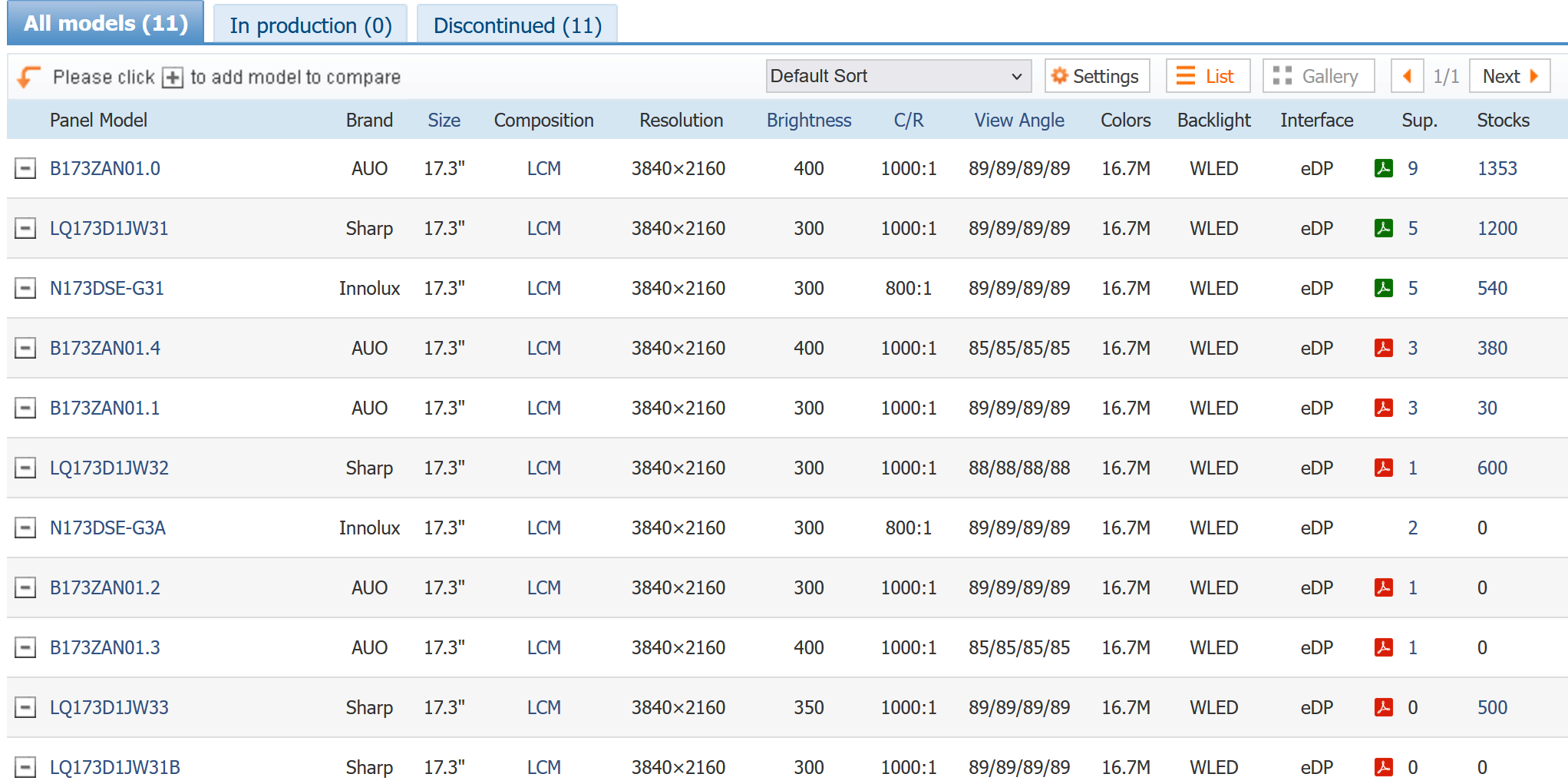
Yes, if you want a UHD screen / 40 pin connector, the compatible webcamera is the IR one, which doesn't fit in the space between the WWAN antenna on the carbon fiber lid. If you don't want a webcam, I think the screen mounting points are the same on both lids. The VBIOS on the card you bought is the best you'll get. No need to download another UHD / 40 pin parts Aluminum back cover: https://www.parts-people.com/index.php?action=item&id=31777 IR Webcam: https://www.parts-people.com/index.php?action=item&id=30446 Bezel: (see eBay) UHD Screen: Dell Part # CK7T7. Below is a list of compatible UHD screen models:
-
Precision 7540 & Precision 7740 owner's thread
Chalybion replied to SvenC's topic in Pro Max & Precision Mobile Workstation
Yeah, as long as the screw holes on the 05VCW8 line up with the holes on your RTX 5000, you will be all good with new paste. As long as the stock thermal pads aren't damaged, you won't notice a significant difference by changing them out. On the 7740, the RTX 5000 already runs at 110 W, which is the maximum available from a Dell VBIOS. Other manufacturers offered up to 150 W on the mobile version of the RTX 5000, and the Precision 7740 thermals could support that easily, but we're stuck with 110W. -
Precision 7540 & Precision 7740 owner's thread
Chalybion replied to SvenC's topic in Pro Max & Precision Mobile Workstation
That's super frustrating. Unless you want/need 4K resolution, it's best to get a new 30 pin display connector (and if there is any issue with the screen, a new 1080P screen). - cable + screen should be ~$140 Otherwise, the 40 pin cable is only compatible with a 4K screen, and also requires an IR webcam, different screen bezel for the IR webcam, and possibly a different lid (unless you already have the aluminum lid). Those changes are $$$ individually, and I don't see any complete display assemblies for sale on eBay right now. The other option would be to buy a cheap complete low-spec or for-parts laptop and take the parts you need